



Table manager: floor plan, LIVE Service and walk-in handling
The same page has two souls. The Floor Plan is where you draw the dining room and assign reservations to tables. LIVE Service is where you run the shift: see at a glance which tables are free, occupied, awaiting the bill or being cleaned, manage the queue of guests waiting outside and seat them with a single tap. Everything updates in real time across every device on the team. Available from Ristorante onward.
Why it pays off
There is a moment, every evening, when the dining room turns into a small chaos: one table asked for the bill ten minutes ago, another still has to be cleared, two people are waiting on their feet at the entrance and you cannot remember whether the six in the back has freed up. All of this, usually, lives in the host's head and on a scribbled sheet of paper.
Carteia's table manager brings that sheet inside the screen, and keeps it updated on its own. The same page does two things:
- Floor Plan — the map of the tables in your venue. Here you draw it once and assign the day's reservations.
- LIVE Service — the dining room as it is right now: who is seated, who is about to pay, which table is free, who is waiting outside. It updates in real time on every phone, tablet and screen on the team.
Available from Ristorante onward, it is the natural step after activating reservations: confirmed reservations already appear here, ready to assign and to seat.
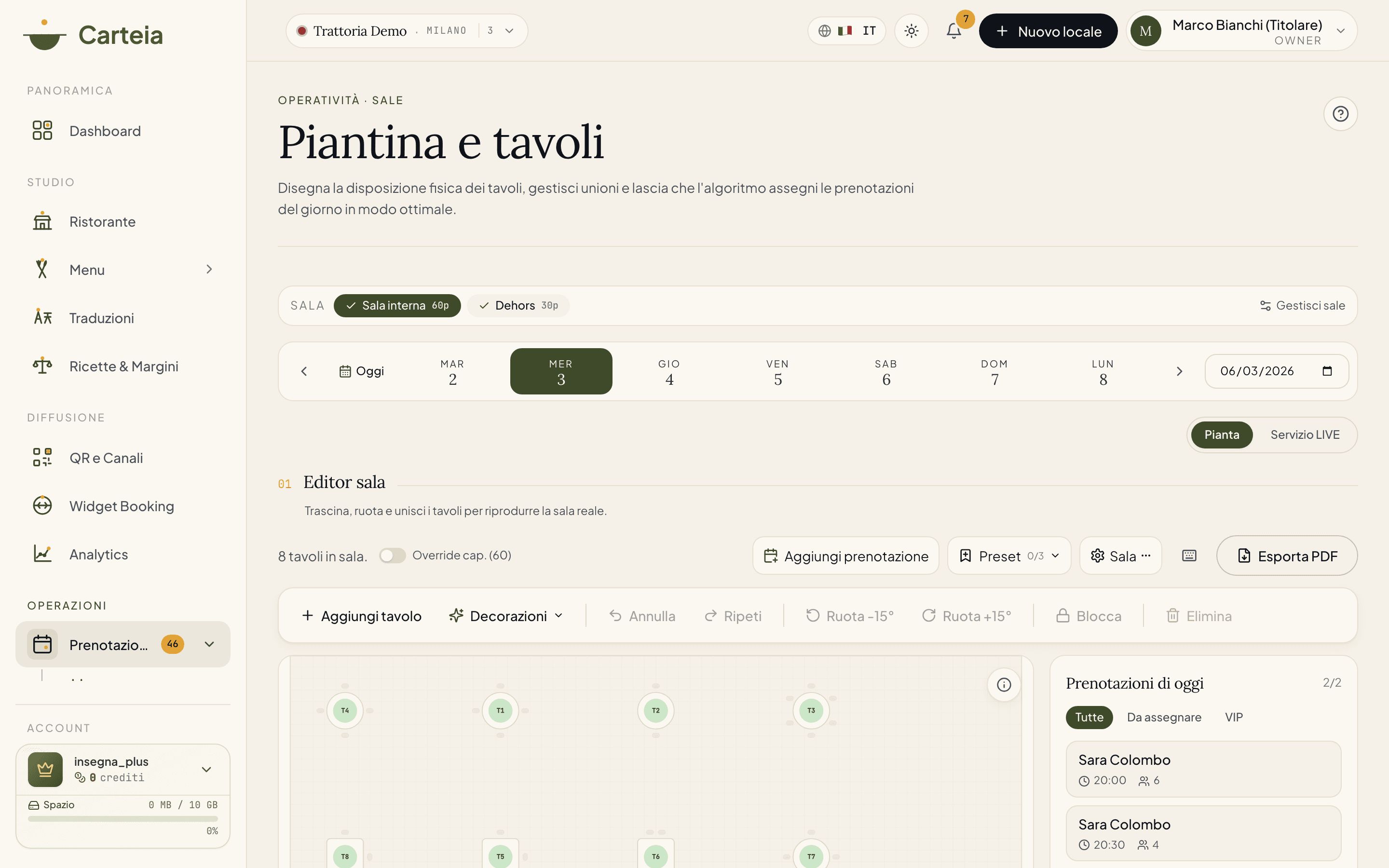
Two ways to work
In the top right corner there is a toggle: Floor Plan and LIVE Service. It is the same table, two different points of view.
- Floor Plan
- The preparation mode. You draw the layout, merge tables for large parties, drag the day's reservations onto tables or let the optimizer do it. It is the work you do before the shift, calmly.
- LIVE Service
- The service mode. No more drag-and-edit: here the tables color themselves based on what happens in the dining room, and with a single tap you seat a guest, request the bill or free a table. It is what the team watches while they work.
The toggle keeps the room and the date you are looking at, so you switch between the two without losing your place.
The dining room floor plan
The first time you open the table manager on a room, a short five-step onboarding creates the initial table layout based on the capacity you declared in Rooms and tables: you choose the room, add groups of tables (for example 8 round tables for 4), give them a code, accept the automatic layout and confirm. From there on you work directly on the map.
In the editor every table is an object you can move, rotate by 15°, resize and lock so it does not move by mistake. When the party of ten arrives and your tables seat four, you select two or three nearby ones and merge them: the editor treats them as a single space, both when you assign reservations and when you print the PDF. You can add decorations (counter, columns, entrance) and even upload a photo of the floor plan as a background, to make the map recognizable at a glance.
Assigning reservations
Above the map you choose the date; on the right the incoming reservations of the day appear. You have two paths:
- By hand — you drag the reservation card onto the table you want. If the seats are not enough, the editor flags it and asks you to confirm.
- Automatically — the optimizer takes all the reservations of the shift and proposes a distribution that fills as many tables as possible, respecting the ones you locked by hand. You accept, edit or discard.
At the end of the day you can print a landscape A4 PDF with the floor plan and the cover list, to hang in the kitchen or hand to the servers. If you have more than one room, they all fit in a single file.
LIVE Service: the dining room in real time
Press LIVE Service and the page changes its job. The tables are no longer objects to move around: they are the mirror of what happens in the dining room, right now.
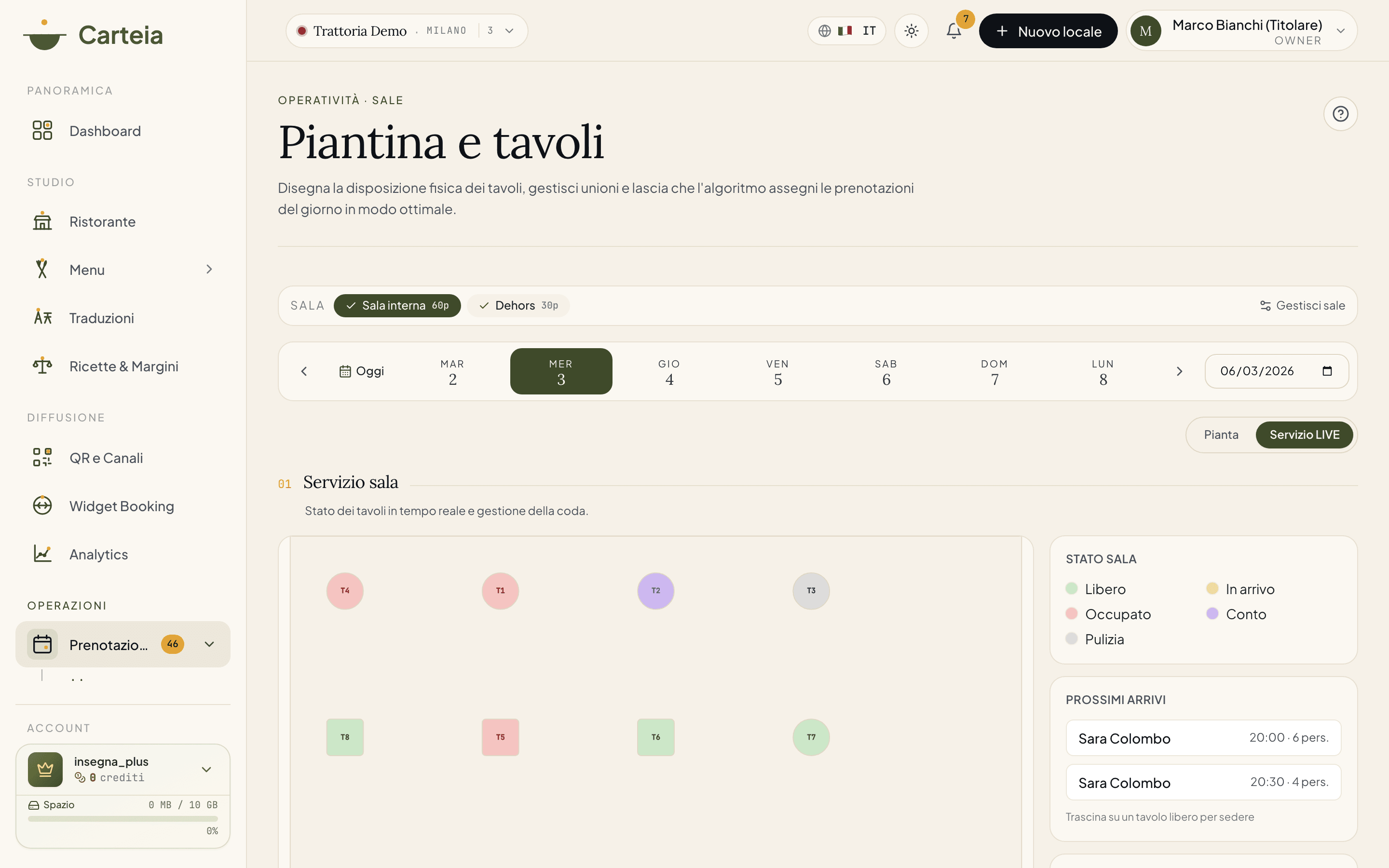
Table status at a glance
Every table has a color, and the color tells a story:
- Free (green)
- Ready for the next guest.
- Arriving soon (yellow)
- It has a reservation about to arrive (within half an hour). A gentle reminder to keep it ready.
- Occupied (red)
- People are seated. Service is in progress.
- Bill (purple)
- They asked for the bill. You know where to bring the POS.
- Cleaning (gray)
- They have left, it needs to be cleared before it can be reused.
The beauty of it is that all this is shared and in real time: if a server frees a table from their phone, the screen at the till sees it turn green within a second, with nothing to reload. No more "did the three free up?" shouted across the room.
Seating a guest
Tap a free table and a panel opens with everything you can do. Seating someone is the most frequent action, and you have three ways:
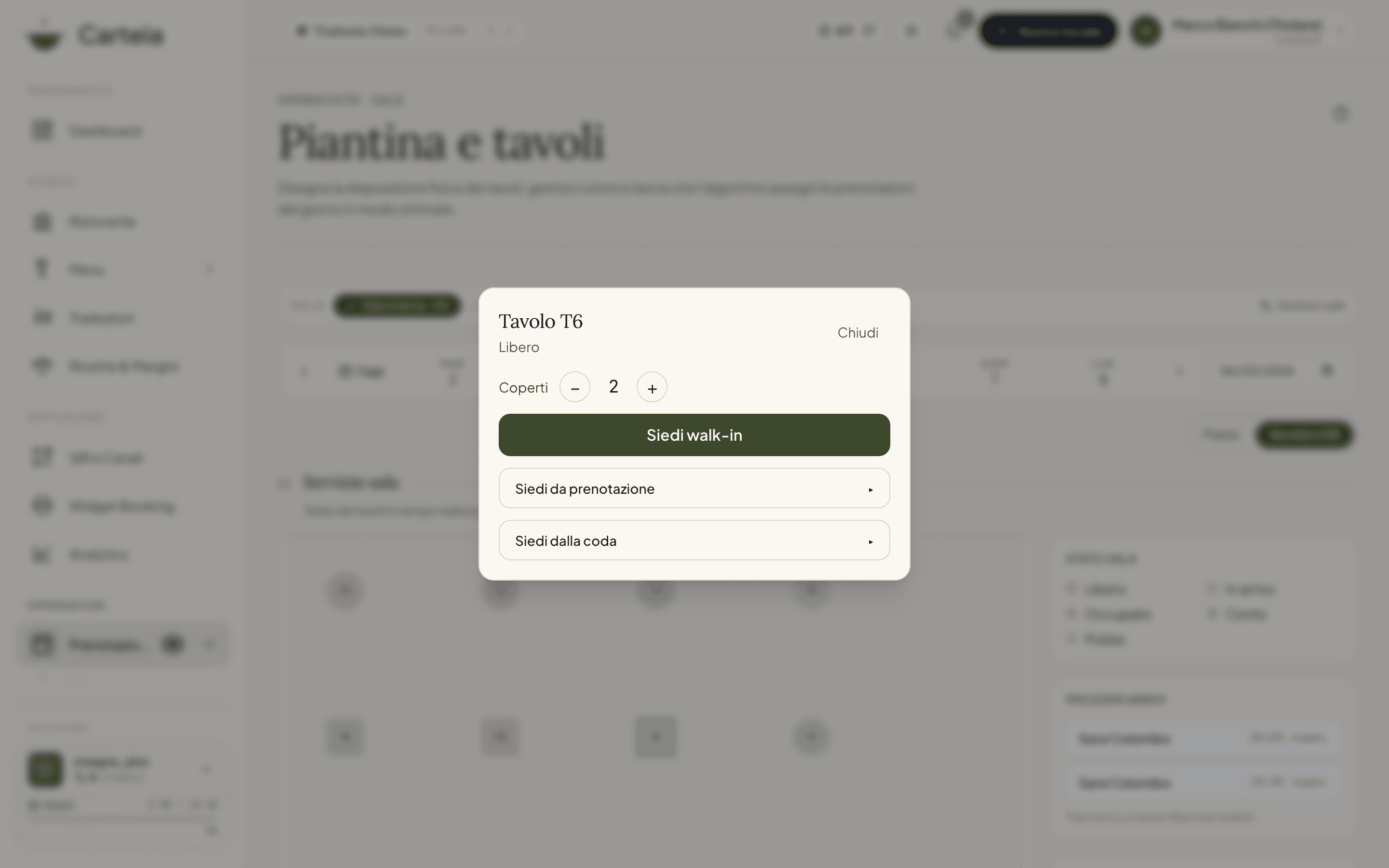
Seat a walk-in. For those who arrive without a reservation: you set the covers and seat them. It is the most common case in fast service.
Seat from a reservation. Choose a name from today's reservations that have not arrived yet. The table links to the reservation, which is then marked as "seated."
Seat from the queue. Take the next name from the waitlist of those waiting outside. The wait ends, the guest sits down.
There is also a shortcut hosts love: from the Upcoming arrivals panel on the right you can drag the reservation directly onto the free table. It works with the mouse on the computer and with your finger on the floor tablet.
Managing an occupied table
Tap an occupied table and the panel offers you the actions of the moment:
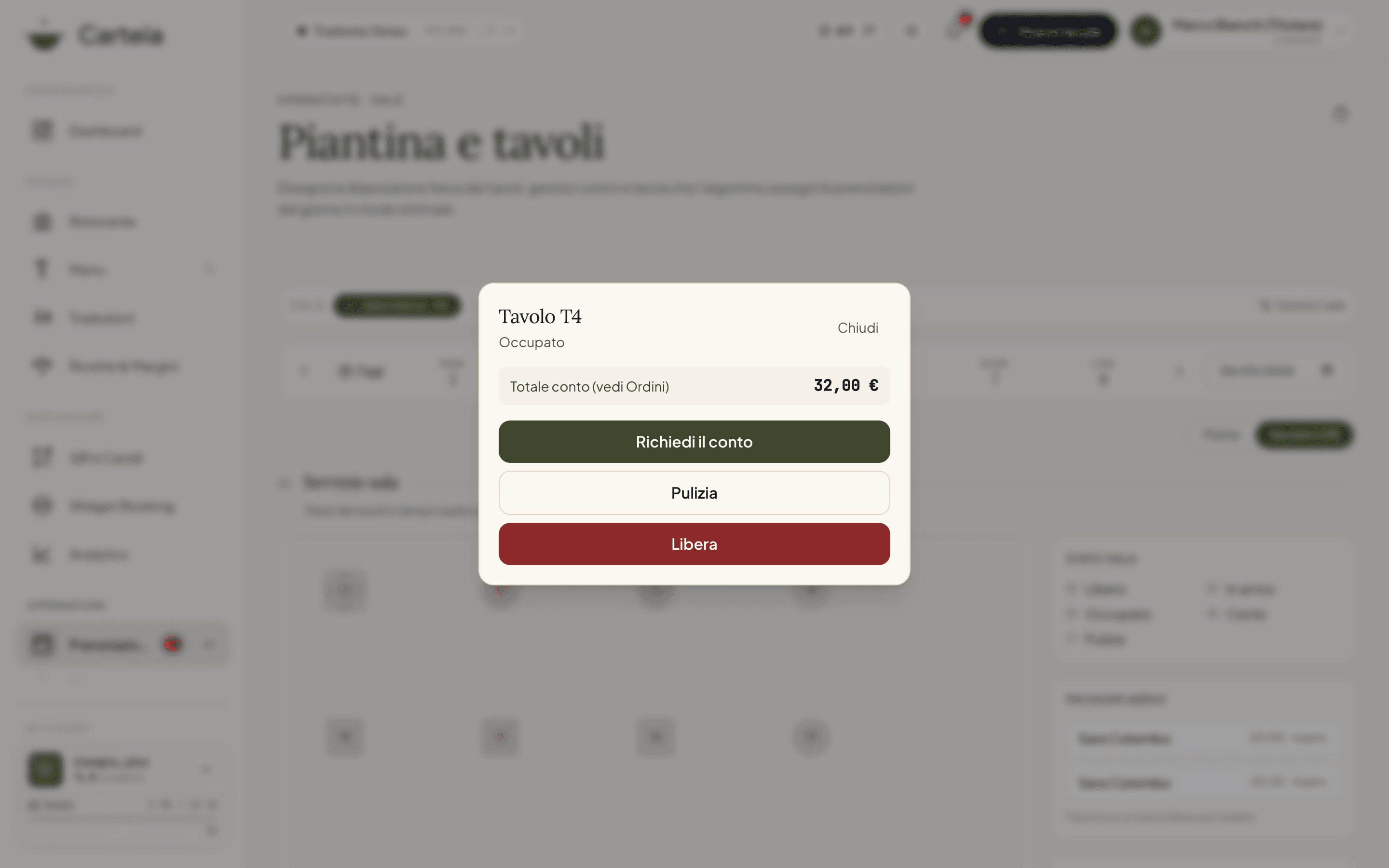
- Request the bill — the table turns purple. Everyone sees that this table is about to pay.
- Cleaning — the table turns gray: it is free but still needs to be cleared.
- Free — the table turns green again, ready for the next guest. If it was linked to a reservation, you can mark it as completed.
The queue of guests waiting outside
On packed evenings the waitlist is one of the hardest things to keep in your head. In LIVE Service the walk-in queue is a column always in sight: you add a name with its covers, see how long they have been waiting, and when a table frees up you seat them with a single tap.
For each person in the queue you can:
- Notify — you mark that you have called them (for example you gave them a nod or phoned them). It stays recorded, so no one calls them twice.
- No-show — those who did not show up leave the queue without confusion.
- Cancel — removes the name if they change their mind.
When the kitchen lights up a table on its own
If you also use Table Orders and QR, the two things talk to each other: when a guest sends the first order from the table QR, that table becomes occupied on its own in LIVE Service, even if no one seated it by hand. And when the bill is paid, the table moves to "bill." Fewer manual steps, fewer things to remember.
The guest, from their phone
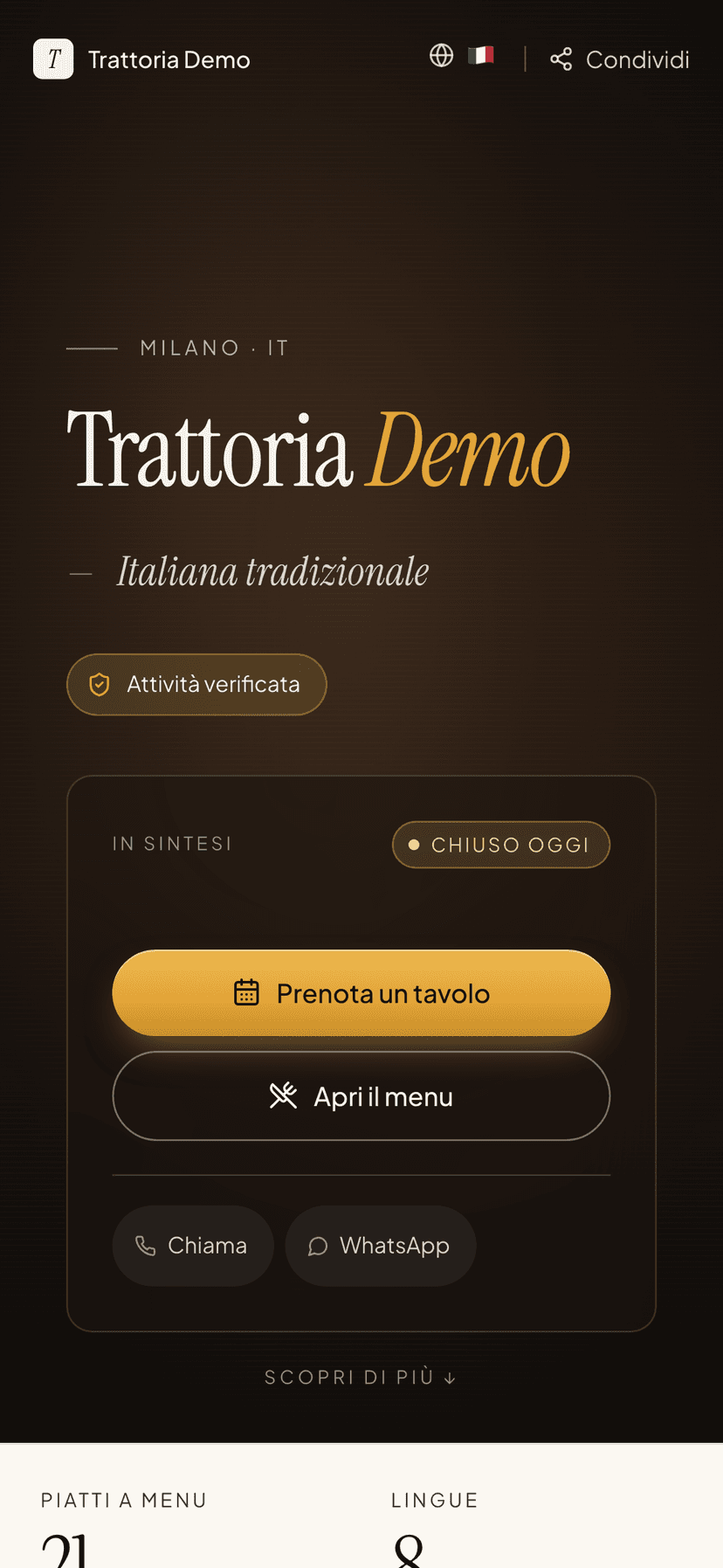
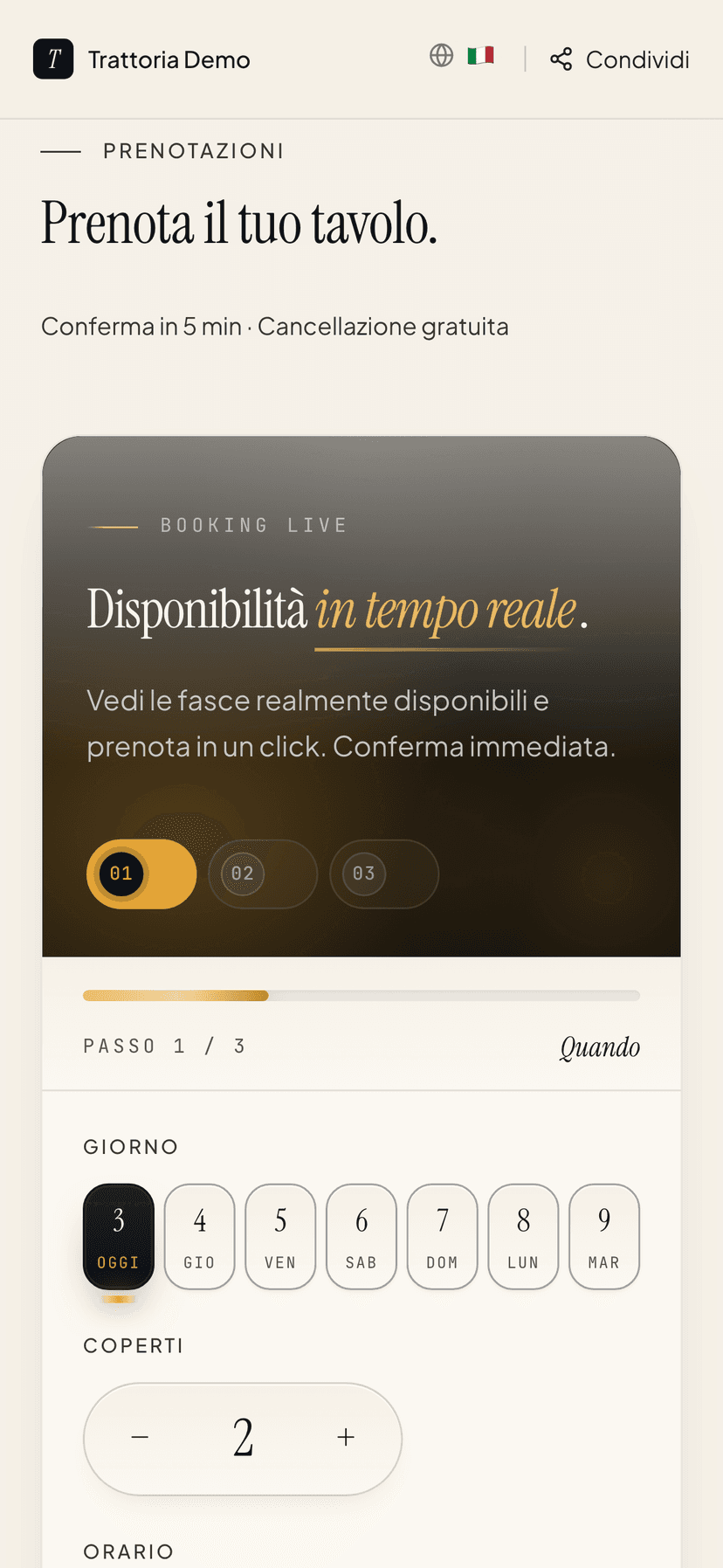
The live dining room also comes from the reservations that arrive from guests. From your venue's public page, anyone can book a table from their phone in a few taps: they choose the day, the covers and the time among the real availabilities. The confirmed reservation appears automatically in your dining room, ready to assign and to seat.
Who can do what
The table manager distinguishes two responsibilities, on purpose:
- Running the shift (seating guests, managing the queue, changing table status) is open to all staff, from the basic collaborator role upward. It is the daily work of the team.
- Drawing the floor plan (adding, moving, merging or archiving tables) stays reserved for the roles that can edit the menu (editor and above). This way a server does not move the dining room by mistake during the shift.
Limits by plan
| Feature | Assaggio | Osteria | Bistro | Ristorante | Insegna | Insegna Plus |
|---|---|---|---|---|---|---|
| Dining room floor plan (editor) | No | No | No | Yes | Yes | Yes |
| Reservation assignment + optimizer | No | No | No | Yes | Yes | Yes |
| Service PDF export | No | No | No | Yes | Yes | Yes |
| LIVE Service: real-time table status | No | No | No | Yes | Yes | Yes |
| Walk-in queue | No | No | No | Yes | Yes | Yes |
| Bill total on the table | No | No | No | Add-on | Add-on | Add-on |
| Aggregated view across group venues | No | No | No | No | Yes | Yes |
What it does NOT do
- It is not a till. It does not issue receipts nor handle payments: it tells you the status of the dining room, it does not replace the cash register.
- It does not send SMS to guests in the queue. The notification is a reminder for you, not an automatic message to the guest.
- It is not for "doing design." The editor is functional: it serves to recognize the dining room, not to produce photorealistic renderings.
Related features
- Rooms and tables — rooms, capacity and time slots (the prerequisite).
- Reservations and Advanced Booking — where the reservations you seat in the dining room come from.
- Table Orders and QR — the orders from the table that feed the bill total and light up tables on their own.
- Plans and credits — what each plan includes.
Frequently Asked Questions
- What is the difference between the Floor Plan and LIVE Service?
- The Floor Plan is for preparation: you draw the tables and decide where to seat the day's reservations. LIVE Service is for the shift itself: it shows the real status of every table (free, occupied, awaiting the bill, being cleaned) and lets you handle walk-ins. You switch between the two with the toggle in the top right corner.
- Does LIVE Service cost a separate add-on?
- No. It is included in the Ristorante plan (and above), like the whole table manager. The only thing that depends on an add-on is the bill total on the table: it appears only if the Table Orders and QR module is active for the venue.
- Does the table status update on every device?
- Yes. If a server frees a table from their phone, the screen at the till and the host's tablet see it change within a second, with no page reload.
- Who can use LIVE Service?
- All staff (from the basic collaborator role upward) can seat guests, manage the queue and change table status. Drawing the floor plan, however, stays reserved for the roles that can edit the menu (editor and above).
- What happens to reservations when I seat a guest?
- When you seat a party coming from a reservation, the table becomes occupied and the reservation is marked as 'seated.' If you later free the table, you can mark the reservation as completed with a single tick.
Version history
v2.0.02026-06-03— Aggiunto il Servizio LIVE: stato tavoli in tempo reale (libero/in arrivo/occupato/conto/pulizia), coda walk-in, action sheet per sedere e gestire i tavoli, drag della prenotazione sul tavolo, collegamento con gli ordini. Tutti gli screenshot rigenerati dalla dashboard reale (frame browser + iPhone). Ruoli chiariti: servizio per lo staff, layout per editor in su.v1.1.02026-05-29— Aggiunto il rimando al suggerimento tavoli dal dettaglio prenotazione (Advanced Booking), tabella piani estesa ai 6 piani.v1.0.02026-05-25— Prima pubblicazione: onboarding wizard, editor canvas, ottimizzatore assegnazioni, esportazione PDF multi-sala.