



Table Orders and QR: a dining room that takes orders on its own
Every table has its own QR. The guest orders from their phone, the order arrives in your dashboard with a notification and a sound. Everything added afterward goes onto the same table bill: the guest's additions you confirm before the kitchen. The waiter can order by hand or by scanning the table. The table lights up on its own in LIVE Service when the first order arrives. You edit orders (everything stays in the history), print kitchen and bar separately, mark sold-out items and close the bill with a sequential number. At the end of the day you have the summary, the bill as a PDF and the Excel export.
This guide explains, in simple words, how to turn your guests' phones into an ordering point and how the dining room becomes faster. It is meant both for you who run the venue and for the floor staff: at the end you will find a practical flow to follow during the shift.
Why it pays off for your venue
- Fewer trips and fewer errors. The order arrives written, clear, already in the system. No lost sheets, no "what did the three order?".
- More covers at peak hours. The guest orders as soon as they are ready, without waiting for someone to pass by. The table turns over faster.
- The average check goes up. A menu always at hand encourages the second round: another glass, a dessert, a coffee.
- The kitchen works better. Orders arrive in real time, with an audible alert, and are printed split between kitchen and bar.
- The dining room is always up to date. Every order lights up the table in LIVE Service: whoever watches the dining room always knows what is happening.
The guest orders from their phone
Every table has its own QR. The guest scans it with their camera — no app, no registration — and your venue's menu opens in the browser. They browse the dishes (food, wines and beers included), and when the menu is opened from the table QR an extra button appears: order for this table.
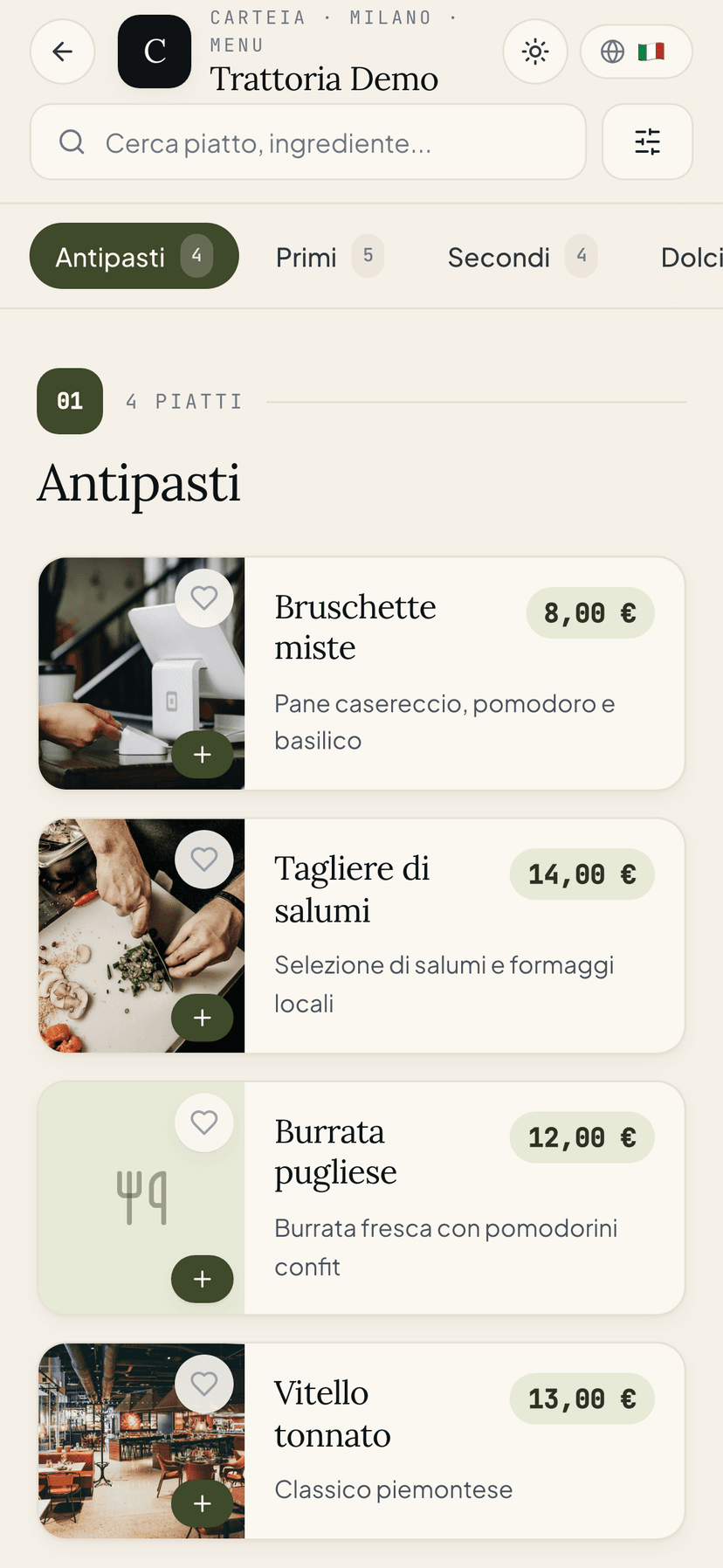
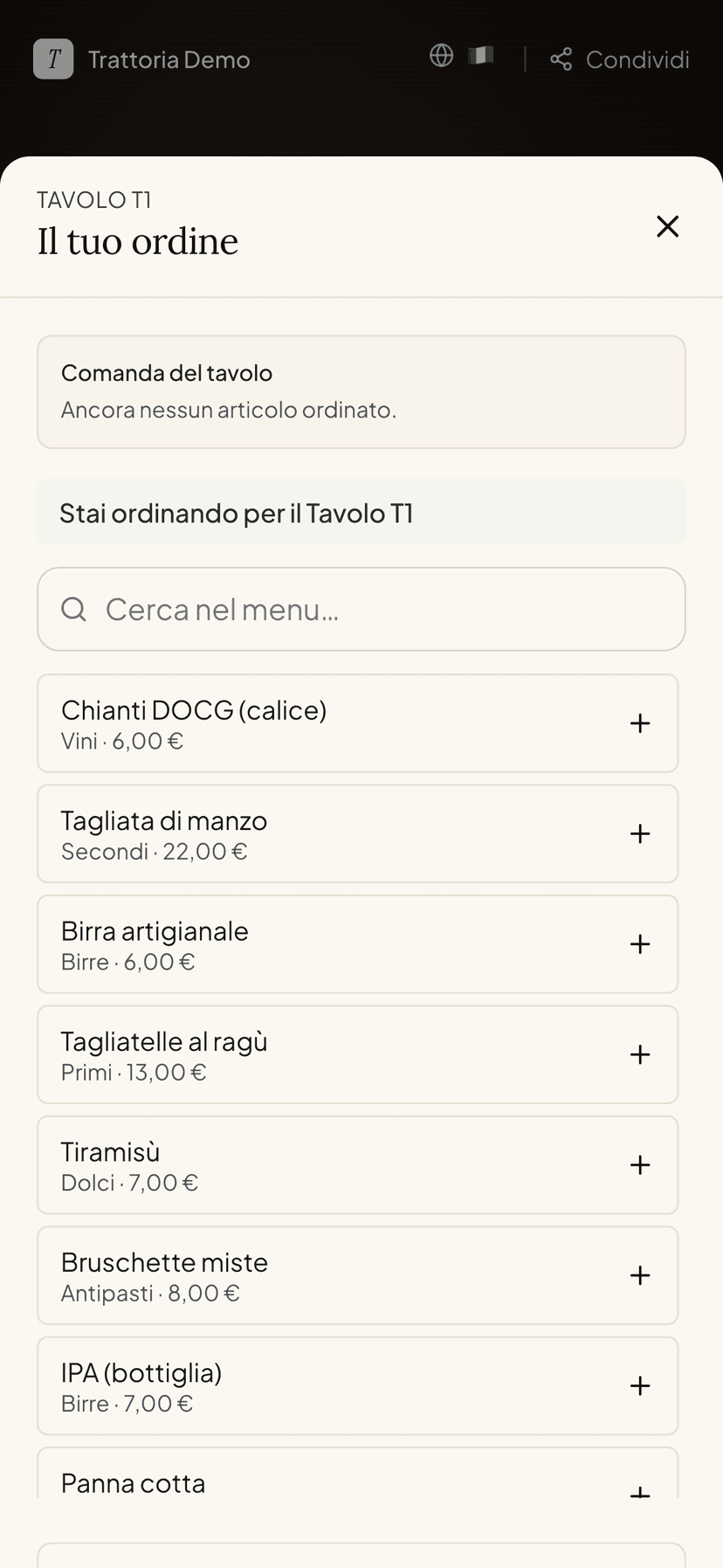
The guest can add a note — for example no onion — and send. The order heads to your kitchen.
The order arrives right away, with sound
In the Received orders dashboard the order appears the moment the guest sends it, accompanied by a sound. In the kitchen all you have to do is keep the screen open: there is no need to reload the page or check constantly.
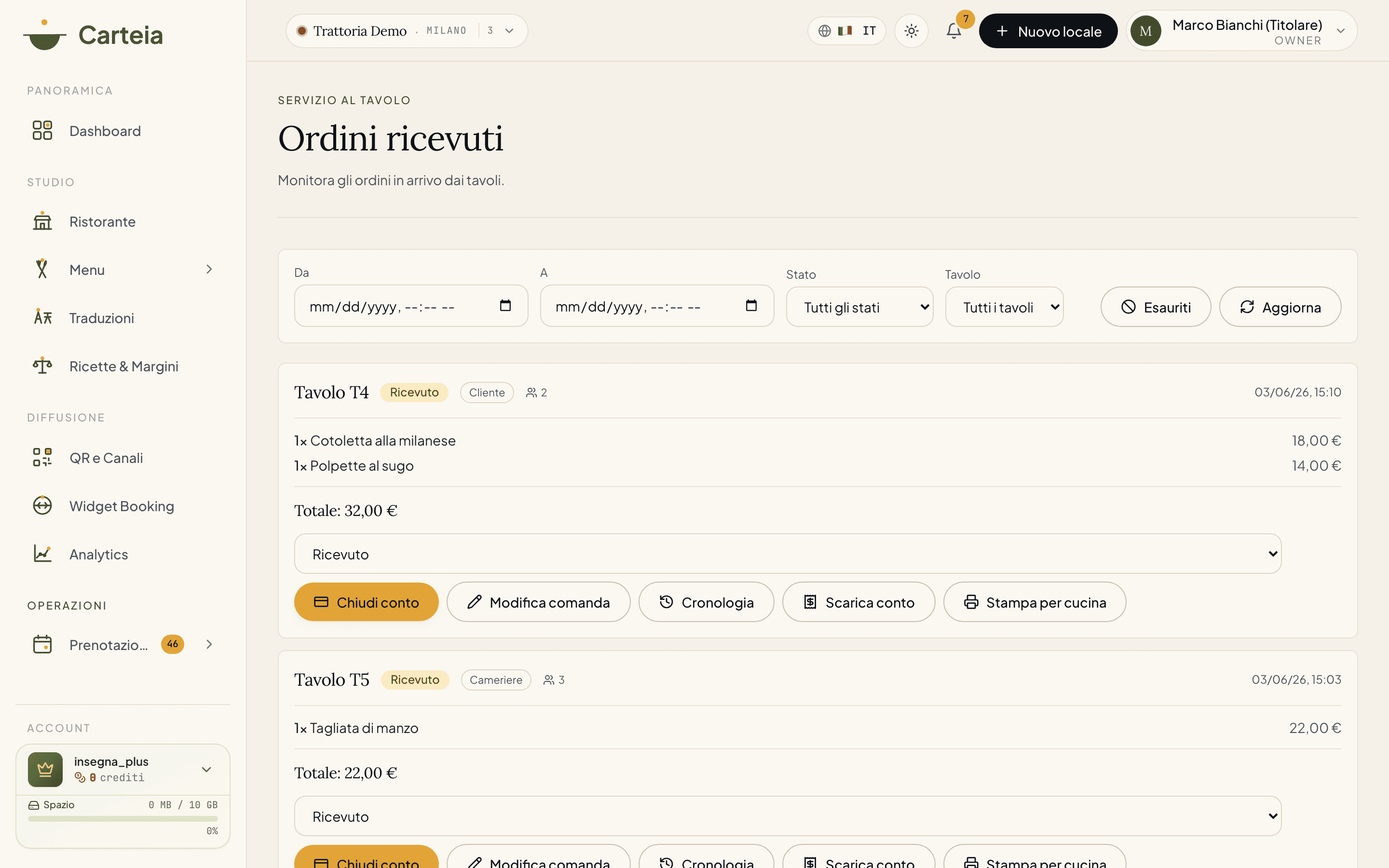
It is the command center of the dining room. For each order you see the table, the items, the notes and the total. You can filter by date, time, status or table, advance the dish status (Received → Preparing → Ready → Served), print for the kitchen and see who ordered what, whether the guest or the waiter.
The bill grows with the table
This is the part that saves you time. If the guest, midway through the meal, reopens the menu and orders a dessert, a new bill does not start: the dessert adds to the same table bill.
The additions made by the guest arrive marked as to confirm. You accept (or reject) them with a single tap: only after your confirmation do they go to the kitchen and end up on the total. It is your guarantee that no one orders on the sly and that the bill always stays under control.
Orders taken by the waiter
Not all guests order from their phone, and that is perfectly fine. The waiter creates an order by hand from the Waiter orders section: they choose the table (from the list or by scanning the table QR with the phone), add the dishes, indicate the covers and send.
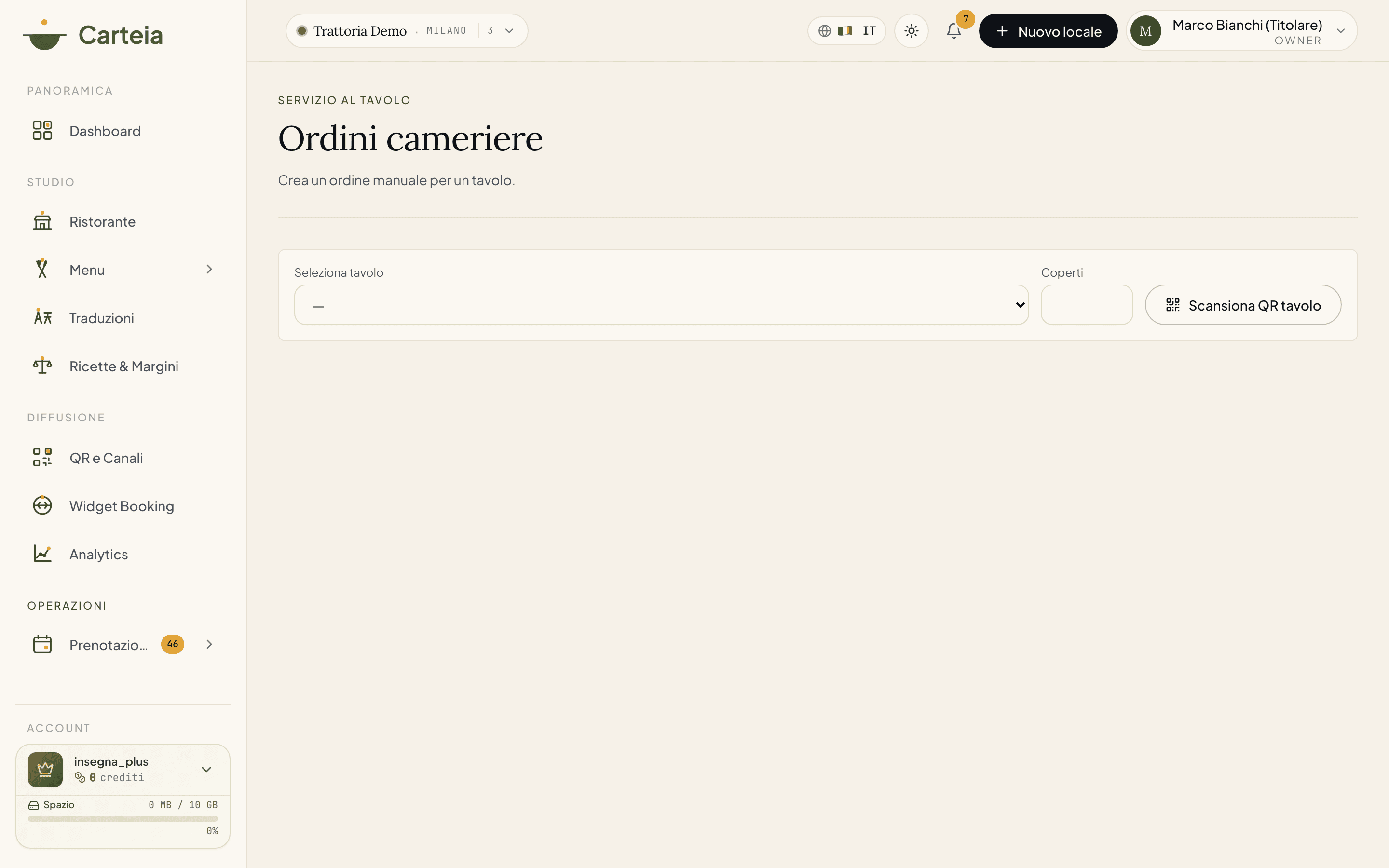
These orders too end up on the same bill: guest and waiter feed a single bill, with no duplicates.
The dining room lights up on its own
Here Table Orders and QR and the table manager talk to each other. When the first order of a table arrives, that table becomes occupied on its own in LIVE Service, even if no one seated it by hand. When you close the bill as paid, the table moves to bill. And in the table panel, in the dining room, the real-time total appears: the host knows how much is about to come in before even reaching the table.
The result: fewer manual steps. The order advances the status of the dining room on its own, and you focus on the service.
Closing the bill
At the end of the meal you close the bill with a single tap: you choose the payment method (cash, card or other), an optional tip, and the bill receives a sequential number for the venue, handy for the till and the accounting. From that moment the table is free and the next guest who scans it starts a new bill.
The QRs, the printing, the sold-out items
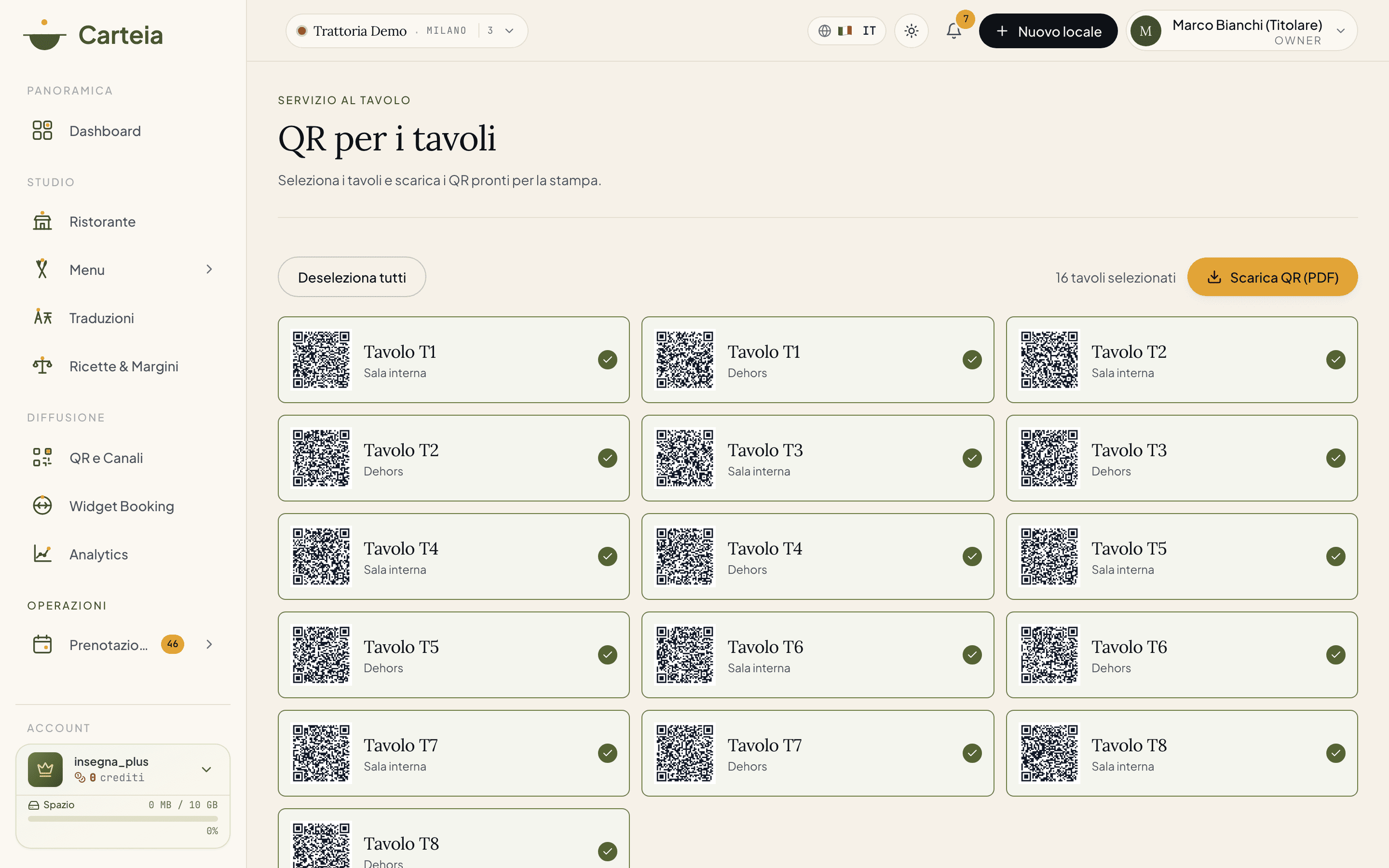
A few details that make the difference during the shift:
- Split kitchen/bar printing. When you print an order, the items go to the right station: the dishes to the kitchen, the wines and beers to the bar. Each station receives only what concerns it.
- Sold-out items (86). If a dish runs out, you mark it as sold out from the dashboard with a single tap: it immediately disappears from the items guests can order, and becomes available again when you reactivate it.
- Covers. By indicating the table's covers you will know at the end of the day the revenue per cover, a valuable number for understanding how the venue is doing.
- Status for the guest. From their phone the guest can see how far along their order is (received, preparing, ready): fewer questions, less perceived waiting.
Summary and reports
At the end of the day, or for the period you choose, you have a clear summary: revenue, average check, open and closed bills, best-selling items, the mix between food, wines and beers, and the service times (how long passes between the order and the dish being ready).
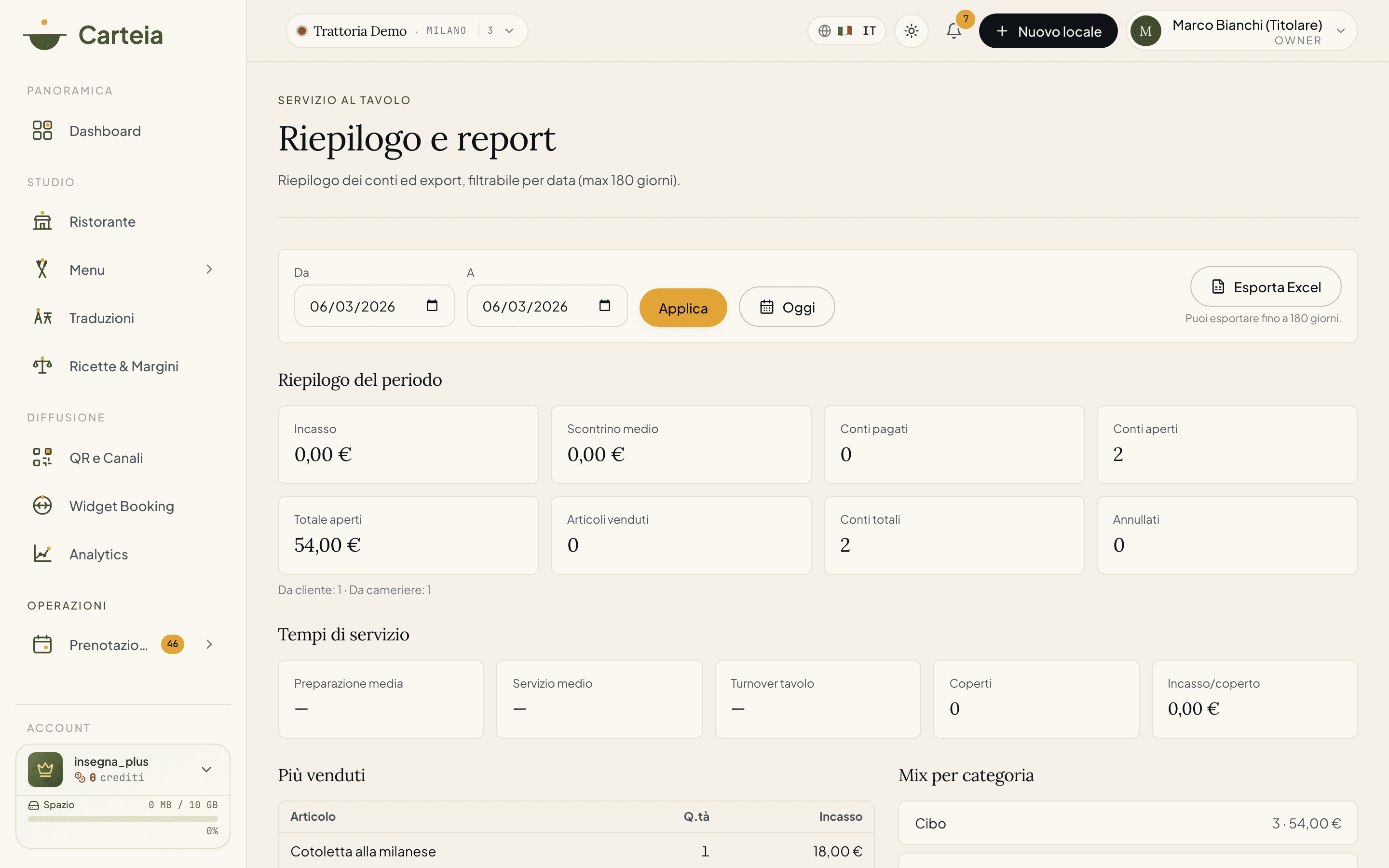
You can download the bill as a PDF of each table, even before closing it, and export to Excel all the bills of a period (up to 180 days), with the detail of every order, to pass to the accountant.
For the floor staff: the service flow
Keep these steps at hand during the shift.
Welcome the table. If the guest orders on their own, make sure the QR is on the table and readable. If you take the order, open Waiter orders, choose the table (or scan the QR) and set the covers.
Send to the kitchen. Send the order. In the kitchen it arrives right away, with the sound. Print if your station requires it.
Confirm the additions. If the guest adds dishes from their phone, they appear "to confirm" in the dashboard: check and accept. Only then do they go to the kitchen.
Keep the status updated. Advance Preparing → Ready → Served: the guest sees the progress and you always know where you are.
Edit if needed. Change of mind or error? Edit the order; everything stays in the history.
Close the bill. Choose payment and an optional tip. The table frees up, in LIVE Service too, for the next guest.
Related features
- Table manager and LIVE Service — the real-time table status that the orders light up on their own.
- Rooms and tables — the tables the QRs come from.
- Menu management — the dishes, wines and beers the guest orders.
- Plans and credits — detail of what each plan includes.
Frequently Asked Questions
- From which plan is it available and how much does it cost?
- It is an add-on module at 15 €/month, available from the Ristorante plan upward. It activates with a single click from the Billing page. The Ristorante plan (or above) is required because the module relies on table management.
- Does the guest have to download an app?
- No. They scan the table QR with their camera, the menu opens in the browser and they order from there. No app, no registration.
- If a guest adds more dishes later, does a new bill start?
- No. Everything adds up on the same table bill until you close it. The additions made by the guest arrive as 'to confirm': you accept them before they go to the kitchen.
- What is the relationship with the dining room LIVE Service?
- They are connected. When the first order of a table arrives, that table becomes 'occupied' on its own in LIVE Service; when the bill is paid it moves to 'bill.' And in the table panel, in the dining room, you see the bill total in real time.
- Can I turn off QR ordering on packed days?
- Yes, with a toggle. When it is off, the guest does not see the button to order, but the waiters keep taking orders as usual.
- Can the bill data be exported for the accountant?
- Yes. You export all the bills of a period (up to 180 days) in Excel, with the detail of every order. Each closed bill also has its own PDF and a sequential number.
Version history
v1.1.02026-06-03— Screenshot reali della dashboard al posto delle illustrazioni (frame browser + iPhone cliente). Aggiunto il collegamento con il Servizio LIVE della sala: la comanda accende il tavolo, il pagamento lo manda a 'conto', il totale compare nel pannello del tavolo.v1.0.02026-05-30— Prima pubblicazione della guida: QR per tavolo, ordinazione cliente, dashboard ordini, conto progressivo, ordini cameriere, chiusura, stampa cucina/bar, esauriti, coperti, riepilogo ed export.