



Rooms and tables: your venue's spaces and covers per shift
The Rooms and tables page is where you describe your venue's spaces (table, private room, terrace, outdoor area, private area) with type, maximum capacity and a photo, and where you set how many covers to accept in each time slot. Carteia checks that slots don't exceed your real seats and fall within opening hours, and you can apply the same slot to several days at once. On plans with Advanced Booking (from Ristorante) this setup powers the automatic availability control and the Table Manager floor plan.
Why it pays off
If you want guests to book without you having to check "do I still have room?" every time, this is where you start. In Rooms and tables you describe your venue's spaces and say how many covers you accept in each time slot. From then on Carteia knows exactly what's bookable, and from Ristorante up it shows guests only the times that are really free.
You'll find it in Dashboard → Rooms & tables. It's accessible on every plan with reservations: even with simple requests, declaring several rooms lets the guest choose where to sit.
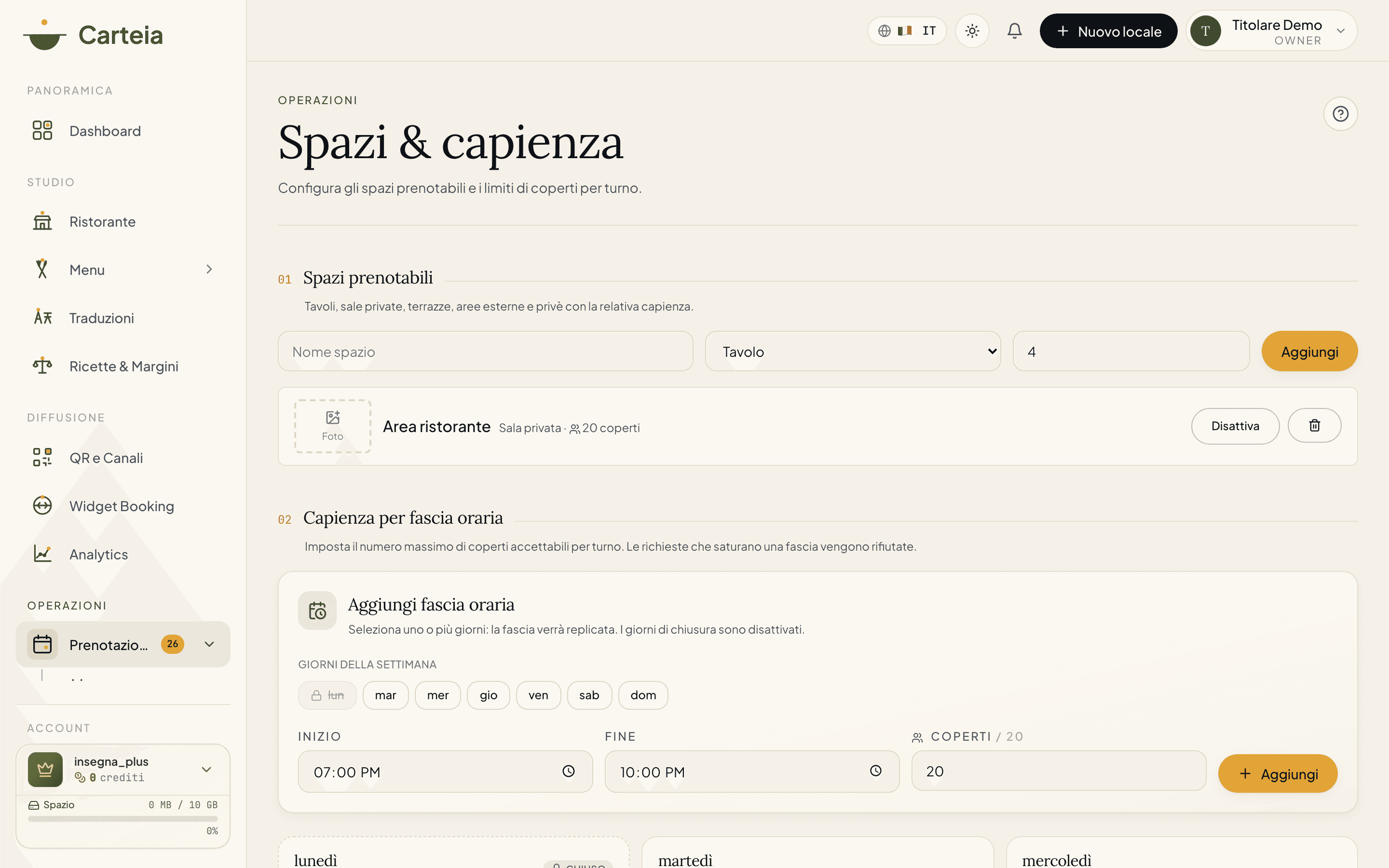
The bookable spaces
You add one row per space you want to make bookable. For each you choose:
- Name — what you call it (e.g. Main room, Summer terrace, Private area for 8).
- Type — one of five: table, private room, terrace, outdoor area, private area.
- Maximum covers — how many people fit (from 1 to 1000).
- Photo (optional) — an image of the space, which the guest sees on the public menu when choosing where to sit.
Each space has an active / inactive toggle: an inactive space takes no bookings but stays in the archive, ready to reactivate (handy for the terrace you only open in summer).
Capacity per time slot
For each day of the week you set one or more slots with the maximum number of covers you accept.
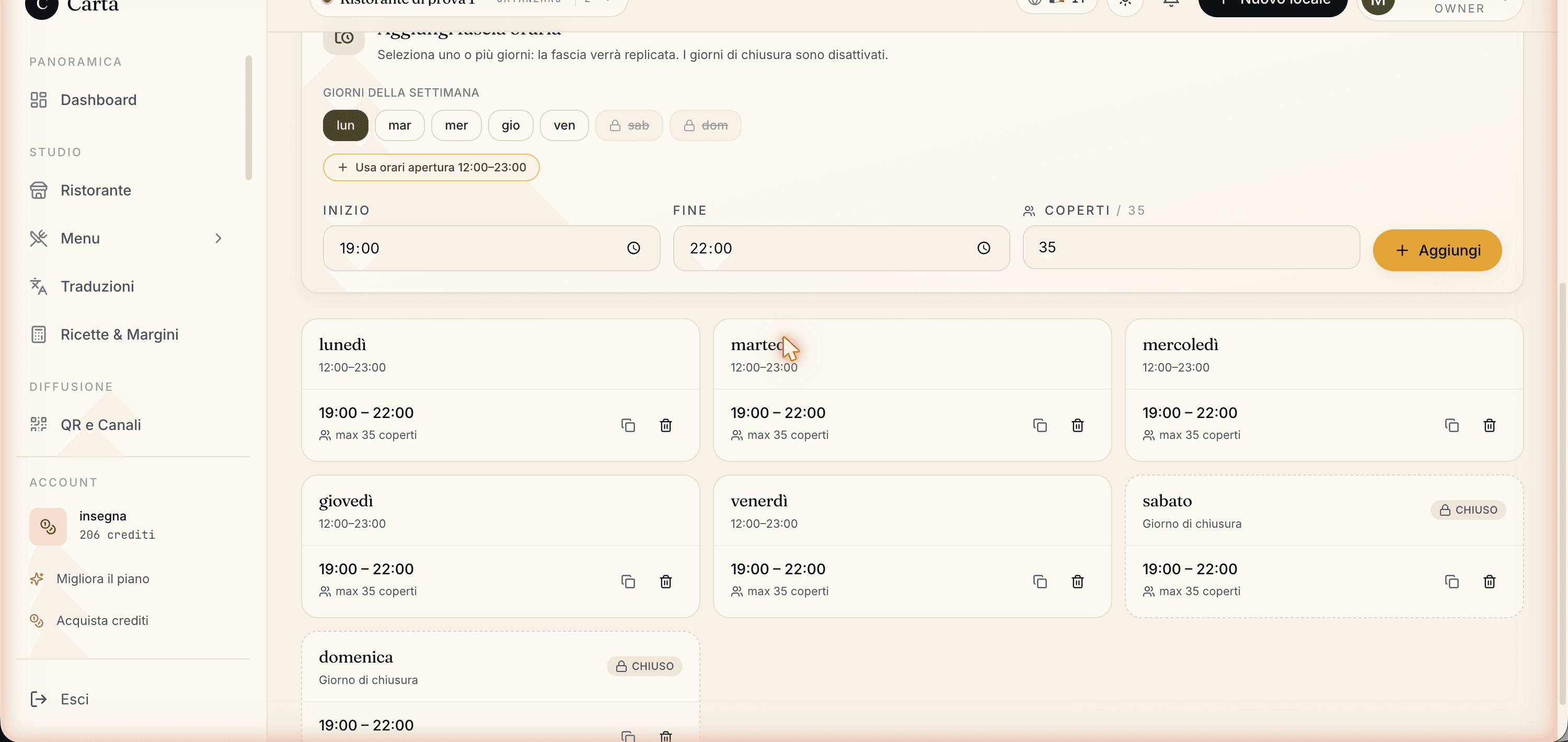
Choose the days to apply the slot to (days are selected by clicking them; closing days show with a lock).
Set the start and end time (e.g. 19:00–22:00 for dinner).
Set the maximum covers in the slot (e.g. 35).
Click
Add. The slot appears in the cards of the chosen days.
Carteia checks for you
As you create a slot, the system blocks configurations that make no sense, so you never promise seats you don't have:
- Slot over the total capacity of active rooms → rejected.
- Slot on a closing day → rejected.
- Slot outside opening hours → rejected.
- At least one active room is required before creating slots.
If you apply the same slot to several days and some are closed or out of hours, Carteia creates the slots on the valid days and warns you about the ones it skipped.
What changes from plan to plan
| Feature | All plans (with reservations) | From Ristorante up |
|---|---|---|
| Create rooms and spaces (unlimited number) | Yes | Yes |
| Define time slots with capacity | Yes | Yes |
| Validation against opening hours | Yes | Yes |
| Same slot on several days | Yes | Yes |
| Photo for each room | Yes | Yes |
| Automatic availability control for the guest | No | Yes |
| Automatic double-booking block per room and shift | No | Yes |
| Live floor plan (Table Manager) | No | Yes |
| Occupancy analytics per shift | No | Yes |
How it fits with everything else
In Rooms and tables you add the spaces (name, type, covers, photo).
You define the time slots with the multi-day selector.
On plans with Advanced Booking (from Ristorante), you enable reservations from the Reservation settings.
The public form will show only the times and rooms that are really available, and in the Table Manager you draw the floor plan and assign tables.
Related features
- Reservations — overview — the two levels and the list.
- Advanced Booking — the automatic availability control that uses these rooms.
- Table Manager — the floor plan, which starts from the spaces configured here.
- Table QR codes — your menu's QR codes.
- Insights and Analytics — occupancy per shift in Reservation intelligence.
Frequently Asked Questions
- Do I need to configure rooms if I only use simple table requests?
- No, you can skip it: rooms and capacity are for the automatic control of Advanced Booking. With simple requests you just enable the module. That said, if you declare several rooms, even with simple requests the guest can choose where to sit.
- What happens if I set a slot over the seats I have?
- Carteia rejects it: a slot can't exceed the total capacity of your active rooms. That way you never accept more covers than you really have.
- Can I set the same slot on several days at once?
- Yes. The day selector accepts multiple choices: you set a slot and apply it to all the days you want with one click. Closing days show with a lock.
- What happens on closing days?
- If a day is closed in the venue's hours, you can't create slots on that day and no booking is accepted. Carteia warns you as you try to add it.
- Can I add a photo to the rooms?
- Yes, each space can have its own photo, which is also shown on the public menu when the guest chooses where to sit.
Version history
v3.0.02026-05-29— Rewrite with commercial tone and fixes: removed the unverifiable claims about per-table analytics (scans, reading time) that don't belong on this page. Documented the 5 real space types, the per-room photo and slot validation. Clarified that the page is accessible on every plan with reservations, but automatic control is from Ristorante.v2.0.02026-05-20— Added: validation against opening hours, multi-day bulk creation, advanced booking integration.