



Get reviews from verified guests
Paste your Google 'Write a review' link into the venue's Extra info tab and turn on the email request. Carteia writes to the guest 16 hours after the booking, but only if they showed up: people who didn't come get nothing. Available from Osteria up.
What it's for
Google reviews are the first signal that convinces someone who doesn't know you yet to book. They weigh on how your venue ranks in local searches and are often the only thing a guest reads before choosing where to have dinner.
The age-old problem is asking at the right moment without becoming pushy. Carteia does it for you: you connect the Google review link once in the venue's information, and the app sends an email request only to guests who actually showed up, the day after the visit. People who didn't come get nothing — that's why these are verified reviews, written by people who really ate with you.
Step 1 — Get the link from Google
The link to paste into Carteia is the "Write a review" link of your Google Business Profile: it opens the five-star window directly, with nothing for the guest to search for.
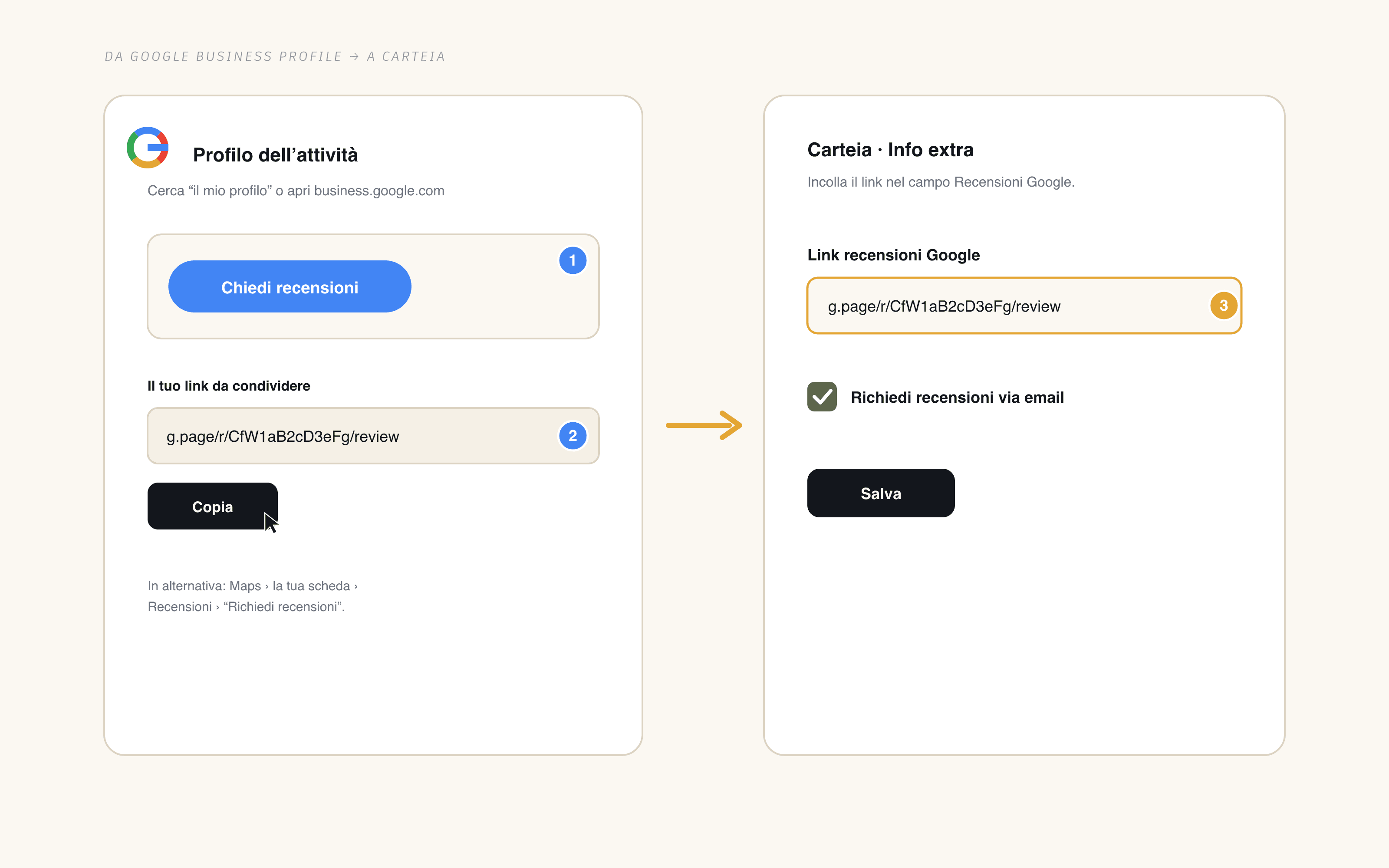
Open your profile at business.google.com or search your venue's name on Google while signed in with the account that manages it.
Press
Ask for reviews(in some versionsGet more reviews). Alternatively, from Google Maps open the venue's listing, go to Reviews and useRequest reviews.Copy the short link that Google shows you: it looks like
g.page/r/…/review. It's the same link you might print on a QR code at the table.
Step 2 — Paste it into Carteia
You set the link once, from the venue's information.
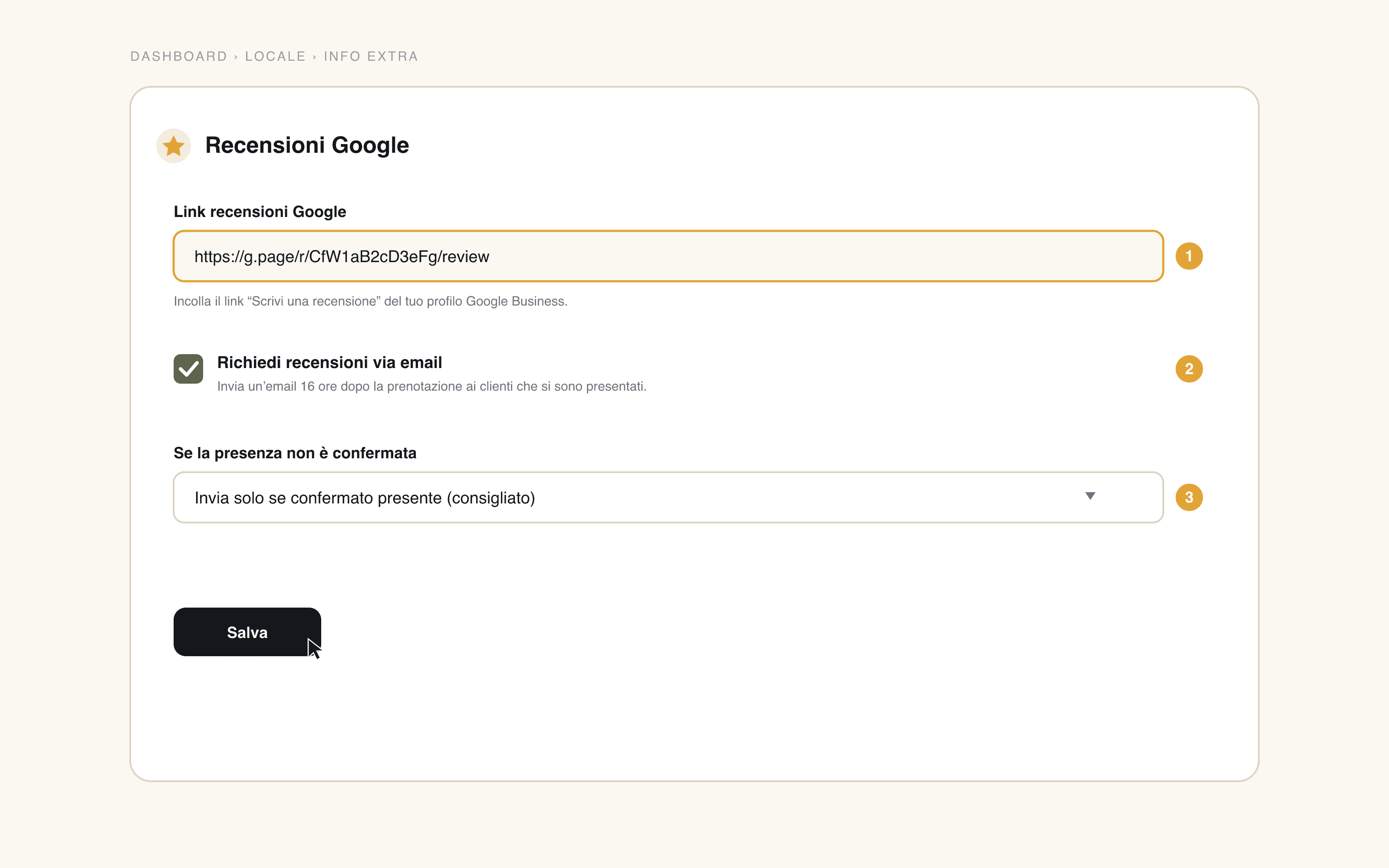
Go to
Dashboard → Venueand open theExtra infotab,Google reviewssection.Paste the link into the
Google review linkfield.Turn on
Request reviews by email: it's the switch that starts the automatic sending.Choose the policy under
If attendance isn't confirmed(see below) and pressSave.
How sending works
Once it's on, the feature runs on its own. Every hour Carteia checks the mature bookings and sends the request to those who qualify.
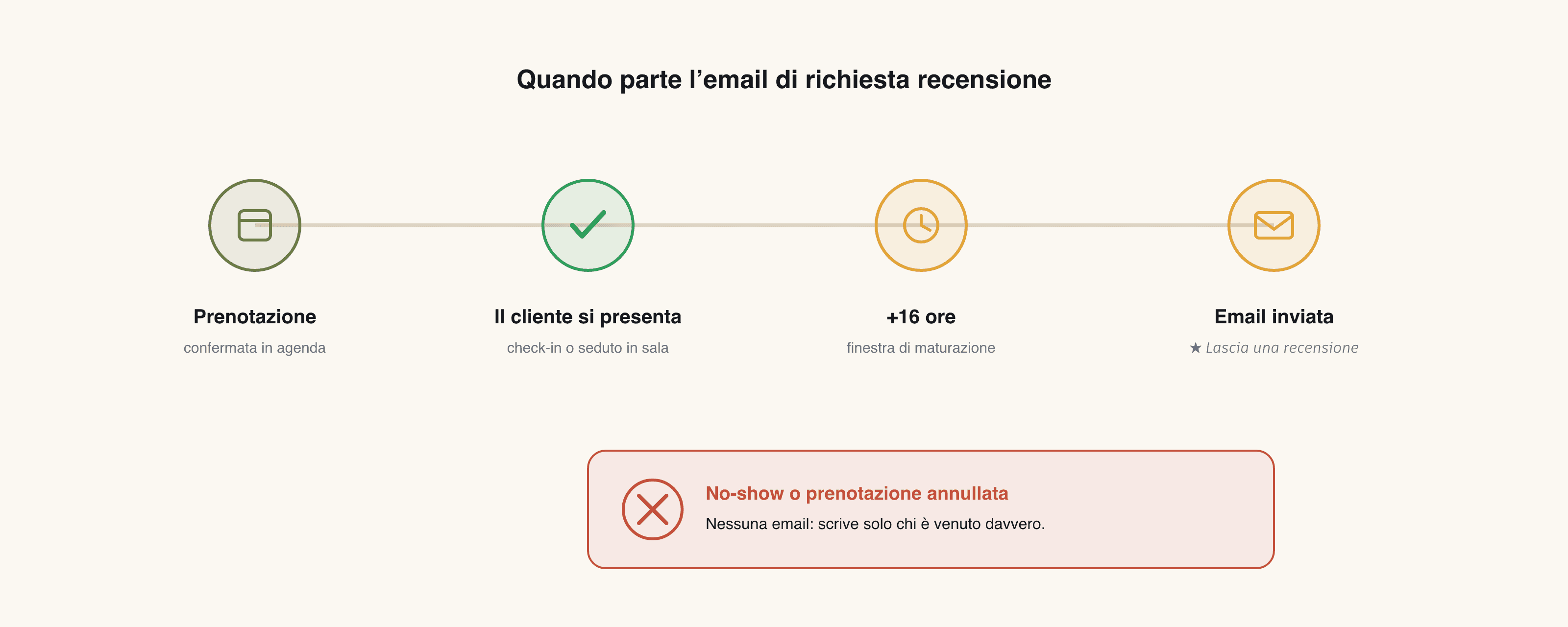
When
The email is sent 16 hours after the booking time. It's the right moment: the guest is already home and still remembers the evening, but you're not interrupting them at the table.
To whom (confirmed attendance only)
Carteia treats a guest as present when at least one of these is true:
- the booking is marked as completed;
- you used the mark arrived action (the check-in records attendance);
- the guest was seated at a table in the live room management.
No-show, cancelled or rejected bookings never receive the email. Each booking is evaluated only once, so the guest never gets duplicate requests.
When attendance is uncertain
If a booking is only confirmed but you recorded neither the arrival nor the table, you decide with the If attendance isn't confirmed option:
- Send only when confirmed present — recommended
- The email goes out only when there's proof of attendance (completed, arrived or seated). It's the most cautious choice: zero emails to people who might not have come.
- Always send, except no-shows
- The email goes out for confirmed bookings without a check-in too, still excluding anyone you marked as a no-show. Useful if you don't record arrivals one by one, but with a higher margin of error.
The email the guest receives
The email arrives in the venue's name, in the venue's language, and is deliberately minimal: a greeting, one line and a button that opens the Google stars directly. No form, no extra step.
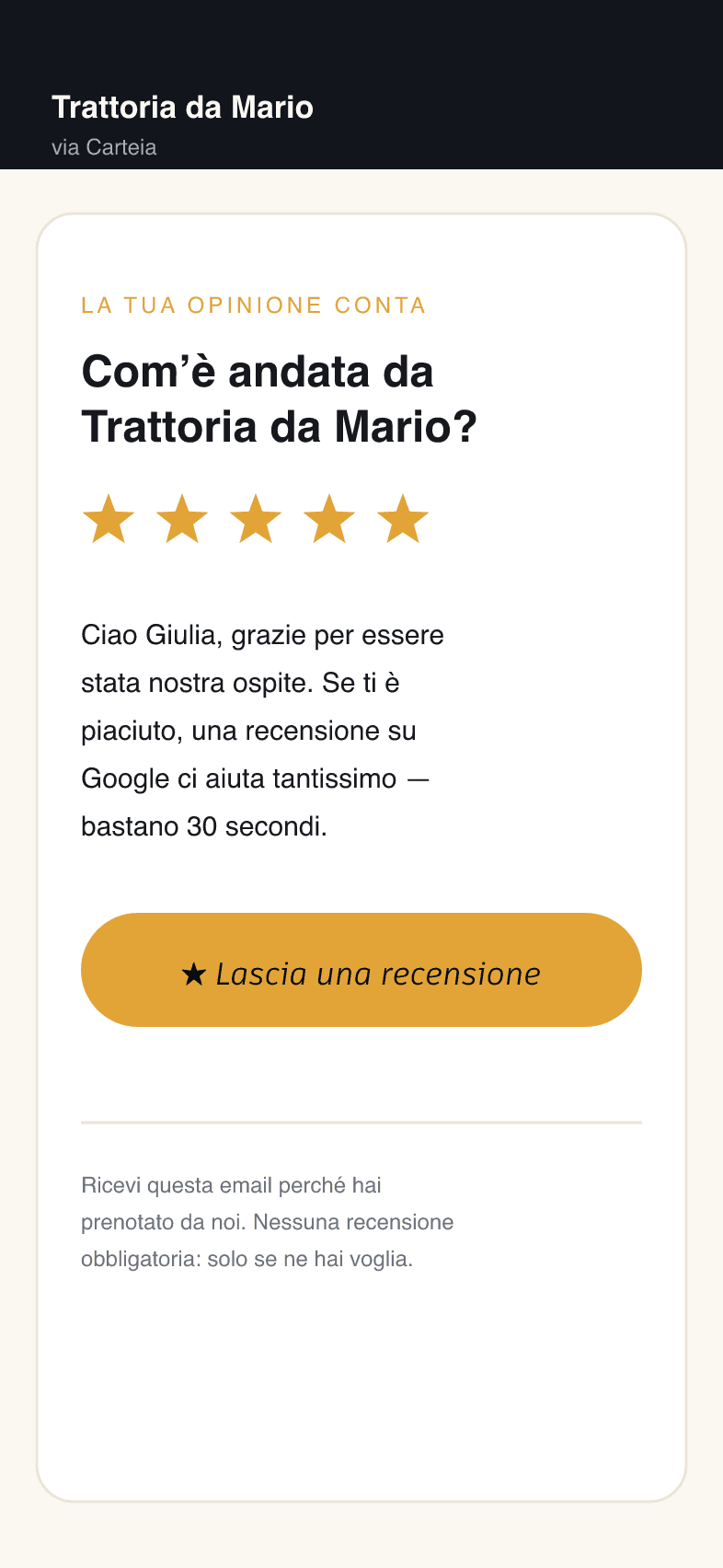
There's always a note at the bottom explaining why the guest receives the email and that a review isn't required. Anyone who unsubscribes from the venue's communications is no longer contacted.
Good practices
- Don't offer rewards or discounts in exchange for reviews. Google's rules forbid it and it can lead to reviews being removed or to penalties on your profile. Carteia's request asks for an honest opinion, not a positive review.
- Reply to reviews, especially the critical ones: a gracious reply is worth as much as an extra star in the eyes of whoever reads it.
- Keep your Google profile up to date (hours, photos, address): the link leads there, and a well-kept listing converts better. Learn more in Get found on Google.
Limits
- Available from Osteria up (the venue's Extra info section). Not available on Assaggio.
- No credit cost: Senza costo aggiuntivo.
- Requires an active Google Business Profile and its "Write a review" link.
- The email requires the guest's email address on the booking: bookings without an email are not contacted.
Related features
- Customize your public page — where you add social links, contacts and the other extra information.
- Reservations — marking arrivals and completions feeds the attendance check.
- Floor management — seating the guest at a table confirms attendance automatically.
- Get found on Google — make your reviews pay off in local ranking.
Frequently Asked Questions
- Who receives the review request email?
- Only guests who booked and showed up: a booking marked as completed or as arrived, or a guest seated at a table in the live room. Anyone marked no-show, cancelled or rejected receives no email.
- When is the email sent?
- Sixteen hours after the booking time. So it lands the day after the visit, while the memory is still fresh but the guest is no longer at the table.
- What happens if I don't know whether the guest showed up?
- You decide with the 'If attendance isn't confirmed' option. With 'Send only when confirmed present' (recommended) the email goes out only with proof of attendance; with 'Always send, except no-shows' it goes out for confirmed bookings without a check-in too, still excluding anyone marked as no-show.
- Do I really need a Google profile?
- Yes. The link you paste is the 'Write a review' link of your Google Business Profile. Without that link the email is not sent, even if the feature is on.
Version history
v1.0.02026-06-07— First publication: Google review link in Extra info + post-visit email request to verified guests only.