



Private events
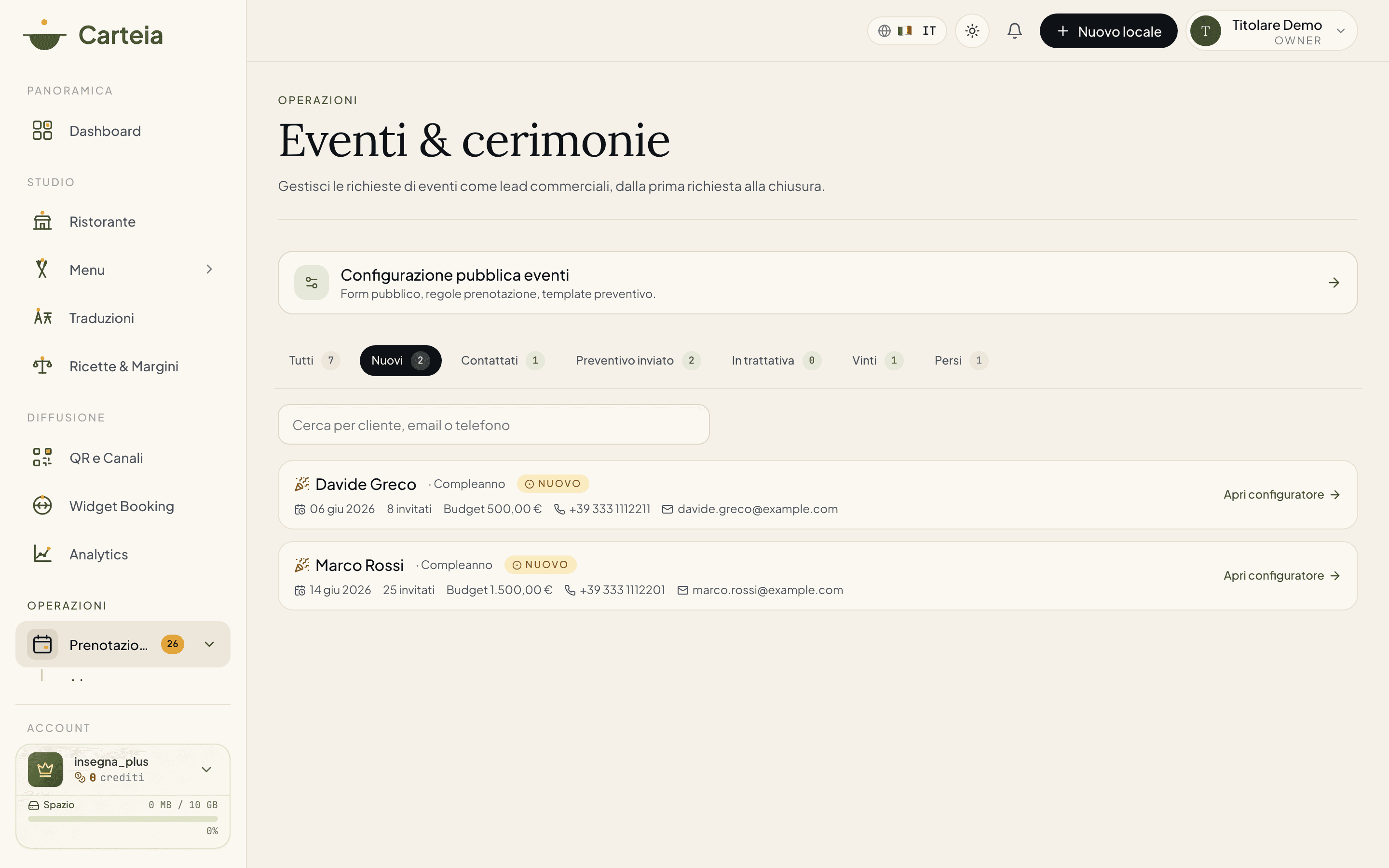
Handle private event enquiries (birthdays, ceremonies, corporate dinners) like a real deal: every request becomes a card you move from 'New' through to 'Won'. You build and send the quote, write notes, change the status. Managing enquiries starts from the Bistro plan; the form that collects requests on your public page switches on from the Insegna plan.
Why it pays off
Party, ceremony and corporate dinner enquiries are among the highest and safest takings a venue gets: a table of 40 is worth as much as a whole evening. The trouble is they come in by phone, WhatsApp, email, on scraps of paper — and you lose some along the way.
With Carteia every enquiry becomes a card you follow like a real deal, from first contact to "yes, book it". You see at a glance who you still have to call back, who you've already sent a quote to, who has confirmed. No more customers forgotten in a drawer.
Who it's for, a concrete example
A lady calls: she wants to celebrate her husband's 50th, this Saturday in three weeks, about thirty people. While you're on the phone you open Events, click to add the request, note the name, date and guest count. The card starts in the New status.
The next day you put together a menu and price, send her the quote as a PDF by email or WhatsApp in two clicks, and the card moves to Quote sent on its own. You set a reminder for three days later. She confirms, you move the status to Won. All in one place, no sticky notes.
Which plan it's available from
- Events board, deal pipeline and quote — Bistro
- From the Bistro plan you get the full board: add requests by hand, follow them through the stages, build and send quotes.
- Online request form on your public page — Insegna
- From the Insegna plan you can switch on the "Plan your event" section on your venue page: customers fill in a form and the requests come to your board on their own. It needs to be turned on in settings (see below).
The six stages of the deal
Every card lives in one of these stages. You change them yourself, whenever you like, from the "Update status" box inside the card:
- New
- A request that's just come in, to pick up. It's highlighted because it's the priority.
- Contacted
- You've already spoken to the customer at least once.
- Quote sent
- You've sent the proposal. The status moves here on its own when you send the quote by email or WhatsApp.
- Negotiating
- You're working out the details, menu or price.
- Won
- Event confirmed. Champagne.
- Lost
- It came to nothing. Keep it anyway: it tells you how many you close and how many you lose.
At the top of the board there's a filter for each stage with the number of cards, so you always know how many requests you have "in progress".
Inside the card: what you can do
When you open a request you step into the event's workspace. From here you can:
- Build and send the quote with the block editor (menu, services, terms, total). It's explained step by step in the Event quotes guide.
- Update the status of the deal, write the estimated value of the event (handy for seeing how much your events business is worth), set the follow-up reminder and an internal note that only your staff sees.
- Keep the thread: every email and WhatsApp you send stays logged in the card's diary, and you can add notes by hand.
Turning on the request form on your public page
Event settings live alongside reservation settings. You reach them from the Event settings link at the top of the board, or from Reservations → Settings.
Go to Reservations → Settings (or use the
Event settingslink from the board).In the first step, Events and rules, flip the
Events and quotesswitch on. It activates from the Insegna plan.Set the rules: minimum and maximum guests, minimum notice in days (so nobody asks for an event tomorrow) and, if you like, make the budget required in the form.
In the second step, Quote, choose the starting template for your quote (see below) and write a public note the customer reads before sending the request (e.g. "For groups over 20 guests our floor manager will get in touch").
Save. From then on the "Plan your event" section appears on your venue page and requests come to your board on their own.
The four quote starting templates
When you set up events you choose which template your quote starts from. It's only a starting point: you then customise everything.
| Template | For whom |
|---|---|
| Classic | A clear proposal with menu, services and total. Fits most events. |
| Ceremony | A more formal tone for communions, christenings and receptions. |
| Corporate | Built for companies, team dinners and institutional meals. |
| Premium | A high-value proposal with a tailored experience, pairings and dedicated service. |
What the customer fills in
When a customer fills in "Plan your event" they pick the type of occasion (birthday, graduation, corporate dinner, christening, communion, ceremony, other) and leave: name and contact details, desired date, guest count, indicative budget (if you've made it required), the menu or ideas they have in mind and a message. They also have to accept the privacy notice. All of this lands in the card, ready for your proposal.
Events and tables
If you have the Ristorante plan or above with Table manager active, inside an event request you can have Carteia suggest the right tables for the guest count and lock them. It's explained in the Table manager guide.
Best practice
Next steps
- Event quotes — how to build and send the quote PDF.
- Marketing and campaigns — fill your venue's events with email and automations.
- Customers CRM — event request contacts feed your address book.
- Table manager — assign tables to the event.
Frequently Asked Questions
- Where do event enquiries come from?
- From the 'Plan your event' form on your public page. The customer picks the type of occasion (birthday, ceremony, corporate dinner...), leaves a date, guest count and contact details. The request lands straight in your events board. You can also add a request by hand when someone calls.
- Is the event request form included in my plan?
- The events board with the deal pipeline and the quote is available from the Bistro plan. The public form that collects requests online (the 'Plan your event' section on your venue page) switches on from the Insegna plan and needs to be turned on in the reservation settings.
- Can I sell event tickets online?
- No: private events work as requests and quotes, not ticket sales. You agree everything with the customer (menu, guests, price) and send them a quote. You collect payment however you prefer, outside the platform.
- How do I keep track of a request?
- Every card has a status (New, Contacted, Quote sent, Negotiating, Won, Lost) and a follow-up reminder. If you pass the follow-up date without closing, the card turns red so you spot it at once.
Version history
v2.0.02026-05-29— Full rewrite against the real code. Corrected the plan: enquiry management from Bistro, public form from Insegna. Removed claims not in the product (Stripe ticket sales, per-event landing page, menu banner, ICS file, QR check-in, push). Documented the 6-stage pipeline, the event settings (now in Reservation settings) and the link to the quote.v1.1.02026-05-22— Removed reference to the Collezione plan.v1.0.02026-05-20— First publication.