



Advanced Booking: real-time free times and zero double-bookings
Advanced Booking is the advanced reservation level, from Ristorante up. The guest sees only the free times, calculated on rooms and per-shift capacity, and double-bookings block themselves. Plus: add bookings by hand (phone, walk-in), Carteia suggests which table to give each booking, an Insights section measures no-show, occupancy per shift and average lead time, and with an add-on you put the booking module on your own website too. Includes everything in simple requests.
Why it pays off
Double shifts, a big room plus a terrace, a fully booked weekend. By hand it's a battle: you risk giving the same table out twice, accepting a party of 10 when you only have tables for 4, not knowing how many bookings you really have for tonight.
Advanced Booking solves all of this. The guest sees only the times that are really free, double-bookings block themselves, and when you open a booking Carteia already tells you which table to give it. The dining room almost runs itself, and you finally have the numbers under control.
It's included from Ristorante up, and it contains everything simple table requests do.
What it adds over simple requests
| Aspect | Simple requests (all plans) | Advanced Booking (from Ristorante) |
|---|---|---|
| What the guest sees | Fixed times | Only the times that are really free |
| Rooms | All in the same list | Room, terrace, private area handled one by one |
| Capacity | Not controlled | Controlled per shift and per room |
| Double-bookings | You handle them by hand | Blocked automatically |
| Adding bookings by hand | Yes | Yes, with real-time capacity check |
| Table suggestion | No | Yes, with a tap |
| Live floor plan (Table Manager) | No | Yes |
| Dedicated analytics | No | Yes (Reservation intelligence) |
| Booking module on your website | No | Yes, with a €9/month add-on |
First thing: set up Rooms and capacity
So Advanced Booking knows what to offer, you tell it what's bookable and how much. You do it in Dashboard → Rooms & tables.
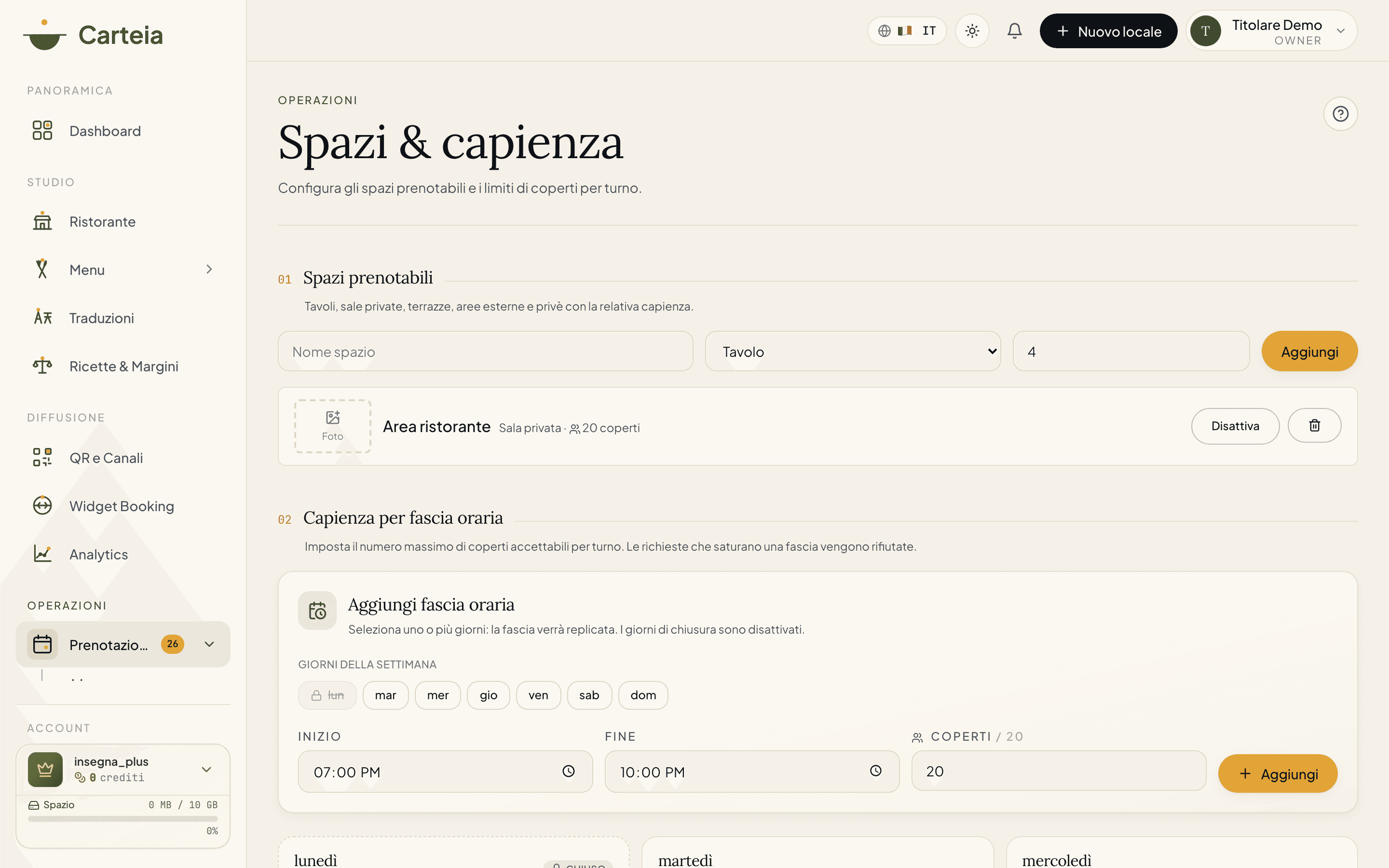
In short (the full guide is Rooms & tables):
- Bookable spaces: one row per space (Main room, Summer terrace, Private area), with type and maximum covers.
- Capacity per shift: for each day you set one or more slots (e.g. 19:00–22:00, max 35 covers). Carteia checks the slot doesn't exceed the real seats and falls within opening hours.
On the guest's side: only the free times
On the public menu the form updates in real time:
- When the guest chooses a day and covers, they see a grid of times with only the free ones.
- If the day is closed or the time is outside opening hours, it tells them right away, without creating impossible requests.
- For each room the system calculates the seats left in that slot: no overbooking.
No request arrives "pending" if there's really no room. You only get bookings you can honour.
Adding a booking by hand
For phone calls and walk-ins, you add the booking yourself with the New reservation button:
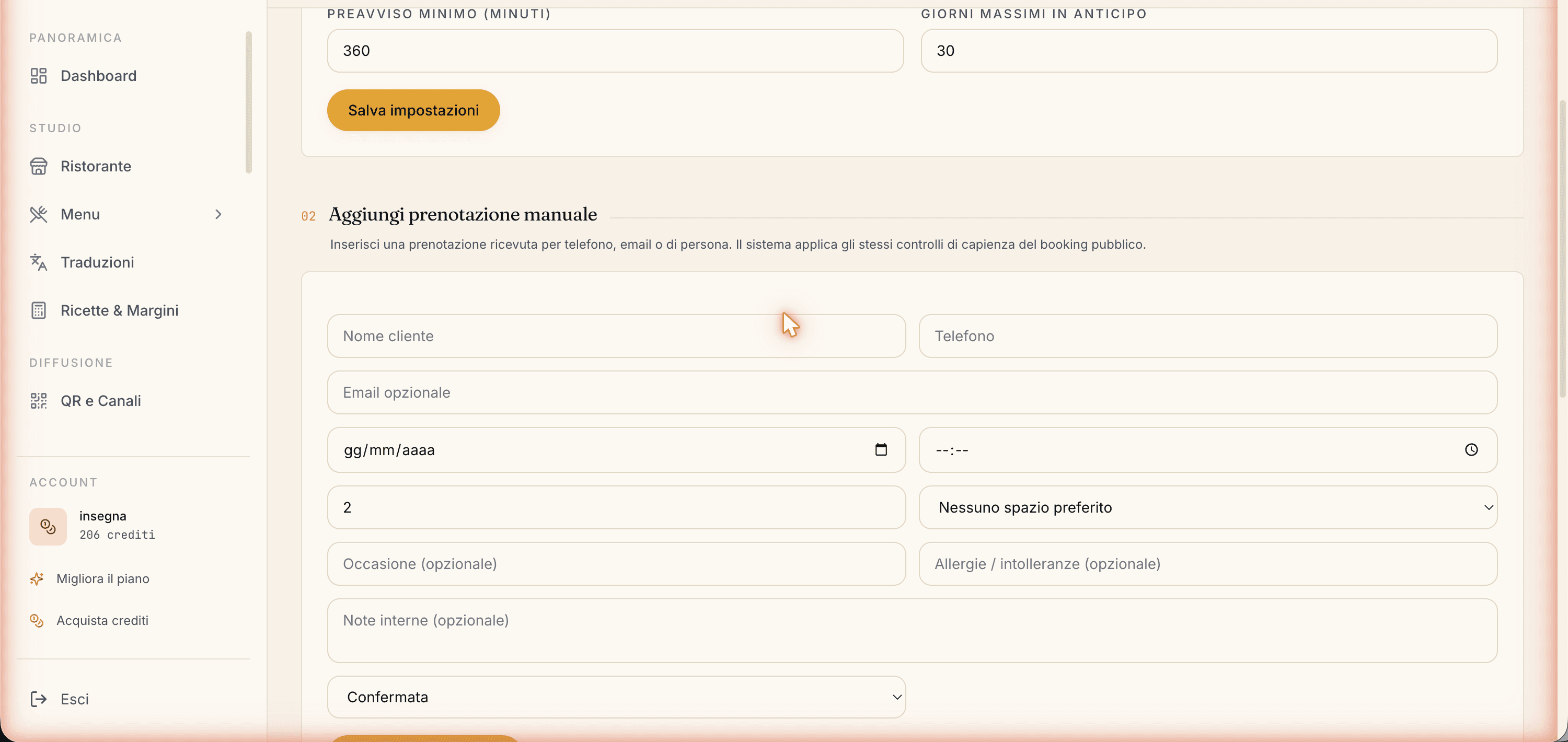
The form applies the same checks as public Advanced Booking (opening hours, per-slot capacity, seats left in the room) and accepts: customer data, day and time, covers and room, occasion, allergies for the kitchen, internal notes (visible only to you) and the initial state, usually "Confirmed" because the phone call counts as a confirmation.
Deleting a booking is reserved for those who manage reservations (manager role or above) and always leaves a trace in the activity log.
The automatic table suggestion
It's Friday night, five table requests come in one after another. Instead of working out by hand who to put where, let Carteia do it.
Open a booking and press Suggest tables: in an instant Carteia looks at who is already seated in that time slot and proposes the best combination — a single table if one is enough, or two or three tables to join for large parties — picking the one that wastes the fewest seats. If there are alternatives in other rooms, it shows them below. You check and accept with a tap: the booking stays linked to those tables.
If Carteia finds no room, it tells you clearly why (no capacity, rooms not configured, no free table). To draw the room and drag bookings onto tables by hand, there's the Table Manager.
The analytics: Reservation intelligence
From Ristorante up, the Reservation intelligence section in Insights shows you in real time how the dining room is doing.
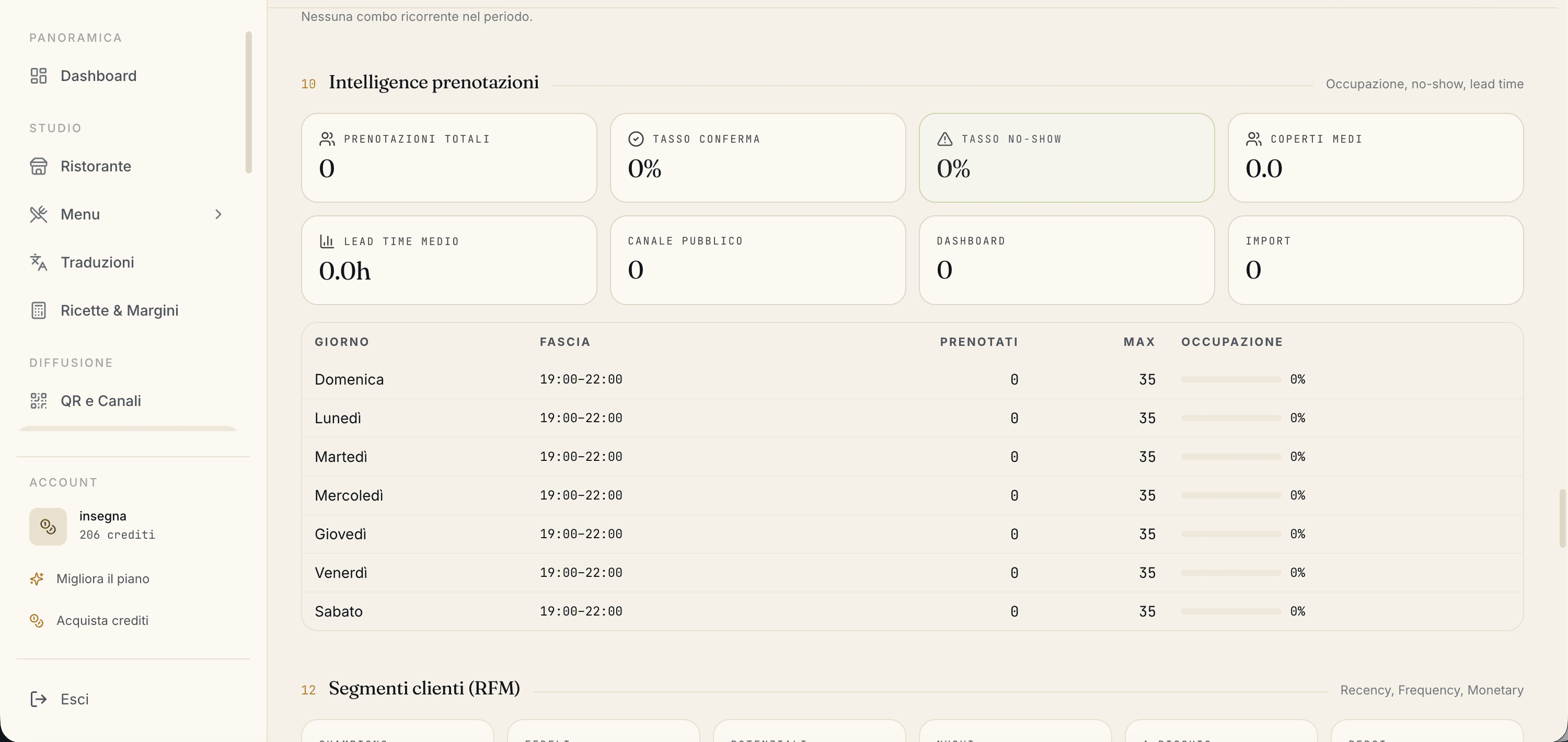
What you measure:
- Total bookings in the period.
- Confirmation rate (how many you accept out of the total): tells you how fast you respond.
- No-show rate (how many don't turn up): to gauge how much no-shows weigh.
- Average covers per booking.
- Average lead time: how many days ahead guests book.
- Source: how many from the public menu, how many by hand, how many imported.
- Occupancy per shift and day: the fill rate against the seats you configured.
What they're good for in practice:
- If average lead time is low, you can lower the minimum notice you require.
- If a shift is always empty, it's time for a targeted promotion.
- If the no-show rate drops month after month, it means the day-before reminder is working.
Put booking on your own website too
Already have your own website? With the Booking Widget for website add-on (€9/month, available from Ristorante up) you add Carteia's table and event booking card to it.
Here's how it works:
- You generate a snippet to paste into your site (or use the dedicated WordPress plugin).
- You decide which sites it can appear on (the list of authorized addresses), the theme (light, dark or automatic) and which card to show first (booking or events).
- The bookings that come from your site land in the same list as all the others, inside Carteia.
You manage it from Dashboard → Integrations → Booking Widget for website. If you haven't activated the add-on yet, you'll find the live preview and the button to activate it there.
Related features
- Reservations — overview — the two levels compared and the list in detail.
- Simple table requests — the base level, on every plan.
- Rooms & tables — configuration of rooms, capacity and time slots.
- Table Manager — the live floor plan with automatic assignment.
- Customer CRM — the guest's score fed by no-shows.
- Events — for structured group requests.
Frequently Asked Questions
- What do I need to prepare before turning on Advanced Booking?
- At least one room in Rooms & tables (with its maximum capacity) and at least one time slot (start/end time and maximum covers). Without rooms and slots the system doesn't know what to offer the guest.
- How does it block double-bookings?
- As the guest chooses, Carteia compares their request in real time with the covers already booked in that slot for that room. If it would go over capacity, that time isn't offered.
- Can I force a booking over capacity?
- Yes, but only you, from the dashboard. When you add a booking by hand you can accept a conflict if you know you can manage it (for example by joining two tables).
- What is the table suggestion?
- Opening a booking, you press 'Suggest tables' and Carteia proposes the best combination (one table or several to join) looking at who is already seated in that slot. You accept with a tap. Very handy on busy nights.
- Can I put the booking module on my own website?
- Yes, with the Booking Widget for website add-on at €9/month, available from Ristorante up. It adds the table and event booking card to your site via a small snippet or the WordPress plugin.
- What analytics does it calculate?
- In Insights → Reservation intelligence: total bookings, confirmation rate, no-show rate, average covers, average lead time (days between request and visit), source (public menu, dashboard, import) and occupancy per shift and day.
Version history
v2.0.02026-05-29— Added: automatic table suggestion from the booking detail (and from events), Booking Widget for website add-on (€9/month), aligned the comparison with simple requests (now on every plan). Commercial tone.v1.0.02026-05-22— First publication: dedicated page, split off from the reservations guide.