



AI menu import from PDF
Upload the PDF (even a photographed menu); the AI reads categories, dishes, prices and suggests allergens; you review each item and publish. It unlocks from the Osteria plan. Imports included per month: Osteria 2, Bistro 10, Ristorante 35, Insegna 120, Insegna Plus 200. Once you use them up, each extra import costs 8 credits. The Assaggio plan has no AI import: you build the menu by hand.
At a glance
Retyping the menu by hand, item by item, is the most tedious job in the world. AI import takes it off your plate: upload your menu PDF — even photographed — and Carteia brings it into the dashboard already split into categories, with dishes, prices and suggested allergens. You review each item in a guided flow, fix what's needed, and publish. From hours of copy-paste to a few minutes of checking.
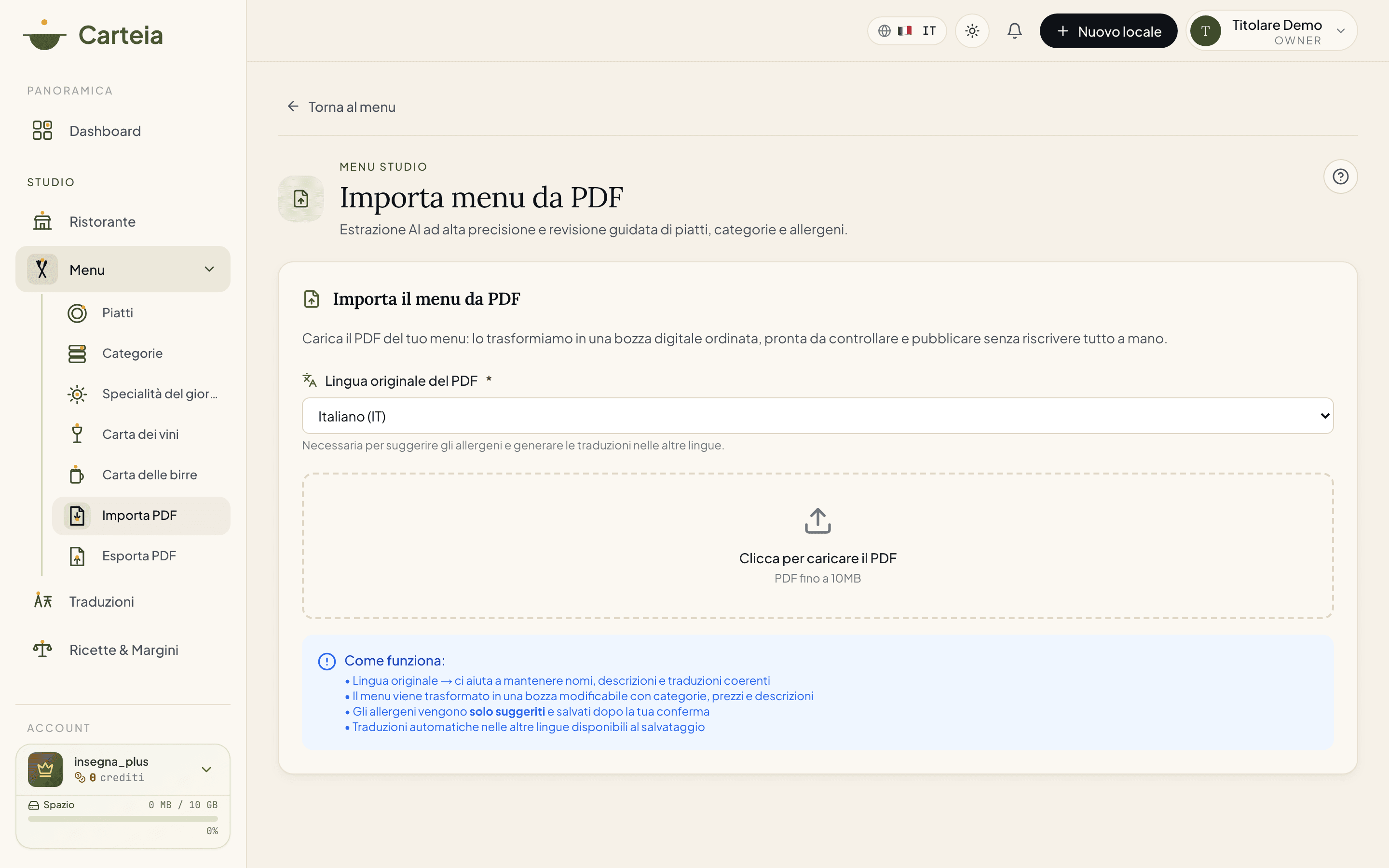
You'll find it under Menu → Import PDF.
How it works — from paper to digital
Pick the PDF language — mandatory. The AI needs it to read names properly and to prepare the translations into the other languages.
Upload the file — a PDF up to 10 MB. Drag it in or click to select. Upload only turns on once you've picked the language.
The AI reads the menu — you see a little console telling you what it's doing: it opens the pages, recognises the language, reads titles, sections and prices (even from photographed menus), separates starters, mains, desserts and drinks, checks prices and flags possible allergens.
You review every item — the important, mandatory step: scroll through all the dishes, fix name, price, description and category, confirm the allergens. The first time a tutorial walks you through.
Choose how to integrate — merge, replace or wipe (see below) and confirm.
You publish — the menu is ready. On paid plans, the translations into the other languages start by themselves in the background.
The three import modes
When you confirm, you choose how to put the new dishes together with the ones you already have:
| Mode | What it does | When to use |
|---|---|---|
| Merge (default) | Adds the new dishes to the existing ones | First time, or to expand the menu |
| Replace | Redoes only the involved categories, leaves the rest intact | Seasonal change of one section |
| Wipe & replace | Clears all categories and dishes, then rebuilds from the import | Full menu change (e.g. new management) |
What the AI recognises
On a clean text PDF the reading is near-perfect. Here's what it extracts, and how much to trust it:
| What | Typical accuracy | Notes |
|---|---|---|
| Dish name | very high | Almost always perfect on text PDFs |
| Price | very high | Recognises €, $, £ and reports them in the venue's currency |
| Category | high | Sections and groupings inferred from the titles |
| Description | high | May get cut on very narrow columns |
| Declared allergens (with legend) | high | Recognises the EU 1-14 numbering |
| Allergens inferred from ingredients | medium | Always verify by hand |
| EU mandatory origin (meat, fish, honey, oil) | medium | A suggestion, to be confirmed |
The review: you have the final word
The review screen isn't a simple "check and go". For each dish you can:
- fix name, price, description and move it to another category (or create a new one on the fly, renameable);
- add and remove allergens from the suggested chips;
- fill in the extra fields: EU mandatory origin, frozen indication, ingredients and recommended pairing (useful for the dish's SEO page too);
- tick each item as "Reviewed": you must do it on all of them before you can import.
If you've assigned at least one allergen, a mandatory confirmation appears at the end: you tick that you've verified the allergens by hand. It's a legal requirement, not a nuisance: it protects you and your guests.
The tutorial for starting from scratch
The first time you enter the review, a guided tutorial starts (you can skip it): it shows you what to change per dish, where to click to switch category, why the "Reviewed" tick matters. You can replay it anytime from the Tutorial button at the top.
What it costs per plan
The rule is the same as the other AI tools: as long as you have imports left in your month, you spend no credits. Once you use up the allowance, each extra import costs Senza costo aggiuntivo.
| Plan | Imports included per month | Notes |
|---|---|---|
| Assaggio Assaggio | — | AI import not included: menu by hand |
| Osteria Osteria | 2 | All 3 modes, snapshot, translations in the plan's languages |
| Bistro Bistro | 10 | + cellar recognition (wines/beers), 4 languages |
| Ristorante Ristorante | 35 | + EU origin suggested, up to 8 languages, AI dish FAQ |
| Insegna Insegna | 120 | The full package |
| Insegna Plus Insegna Plus | 200 | The full package, maximum capacity |
Credit costs, in short
| Operation | Cost | Included quota |
|---|---|---|
| AI import beyond the quota | Senza costo aggiuntivo | Osteria 2 · Bistro 10 · Ristorante 35 · Insegna 120 · Insegna Plus 200 per month |
| AI-generated dish FAQ | Senza costo aggiuntivo | Available from Bistro |
| Automatic translations | Senza costo aggiuntivo per language | Included from Bistro |
Technical limits
- File up to 10 MB per PDF.
- Dish photos are not imported (only recognised): you add them by hand afterwards.
- Very complex layouts (more than 3 columns, overlapping text, writing over text) may need a few more fixes.
- The non-destructive import (Merge) is the default: the other modes always ask for confirmation.
- Carteia checks the file really is a menu before reading it: if you upload an unrelated document (an invoice, a flyer) it tells you without using up the quota.
Next steps
- Menu management — clean and complete after the import
- Multilingual translations — take the menu into other languages
- Publishing — the menu's ready, go live
- Food cost — link recipes to dishes for margins
- Plans and credits — included quotas and credits
Frequently Asked Questions
- Does it work with a photographed or scanned menu?
- Yes. The AI reads the page photos too. For the best result, though, export the menu from your POS as a text-selectable PDF (the kind where you can copy text with the mouse): then the reading is near-perfect.
- How long does it take?
- About thirty seconds to a minute and a half for the reading, then a few minutes to check the items. It depends on how many dishes there are and how complex the PDF is.
- Does the AI recognise allergens by itself?
- Yes, based on the words in the descriptions and typical ingredients. But they are SUGGESTIONS to confirm: responsibility for allergens stays with the operator (EU Reg. 1169/2011). Carteia makes you confirm them by hand before saving.
- What happens to dishes I already have in the dashboard?
- You choose: Merge adds the new ones, Replace redoes only the involved categories, Wipe & replace clears everything. Before replacing or wiping, Carteia creates a backup snapshot so you can roll back in one click.
- Are dish photos imported?
- No. The AI sees them but doesn't import them: photos stay in the PDF. You add them by hand after the import.
Version history
v3.0.02026-05-29— Rewrite aligned to the code. Fixed the gate: AI import unlocks from Osteria (the free Assaggio plan does NOT have it, aiMenuImports=0). Updated the real monthly quotas (Osteria 2, Bistro 10, Ristorante 35, Insegna 120, Insegna Plus 200) and removed the Collezione plan. Fixed the AI dish FAQ cost (2 credits, not 4). Clarified that the included quota covers imports without spending credits, and that credits (8) only apply beyond the quota. Added the real review details (EU origin, frozen, ingredients, pairing, cellar recognition, low confidence) and the progress console.v2.0.02026-05-20— Dedicated page, onboarding tutorial, automatic snapshot, wipe mode with rollback.v1.0.02025-11-10— First publication.