



Menu PDF export
Turn your digital menu into a polished PDF in a few clicks, with a 9-step guided builder and a live preview always in sight. Pick the format (A4, A4 landscape, US Letter, A5, square), theme, fonts, colours, logo, QR and language. Each export costs 2 credits, but only once you run out of the exports included in your month: Assaggio 1, Osteria 3, Bistro 15, Ristorante 50, Insegna 150, Insegna Plus 250. On Assaggio the Carteia mark stays; from Osteria up it's gone.
At a glance
Carteia is digital first, but the paper menu on the table still matters: for the dinner booking, the terrace, the window, the guest who likes to browse. With PDF export you turn the menu you already have in the dashboard into a polished document, ready to print at home or send to a print shop. No more redoing the layout by hand every time a price changes: update the digital menu, re-export, and the PDF is back in sync.
Best of all, it's guided: a 9-step builder walks you from the paper format all the way to download, with a preview that's always in sight and updates as you choose.
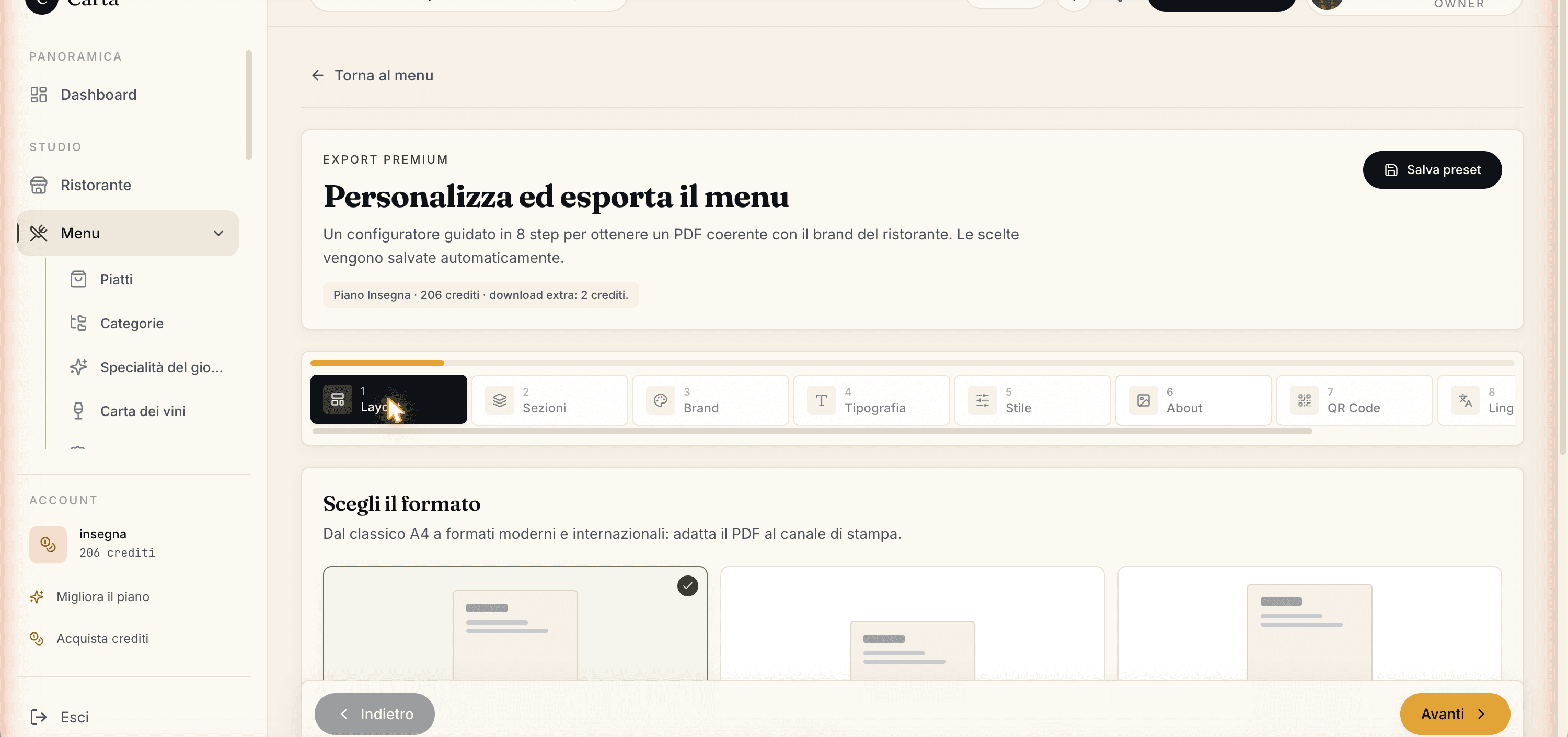
You'll find it under Menu → Import / Export PDF → Export.
The 5 paper formats
| Format | Size | When it works best |
|---|---|---|
| A4 portrait | 21 × 29.7 cm | The standard. Perfect for a table-top or lectern menu |
| A4 landscape | 29.7 × 21 cm | Two-page spread, magazine style. Great for refined venues |
| US Letter | 8.5 × 11 in | The American standard, for international exports |
| A5 booklet | 14.8 × 21 cm | Compact and pocket-sized. Great for bars and bistros |
| Square 21×21 | 21 × 21 cm | Modern square, also great to share on social |
What it costs
The rule is simple: as long as you have exports left in your month, you pay nothing. Each plan has a monthly allowance that refills. Only once you use it up does each extra PDF cost Senza costo aggiuntivo.
| Plan | Exports included per month | Languages per PDF | "Made with Carteia" mark |
|---|---|---|---|
| Assaggio | 1 | 2 | present |
| Osteria | 3 | 2 | removed |
| Bistro | 15 | 4 | removed |
| Ristorante | 50 | 8 | removed |
| Insegna | 150 | 8 | removed |
| Insegna Plus | 250 | 8 | removed |
The builder, step by step
Open Menu → Import / Export PDF → Export and follow the 9 steps. You can jump back and forth between steps anytime — your choices stay. Carteia saves the configuration by itself every couple of seconds, and there's a Save button at the top if you want to do it right away.
Layout — pick the paper format from the 5 available (A4 portrait, A4 landscape, US Letter, A5 booklet, square 21×21).
Sections — decide what goes into the PDF: dishes, daily specials, the wine list, the beer list. Then choose whether you want one document with everything inside or a separate file for each section (handy if you print them on different paper).
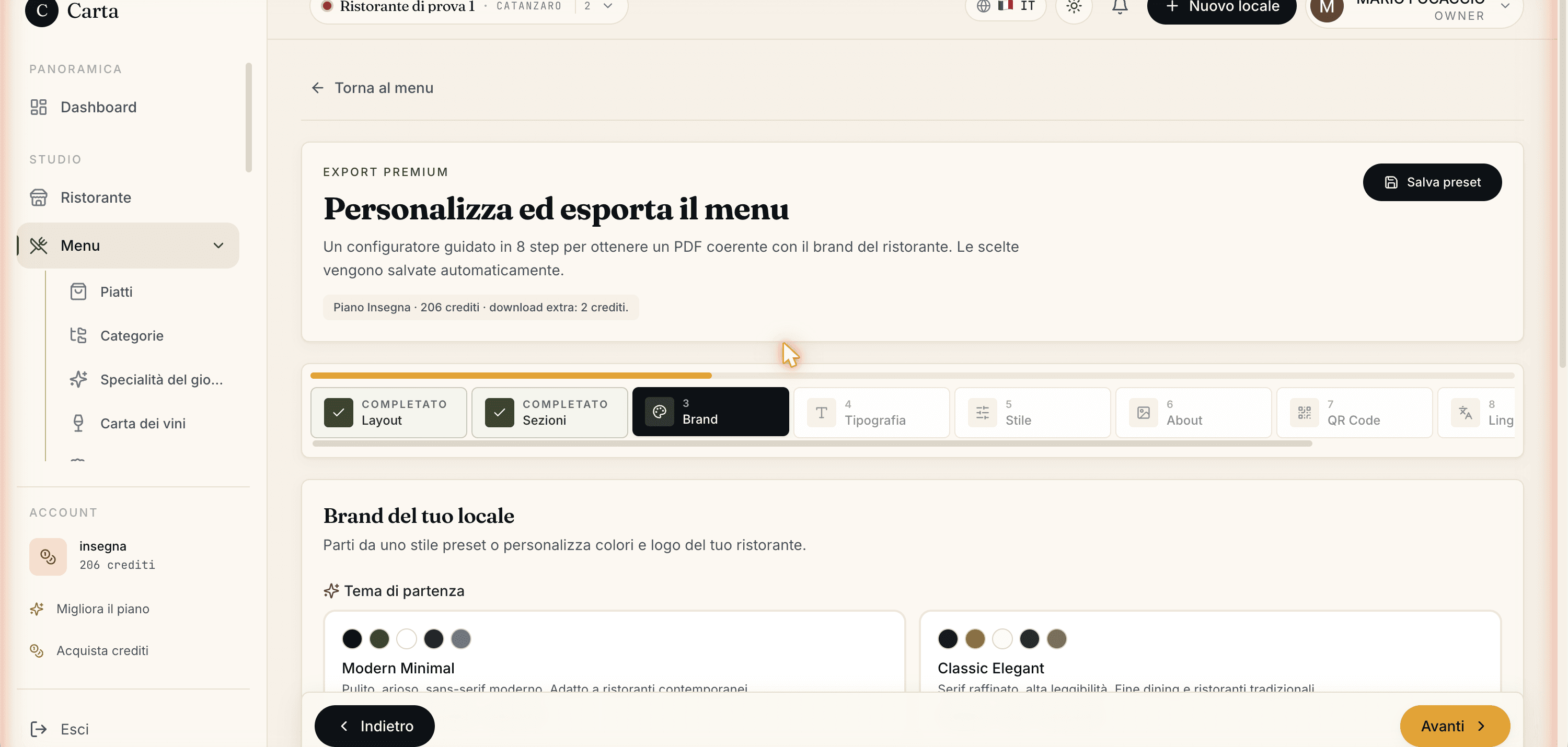
Brand — start from one of the 5 graphic themes, then personalise: upload your logo, adjust the 5 colours of your identity and add a subtitle (e.g. "Seasonal Menu 2026").
Typography — choose the fonts for titles and body text from a curated library, grouped by style (elegant serif, modern sans, bold display, script, fonts for Asian cuisines).
Style — the richest step: decide how category headings look, the style of the dish rows, the page background, the index, the cover and how allergens are shown. All the details are below.
About — add an "About us" page with the venue's story and up to 6 photos from your gallery.
QR Code — turn on the QR that leads to the online menu and choose where to place it (cover, last page or at the foot of every page).
Language and currency — pick the language of the PDF and how to show prices (with or without, in one currency or with a second currency alongside).
Preview — review the summary of every choice and hit
Generate PDF. The file downloads to your computer.
The preview always in sight
On desktop and laptop, while you configure, a live preview of the PDF stays pinned on the right. Change a colour, a font, the format? The preview updates by itself in under a second, so you don't have to reach the end to see how it turned out.
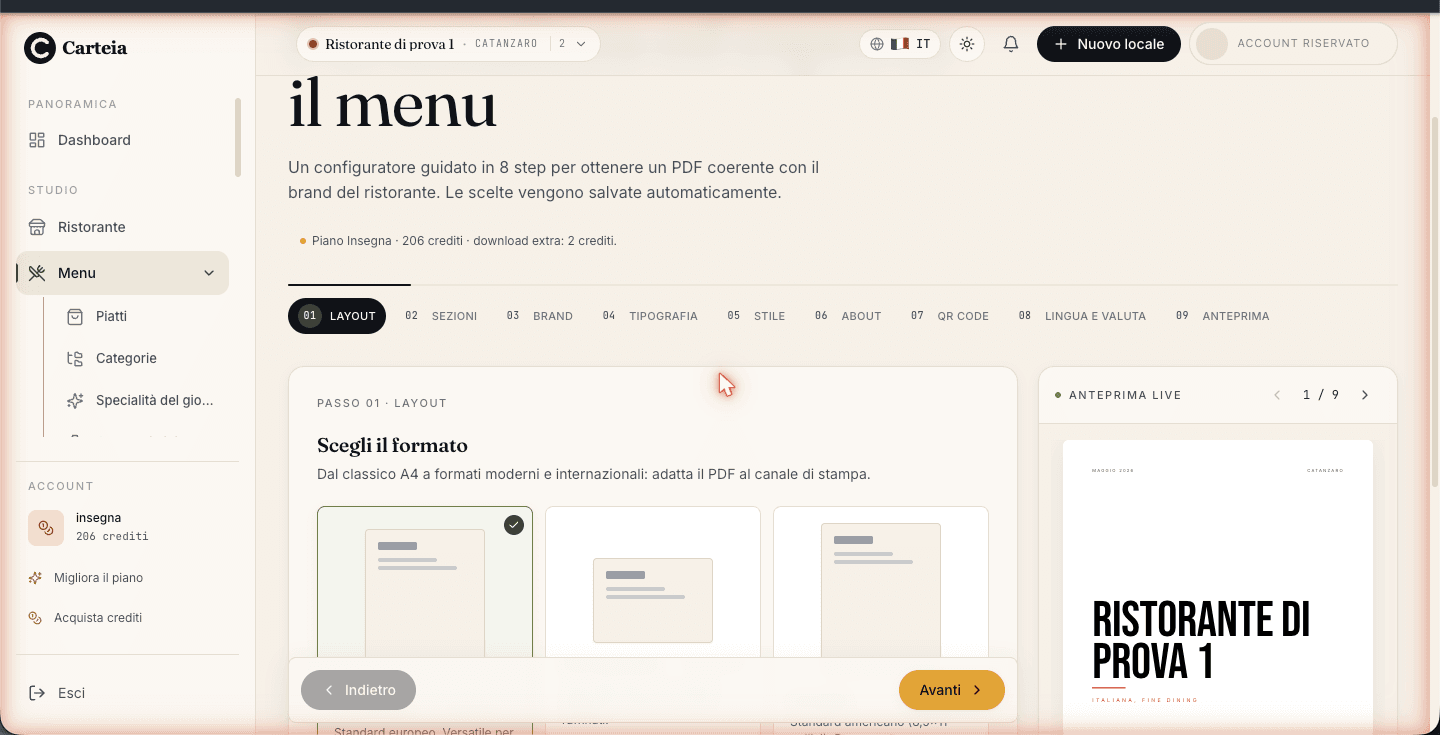
You can flip pages with the arrows and see the current page number. On small screens (phone, tablet in portrait) the preview doesn't show on the side: you'll still find it in the last step.
The "Style" step in detail
This is where you give the PDF its character. Each choice has a mini preview so you instantly get the effect.
- Category headings — 5 styles: minimal, with a divider rule, full banner, ornate (italic with flourishes), script with little chevrons. It's how section names like "Starters" or "Mains" appear.
- Dish style — 8 ways to present name, price and description: classic, compact, spaced, with a photo alongside, modern card, elegant script, with the price in a column, minimal list.
- Page background — 6 light textures: auto-by-category (small themed marks), paper grain, corner marks, editorial rules, a large magazine-style initial, or no background.
- Index — turn it on or off. If on, pick from 4 styles (editorial, minimal, boxed, classic). On the classic style you can add leader dots between the title and the page number.
- Cover — turn it on or off. With 4 styles: centred (logo only), editorial, bistro, with a large photo.
- Allergens — 5 ways to show them in the dish card: inline (grey text), pills, short codes, an italic footnote "Contains…", or numbers with a dedicated legend.
- Content toggles — four quick switches to show/hide: dish descriptions, allergens, dots between name and price, the closing thank-you page.
Logo, colours and fonts: your brand on the menu
From the Osteria plan up the "Made with Carteia" mark disappears and the PDF is all yours. In the Brand and Typography steps you can:
- Upload the venue logo (an image up to 2 MB). It appears on the cover, header or footer, depending on the chosen style.
- Adjust the 5 colours of your palette: primary, accent, background, text, secondary text.
- Choose the fonts for titles and body from the font library.
- Add a subtitle to the cover (e.g. the menu name or the season).
Multiple sections in one file (or separate files)
From the Bistro plan the Sections step lets you choose what to print: beyond dishes you can include daily specials, the wine list and the beer list (if you've filled them in). Then decide:
- One document — everything in a single PDF, with cover, index and continuous page numbering.
- Separate documents — one PDF per section, each with its own cover. Handy if you want to print the menu on one paper and the wine list on another.
On Assaggio and Osteria the PDF contains the dishes section only.
Language and prices
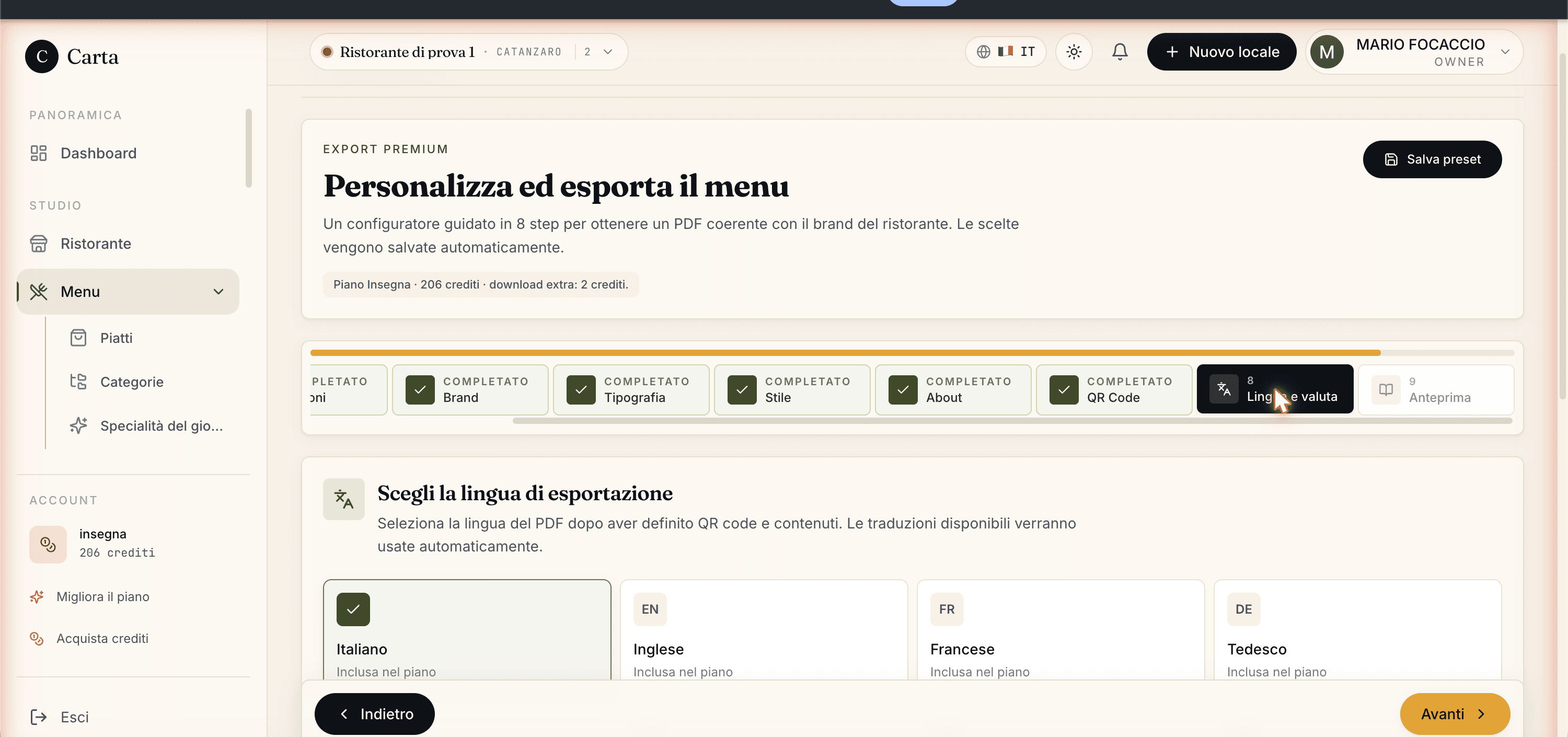
In the Language and currency step you choose:
- The PDF language — among the 8 available (Italian, English, French, German, Spanish, Portuguese, Russian, Chinese). Languages included in your plan are marked "Included in plan"; the others show the cost of Senza costo aggiuntivo for that PDF. Languages included: 2 on Assaggio and Osteria, 4 on Bistro, 8 from Ristorante up.
- Prices — you can show or hide them (useful for a tasting menu or for quote-based dinners).
- A second currency — from the Bistro plan you can show a second currency next to the price (e.g. euros + Swiss francs for tourists), converted at the day's rate. You can also round the converted price to the half (e.g. 12.50) and choose where to put the info note (at the foot of the page or on the last page).
The Carteia mark
On the Assaggio plan the PDF comes out with a small Made with Carteia line at the bottom of the page and a discreet stripe on the edge. From the Osteria plan up it's gone: the menu is entirely yours.
What changes with your plan
- Assaggio — you export 1 PDF a month, dishes section only, A4 format, with the Carteia mark. You can still personalise logo, colours, fonts and language (among the 2 included). The full builder (extra formats, cellar sections, dual currency, advanced styles) unlocks from the Osteria plan.
- Osteria — 3 exports a month, mark removed, full builder.
- Bistro — 15 exports a month, 4 languages, wine/beer/specials sections, dual currency, AI redesign of the PDF.
- Ristorante / Insegna / Insegna Plus — 50 / 150 / 250 exports a month, up to 8 languages.
Next steps
- Menu management — the PDF starts here
- Multilingual translations — prepare the languages before exporting
- QR code — the QR you put on the PDF
- Plans and credits — included quotas and credits
Frequently Asked Questions
- Can I remove the 'Made with Carteia' mark?
- Yes — from Osteria up the mark disappears. Only on the free Assaggio plan does it stay printed at the bottom of the page.
- How much does a PDF cost me?
- Nothing while you still have exports included in your month (Assaggio 1, Osteria 3, Bistro 15, Ristorante 50, Insegna 150, Insegna Plus 250). Once those run out, each extra PDF costs 2 credits. If you pick a language your plan doesn't include, that PDF costs 1 credit.
- Is the PDF print-shop ready?
- Yes. The file comes out in high-resolution sRGB, the colour space used by digital print and most print shops. If you need CMYK offset printing, the print shop handles the conversion from our file — that's standard practice.
- How many paper formats are there?
- Five: A4 portrait, A4 landscape, US Letter, A5 booklet and square 21×21 cm.
- Can I put the menu, the wine list and the beers in one PDF?
- Yes, from the Bistro plan. Choose which sections to include and whether you want one document or a separate file for each. On Assaggio and Osteria the PDF contains the dishes only.
Version history
v2.0.02026-05-29— Full rewrite aligned to the code. Updated to the 6 real plans (Assaggio, Osteria, Bistro, Ristorante, Insegna, Insegna Plus) with the correct monthly quotas. Removed the Collezione plan. Fixed the extra-language cost (1 credit, not 9: the old 2-language pack is gone). Clarified that each export is single-language and that credits only apply beyond the included quota. Documented every step and option of the builder.v1.3.02026-05-25— Added the side live preview.v1.0.02026-05-20— First publication.