


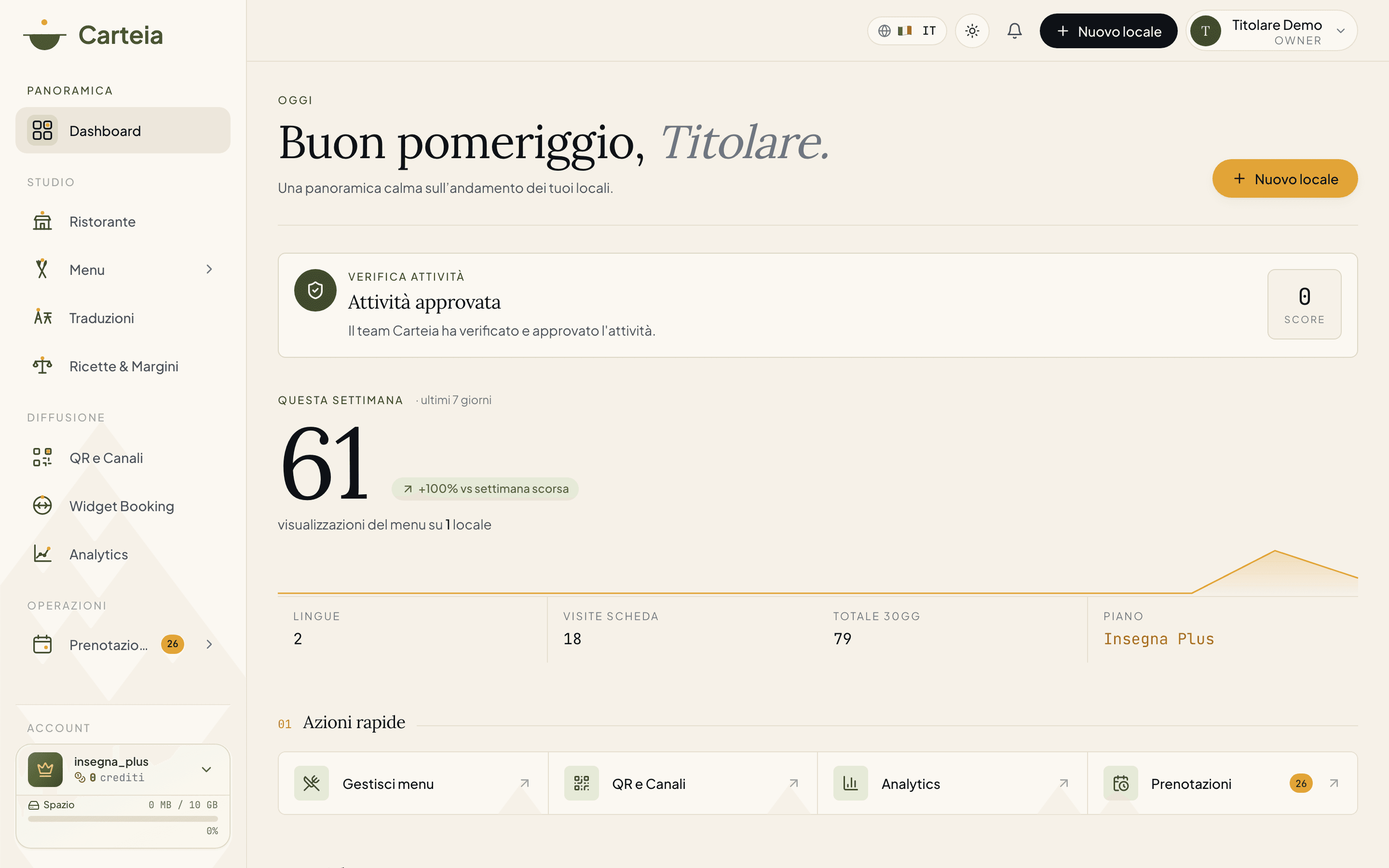

First sign-in and venue setup
You register as a restaurateur with your business name, city, VAT number and email. You sign in by clicking the link you get by email (or with Google), no password. Then you choose your venue type, describe it (name, contacts, address, hours) and follow the 3 guided steps: details, first menu section, first dish.
In a nutshell
To get started you need three things: an email, the venue name and the VAT number. With those you open the account in a minute. Everything else — photos, hours, menu — you can sort out at your own pace over the following days.
Register
Go to
carteia.appand choose the Restaurateur track (there's also the Customer one, for people who just want to discover and book).Fill in your business details: venue name, city and VAT number. Then your email.
Press
Send sign-in link. Open your inbox, click the link you received and you're in. Done: no password.
Sign in next time
Every sign-in after the first works the same way: email link or Google. No password means no forgotten resets and one fewer door for bad actors.
Go to
carteia.app/login.Stay on the
Restaurateurtrack and type your email.Click the link that arrives, or use
Continue with Google.
Choose what kind of venue you are
As soon as you sign in, Carteia asks what kind of business you run: Restaurant, Pizzeria, Bar / Cocktail, Wine Bar, Café and other formats. It's not a small detail: based on your choice, Carteia changes the labels and tools you see (a wine bar, for instance, gets the wine list up front).
The three guided steps
After choosing the venue type, a screen walks you through with a progress bar. There are three steps:
Configure your venue. Name, contacts, address. About thirty seconds.
Add the first section. That's a menu category, like Starters or House cocktails.
Add the first dish. The first item inside that section, with a price and an optional photo.
You can also choose Skip for now and come back later: your progress stays saved. From this same screen, if you already have a paper menu, you'll find the Import menu from PDF box to have dishes and prices recognised automatically.
Describe your venue
Venue details are managed in Dashboard → Venue, in a panel split into three tabs: Details, Hours and Extra info. Here's what you can enter in the Details tab:
- Venue name — how guests find you. It's the only required field to create the venue.
- Description — a few sentences telling your cuisine and your story.
- Cuisine type and price range (for example €€).
- Logo and photo gallery — your logo and pictures of the room or the dishes.
- Phone, public email, website and the Google Maps profile link.
- Address, city, postal code, country — used for the map and to help people find you.
- Display currency for prices (leave it empty and Carteia picks it from the country).
- VAT number — used for verification and invoicing.
In the other two tabs you set the weekly opening hours and the extra information (socials, services, payment methods, chef profile): see the Customize your venue's public page guide.
Before publishing: what you need
Publishing the menu isn't automatic: Carteia wants to be sure the venue really exists and that you're the one running it. To publish you need three things:
- Passed business verification — automatic checks on your details. See Business verification.
- The DPA accepted — the legal tick above.
- The signed Terms of Service approved — a document you download, have signed by the legal representative and re-upload; the Carteia team validates it (usually within 2 business days).
You'll find all three of these gathered in Dashboard → Settings.
Next steps
Frequently Asked Questions
- How do I sign in without a password?
- Carteia uses a magic link: type your email, a link arrives, you click it and you're in. Nothing to remember and nothing to reset. You can also sign in with your Google account.
- Can I manage more than one restaurant with the same account?
- Yes, but how many venues you can manage depends on the plan: 1 with Assaggio, Osteria and Bistro, 3 with Ristorante, 10 with Insegna and 20 with Insegna Plus. You can also add an extra venue with a monthly add-on.
- I don't have a VAT number yet, can I still register?
- To try the free Assaggio plan you can start anyway. Keep in mind that business verification and activating a paid plan require a valid VAT number registered to you.
- Do I have to choose the menu's web address right away?
- No, Carteia handles it. Your public page address (for example carteia.app/r/trattoria-luce) is created automatically from the venue name as soon as you register it. There's no field to fill in.
Version history
v2.0.02026-05-29— Rewrite on the real facts: registration with business details + magic link/Google, public page address generated automatically (no field to fill), venue type, 3-step wizard, DPA gate. Removed invented steps (manually editable slug, traffic-light account states).v1.0.02026-05-20— First publication.