



Customize your venue's public page
Every venue has a public page at carteia.app/r/<venue>: a parallax cover, the story of the venue and the chef, featured dishes from the menu, a gallery and a booking module. The page exists on every plan; how much you can customize it changes with the plan: no customization on Assaggio, your colours from Osteria, colours plus typography and layout from Bistro up. Highlights, chef profile and extra info unlock from the first paid plan (Osteria).
What it's for
The public page is your venue's online shop window: it's seen by people searching for you on Google, scanning the QR code on the table and getting the link from a friend. It lives at carteia.app/r/<your-venue> and is built to make people want to sit down: a big cover, the story of the place, your best dishes and the button to book.
The handy part is that there's no separate page to build. Everything you put in Dashboard → Venue shows up here within seconds.
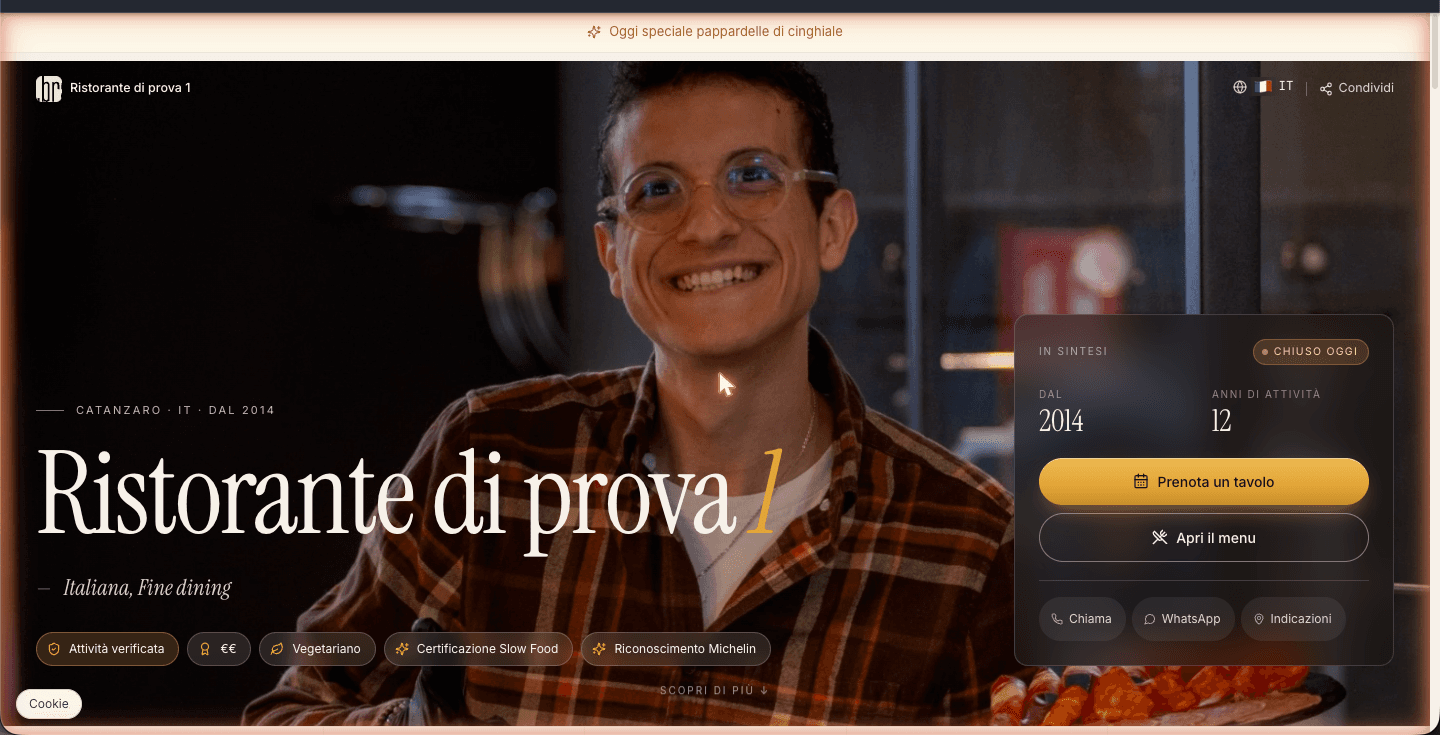
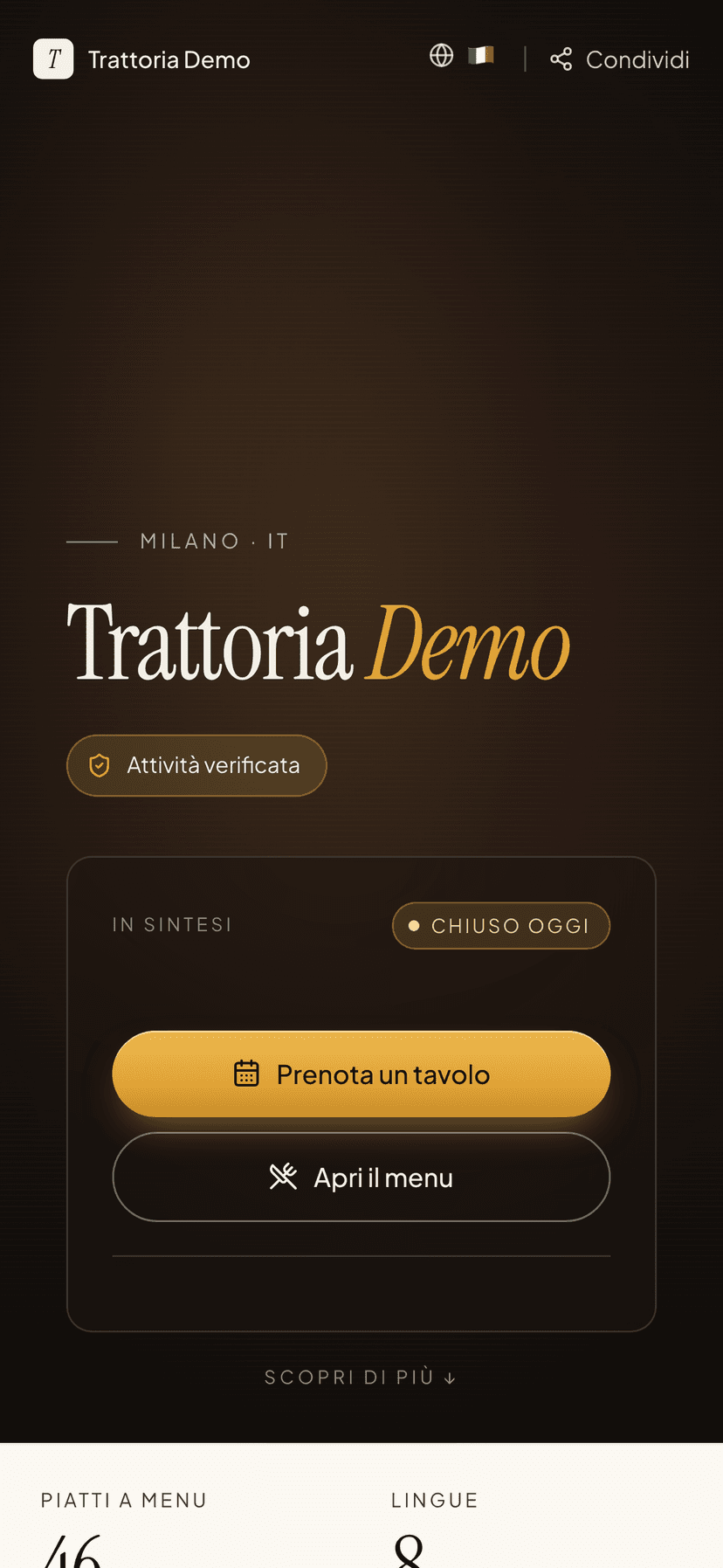
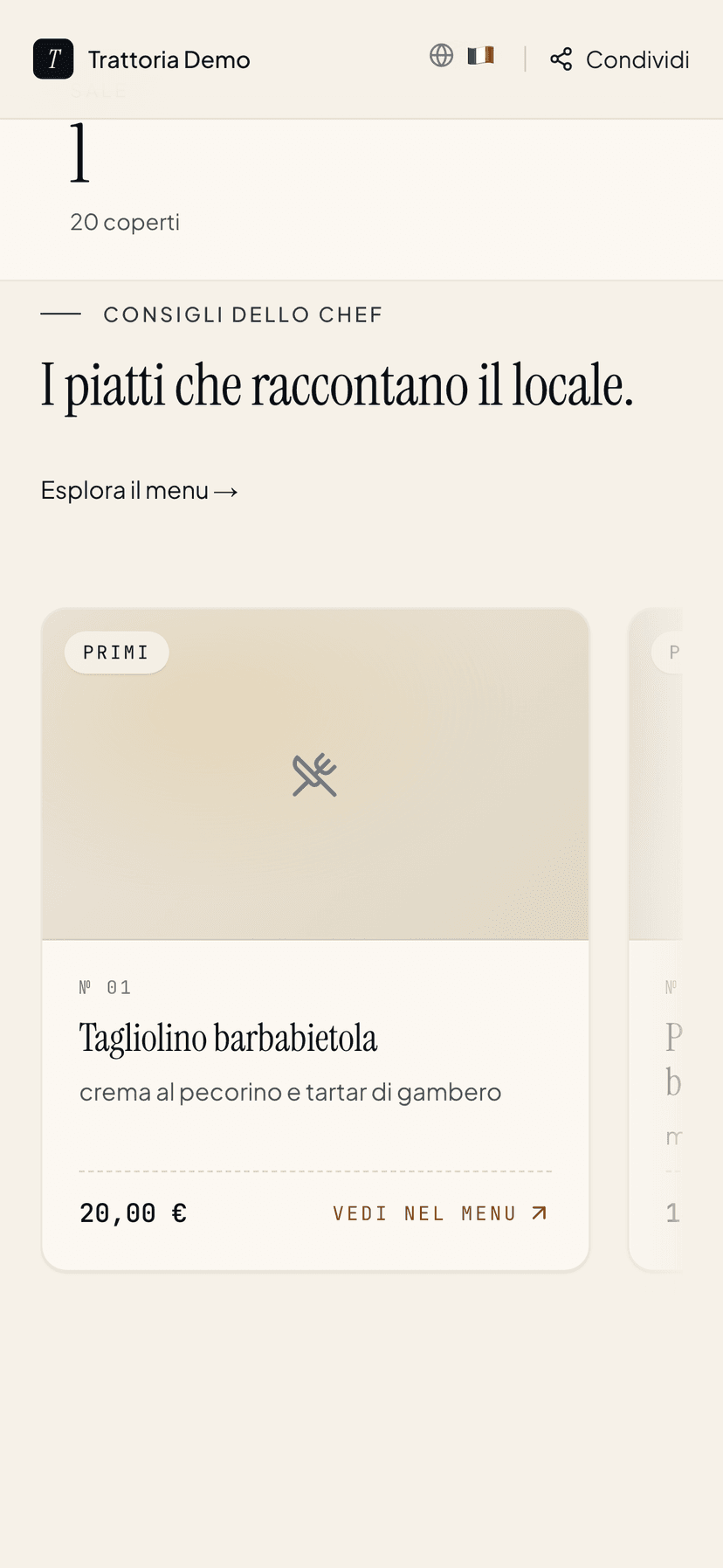
How the page is laid out
From top to bottom you'll find these blocks:
- Top bar — today's hours, the address and, if you set it, the dish-of-the-day pill.
- Cover (hero) — full-screen image with a subtle sense of depth, the venue name, the cuisine type and area, and the
BookandMenubuttons. - Highlights — the cards for the dishes you want to show off (signature, dish of the day, seasonal).
- Story of the venue — your story and, if you like, the chef panel.
- The dishes that tell the story — up to 8 dishes picked automatically from the published menu.
- Gallery — the photos you upload.
- Booking — the module to book straight from the page.
The Book button behaves according to the plan: on Assaggio it doesn't appear (reservations aren't included); from the paid plans it's the standard module; from Ristorante up it shows the available slots in real time.
How much you can customize, by plan
This is one of the most visible differences between the plans. The styling of the public page has three levels:
- No customization — Assaggio
- The page uses Carteia's standard style. You show the menu, contacts and gallery, but you don't change colours or fonts.
- Your colours — Osteria
- You pick the venue's primary colour, so the page takes on your identity.
- Full customization — Bistro
- Colours and font (including Inter, Poppins, Playfair, Lora), plus curated images and layout. The shop window becomes truly yours.
Colour and font are set from the venue's customization section; the preview shows you the effect right away.
What you control from the dashboard
Everything starts in Dashboard → Venue. The fields live in the three tabs Details, Hours and Extra info.
Identity, contacts and photos (all plans)
- Venue name, cuisine type, area, price range.
- Address (for the map) and opening hours (these feed the top bar).
- Phone, public email, website.
- Logo and a photo gallery.
The gallery takes up to 3 photos on Assaggio and up to 10 photos on the paid plans.
Story and description (all plans)
- The venue description (feeds the "Story" block).
- The founding year or years in business.
Highlights: dishes on show Osteria
From the first paid plan you can put dishes on show in the Highlights section. You can give each dish a tag:
| Tag | What it means | Where it appears |
|---|---|---|
| Today | The dish of the day | As a pill in the top bar |
| Signature | Your identity dish | A featured card |
| Seasonal | The seasonal dish of the moment | A featured card |
| No tag | Just featured | A regular card |
You can have only one dish with the "Today" tag per venue (if you try to set two, the editor flags it). On Osteria highlights with media go up to 3; from Bistro up they're unlimited.
Open
Dashboard → Venueand go to theHighlightssection.Press
Add: write a title and, if you like, link a menu dish.Pick the tag (
No tag,Today,Signature,Seasonal) and add a short description.Save. The highlight appears on the page within seconds.
Chef profile Osteria
Also from the paid plans, the "Story" block can host a dedicated chef panel. Three fields, all optional, in the Extra info tab:
- Chef name — appears in the photo caption.
- Role — free text (for example Chef · Owner, Pastry chef).
- Since — the year they joined the kitchen (since 2018).
If you leave everything empty, the block keeps just the story, with no photo or name.
The dishes that tell the story (automatic)
This section shows up to 8 dishes from the published menu, picked by Carteia with a precise logic:
- From a published menu only.
- Visible dishes available today only.
- Dishes with a photo first (for emphasis).
- Then in the order you gave the menu items.
- On a tie, the newer ones first.
There's no page to configure: to decide what shows up, work inside Dashboard → Menu, make the right dishes visible and add a photo to them.
Extra info Osteria
Also from the paid plans, the Extra info tab adds plenty of details that enrich the page:
- Socials — Instagram, Facebook, TripAdvisor.
- Certifications — Michelin, Gambero Rosso, Slow Food, Verde Certificato, TripAdvisor Top.
- Payment methods — Cash, Visa, Mastercard, American Express, Satispay, Apple Pay, Google Pay.
- Services — pets allowed, parking, accessibility, takeaway, delivery, catering.
- Dress code — free text.
- Menu PDF — the link to an already published PDF (for example the wine list).
- Cuisine profile — vegan, vegetarian, gluten-free, organic badges.
Every field is optional: leave it empty and that badge or link simply doesn't appear.
Cover and gallery
The cover is the first thing anyone opening the page sees (if you haven't set it, Carteia uses the first gallery photo). Pick a horizontal high-resolution image — 1920×1080 or 2400×1350 is a good bet — that captures the atmosphere or a signature dish. The gallery shows the other photos below the story, loaded with optimised speed.
Private events Insegna
From the plans with the advanced events module enabled, the page can show a secondary button to request a private event (birthday, graduation, business dinner): it opens a form the guest fills in and you receive among your requests. See Events.
When it goes live and how it's found
Changes made in Dashboard → Venue show up on the page within seconds. The page is built to help people find you: it's published in the 8 interface languages and is readable by Google and search AI. Dig deeper in Being found on Google.
Related features
- Business verification — the page must be verified before it becomes visible.
- Menu publishing — the page only shows published menus.
- Reservations — the embedded booking module.
- Events — the button for private event requests.
- QR code — how to bring guests from the table to the page.
- Being found on Google — how to show up in search.
Frequently Asked Questions
- Does the public page exist on Assaggio too?
- Yes. The page address is created automatically when you create the venue and becomes visible after verification. On Assaggio it shows the menu, contacts and a base gallery, with no visual customization. For colours, highlights and chef profile you need a paid plan.
- From which plan can I set my own colours and font?
- Your colours start from Osteria. Full customization — colours, typography, images and layout — comes from Bistro up. On Assaggio the styling is Carteia's standard.
- Can I publish a dish of the day?
- Yes, from the paid plans. In the Highlights section you mark a dish with the 'Today' tag and it appears as a pill at the top of the page. You can have only one per venue: to change it, just move the tag to another dish.
- Who picks the dishes in the 'The dishes that tell the story' section?
- Carteia picks them automatically from the published menu: first the ones with a photo, then in the order you gave the items. Adding a photo and reordering dishes is how you decide which ones appear.
- My chef doesn't want to appear. Can I remove the panel?
- Yes. The chef's name, role and year are optional: if you leave them empty, the 'Story' block keeps only the text, with no chef photo or name.
Version history
v2.0.02026-05-29— Fixed the plan tiers: highlights, chef profile and extra info unlock from Osteria (the first paid plan), not from Bistro. Added the section on visual customization levels (none/colours/full) per plan. Tone made more direct and benefit-led.v1.0.02026-05-25— First publication: editorial redesign of the public page.