



Simple table requests: easy bookings, confirm with a tap
Simple table requests are the base reservation level and they're on every plan, Assaggio included (up to 30 requests a month on Assaggio, 60 on Osteria, unlimited from Bistro). The guest fills in a request in four steps from your public menu (when, room, contacts, confirm), verifies their email by clicking the link they receive, and optionally opens a Carteia account to manage future bookings. You confirm, reject or archive from the list. Automatic emails and a phone-prefix selector for 30 countries included.
Why it pays off
How many bookings do you lose because nobody could pick up the phone during service? With simple table requests the guest books on their own from your digital menu, at any time, even when you're closed. You find everything tidy in a list and confirm when you get a minute.
It's the simplest way to start and it's included on every plan, even the free Assaggio. Nothing to set up on the room side: turn the module on, choose two settings and you're live.
What it turns on and what it doesn't
| It turns on | It doesn't turn on |
|---|---|
| The "Book a table" button on the public menu | Real-time free times for the guest (that's Advanced Booking) |
| The request form with covers, day, time, contacts | Automatic double-booking blocking when the room is full |
| Automatic emails to the guest at every step | The live floor plan with table assignment |
| The dashboard notification + email to you | The dedicated analytics (no-show, occupancy, lead time) |
| States and flow: pending, confirmed, rejected, completed, no-show, archived | — |
How the guest books, in four steps
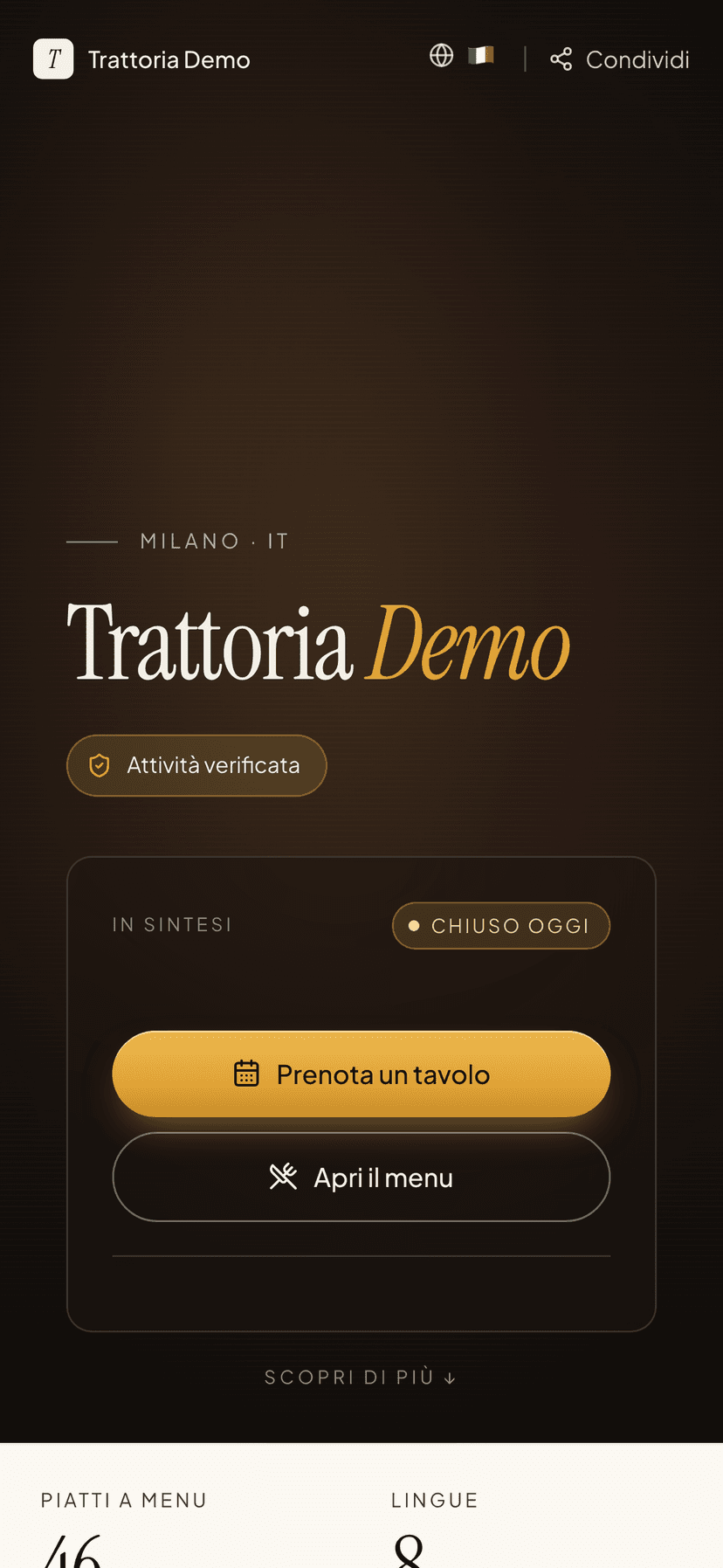
On your public menu (the address carteia.app/r/<venue-name>) the guest finds a panel that guides them step by step, with a progress bar. The card always stays the same height, so it doesn't "jump" while they fill it in.
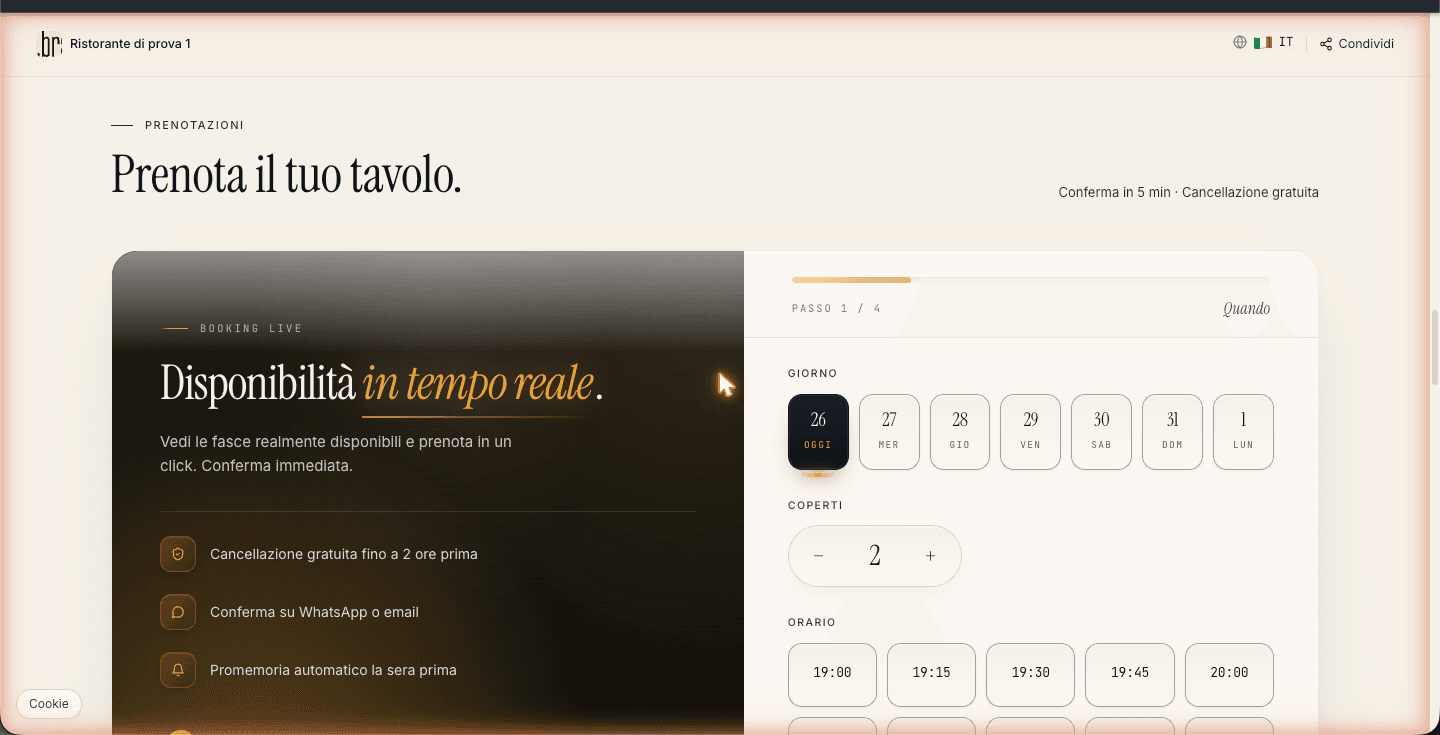
When. The guest chooses the day (up to seven days ahead), the number of covers, the service (Lunch or Dinner) and the time. With simple requests the times are fixed; with Advanced Booking they'd see only the times that are really available.
Room. If you have declared several spaces (table, terrace, private room), the guest picks the one they prefer from a grid of cards with icon and capacity. If you have no distinct spaces, this step is skipped.
Contacts. First and last name, phone with a prefix selector across 30 countries (Italian prefix automatically for the Italian menu), required email, optional occasion (birthday, anniversary, business dinner), optional allergies and notes. The email is needed for the verification link in the next step.
Confirm. A booking summary, mandatory acceptance of the privacy policy and up to three optional consents: Carteia platform newsletter, your venue's marketing (shown only if you have marketing automation, from Insegna), and "Create my Carteia account" to manage future bookings.
After submitting, the guest sees "Verify your email" and immediately receives an email with a link valid 24 hours, in the language they were using. The booking arrives in the dashboard at the same moment as Pending: you can handle it even before the guest verifies.
Email verification
When the guest clicks the link in the email:
- the booking is marked as verified;
- if they had ticked "Create my account", Carteia creates their account, fills in their profile and links all bookings made with that email; then they receive a second link to sign in;
- the guest sees a page with the outcome (email confirmed, or a message if the link has already been used, has expired or matches no booking).
Consents, recorded properly
For each booking Carteia stores the consents with date, time and other technical references. They are the legal basis for any future communication:
| Consent | When it's asked | Which plans show it |
|---|---|---|
| Privacy | Always required | All |
| Carteia platform marketing | Optional | All |
| Your venue's marketing | Optional | Only from Insegna |
| Carteia account creation | Optional | All |
If the guest doesn't tick your venue's marketing, their email won't appear among the contacts you can reach from the Marketing section. Consents can be reviewed from the Customer CRM.
The initial setup
Two settings and you're ready. You'll find them in Dashboard → Reservations → Reservation settings.
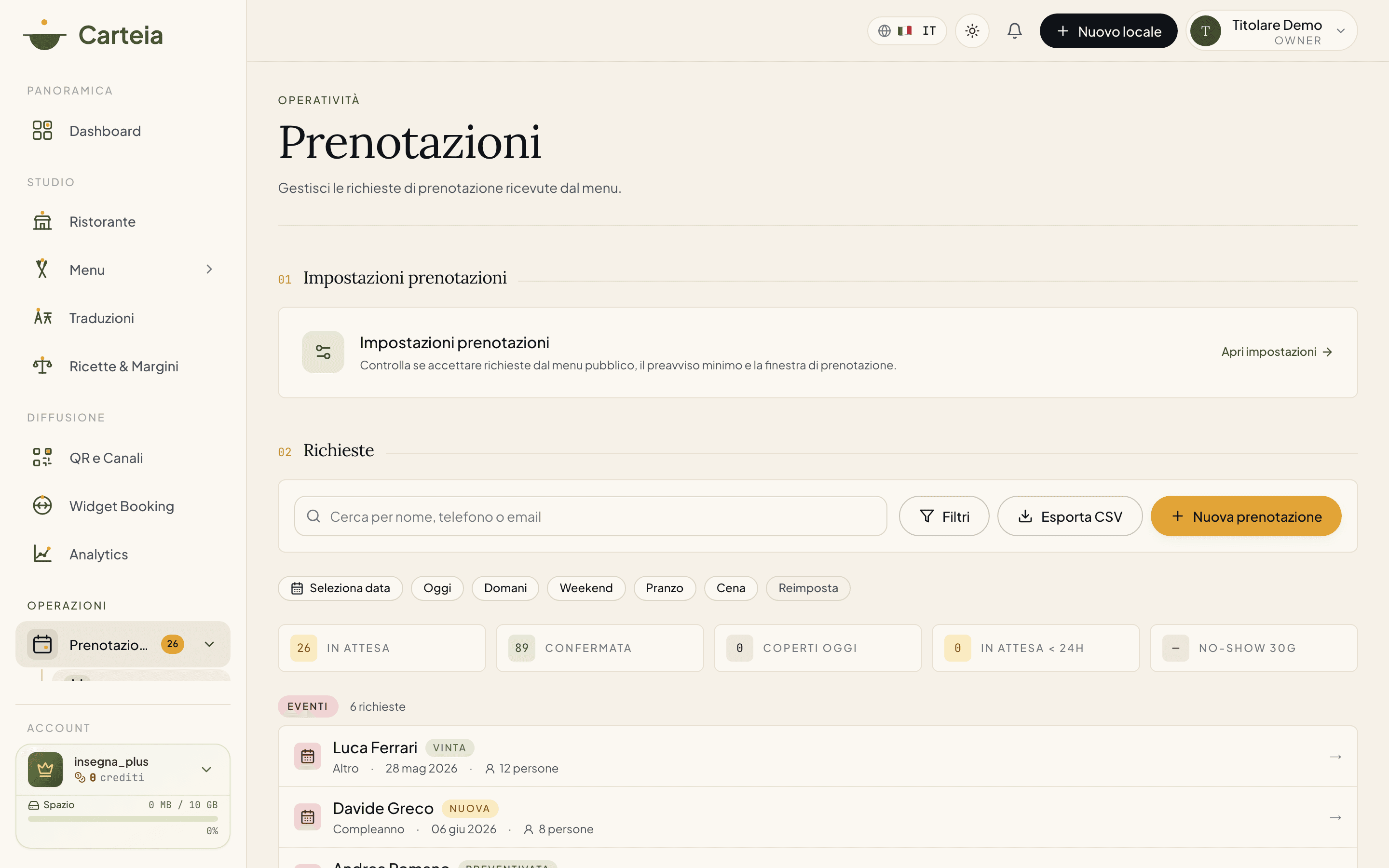
Open
Dashboard → Reservationsand clickReservation settings.Turn on the toggle to enable requests from the public menu. The "Book a table" button appears on the menu right away.
Set the minimum notice (in hours): how much time must pass at least between the request and the booked time. Typical: 1 hour for a pizzeria, 6 hours for a fine-dining restaurant.
Set the maximum days ahead: how far the guest can book (from 1 to 365 days). Typical: 30 days.
If you have several rooms, you can turn on the option that requires the guest to choose the room.
Save.
How a request goes, state by state
Each request goes through these states. When you change the state to confirmed, rejected or cancelled, the right email goes out to the guest automatically.
| State | What it means | What you usually do |
|---|---|---|
| Pending | Just arrived, still to handle | You check and decide whether to confirm |
| Confirmed | Table reserved; the guest gets the calendar invite | Nothing, until service |
| Rejected | No room; the guest gets a polite email | If you like, suggest another time |
| Cancelled | Cancelled by the guest or by you | The seat is free again |
| Completed | Guest came | Improves the guest's score in the CRM |
| No-show | Guest didn't turn up | Lowers the guest's score in the CRM |
| Archived | Removed from the active list without closing it | Useful for old requests |
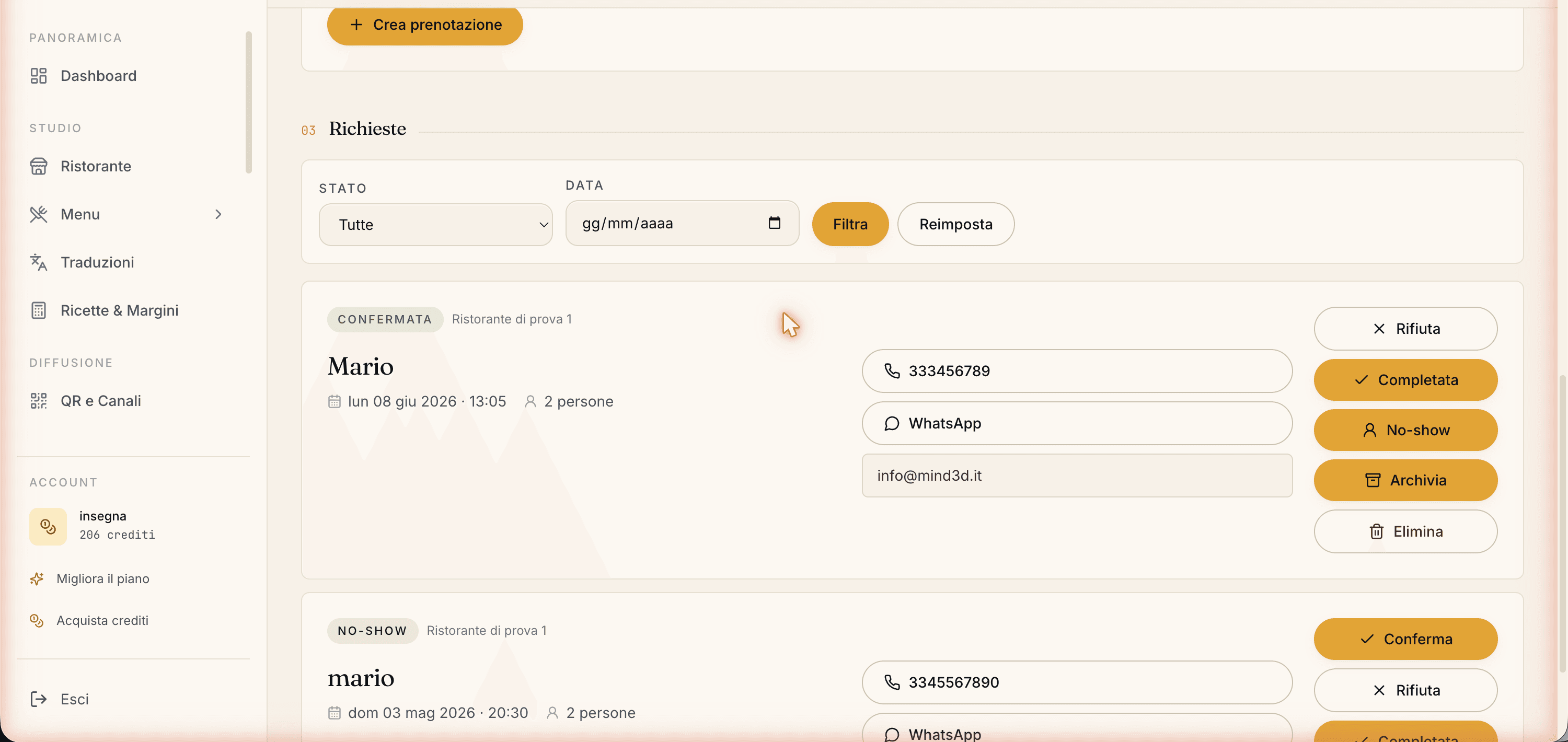
For all the details on the list, filters, bulk actions, shortcuts and booking detail see the Reservations overview.
The automatic emails to the guest
Without configuring anything, Carteia writes to the guest in the language they chose on the menu:
- Email verification with a link valid 24 hours, right after the request.
- Confirmation with the add-to-calendar invite (Google, Apple, Outlook), when you accept.
- Reminder the day before the visit.
- Thank-you after the visit, inviting them to leave a Google review.
- Account access with a link, if the guest asked to create one.
What it doesn't cover (and when to move up)
To be clear about the limits:
- No automatic double-booking blocking. Several requests for the same time all arrive "Pending": you decide.
- No separate rooms in the handling: requests all land in the same list.
- No free times shown to the guest. They see a generic form, they don't know what's really free.
- No dedicated analytics (no-show, occupancy per shift, lead time).
No-shows and CRM
Marking a booking as No-show feeds two things:
- The guest's score in the CRM: those who often skip bookings become filterable, so you don't waste time on the unreliable ones.
- Your venue's no-show rate, which you see in
Insights → Reservation intelligencefrom Ristorante up.
Related features
- Reservations — overview — the two levels compared and the list in detail.
- Advanced Booking — the upper level, with free times and analytics.
- Rooms & tables — room configuration (needed for Advanced Booking).
- Customer CRM — the guest's score.
Frequently Asked Questions
- Do I need to set up rooms to use simple requests?
- No, you can skip it: rooms and capacity are for the automatic control of Advanced Booking. For simple requests you just enable the module, choose how much notice to require and how far ahead. That said, declaring several rooms lets the guest choose where to sit even with simple requests.
- How many requests can I receive per month?
- It depends on the plan: Assaggio up to 30 a month, Osteria up to 60, from Bistro up unlimited. The count resets at each monthly renewal.
- Why does the guest have to verify their email to book?
- The verification link (valid 24 hours) protects you from fake requests and spam, and lets the guest optionally open a Carteia account. The booking still arrives in the dashboard as 'Pending' even before verification: you see it and can handle it right away.
- What happens if the guest chooses to create a Carteia account?
- When they tick 'Create my account' and click the verification link, Carteia creates their account and links all their past and future bookings made with that email. The guest receives a second link to sign in and manage their bookings from their profile.
- What happens if I get several requests for the same time?
- Carteia doesn't block them: they all arrive as 'Pending'. You decide which to confirm and which to reject. Automatic double-booking blocking requires Advanced Booking.
- What consents does the public form collect?
- Privacy (always required), Carteia platform marketing (optional) and your venue's marketing (optional, shown only if your plan has marketing automation, i.e. from Insegna). Each consent is recorded with date and time, useful in case of a dispute.
- What emails does the guest receive?
- Email verification right after the request, the confirmation with the add-to-calendar invite when you accept, the reminder the day before the visit and a thank-you after the visit inviting them to leave a review.
Version history
v2.0.02026-05-29— Important fix: simple table requests are included on EVERY plan (Assaggio 30/month, Osteria 60/month, Bistro+ unlimited), no longer only from Bistro. Removed the '2 hours before' reminder that does not exist in the product. Aligned the settings description (minimum notice in hours, maximum days, require-room option).v1.1.02026-05-25— Documented the 4-step public flow, email verification with 24-hour link, optional customer account creation, prefix selector for 30 countries, separate marketing consents.v1.0.02026-05-22— First publication: dedicated page, split off from the reservations guide.