



Inventory: stock, lots and expiry dates
Module available from the Ristorante plan, for team members from the Manager role up. It extends Food Cost: the items are the same ingredients used in your recipes. Six views — Stock, Lots & Expiry, Intake, Documents, Settings, Analytics — plus the export of movements, stock levels, expiry dates, documents and waste to CSV, Excel or PDF. Everything is included in the plan: no credits are used. An automatic alert flags stock below threshold and products that are expiring or expired.
Why you need it
Stock is money sitting on a shelf. When you do not keep an eye on it, two things happen: you notice something is missing only once service has started, or you find expired products that end up in the bin. Both cost you.
Inventory gives you the real-time picture: how much you have of each item, which lots expire first, how much you are wasting and who to restock from. It is not a separate system to learn: it builds on the ingredients you already have in Food Cost, so you start from what you have already built.
You find it under Inventory, in the left menu, and it is organized into six tabbed views.
Availability and access
The module is available from the Ristorante plan and is an extension of Food Cost. It is enabled at no extra cost: no Inventory operation uses credits, exports included.
On the team side, Inventory requires the Venue Manager or Direttore role: Staff and Editor do not see it. The account owner always has access. It is the same manage_inventory permission described in the Team members and roles guide.
How it works, in two minutes
The model is lot-based, the same one you use in real life:
- When the goods arrive you do an intake: one or more lots are created, each with its own quantity, supplier and expiry date.
- The stock level of an item is the sum of what remains across its lots. You do not type it: it is calculated on its own.
- When you consume, throw away or record an expired item, you do a movement: the lot's remaining quantity decreases and the stock level updates instantly.
This is where the alerts come from: stock below the threshold you set, lots about to expire, products already expired still in stock.
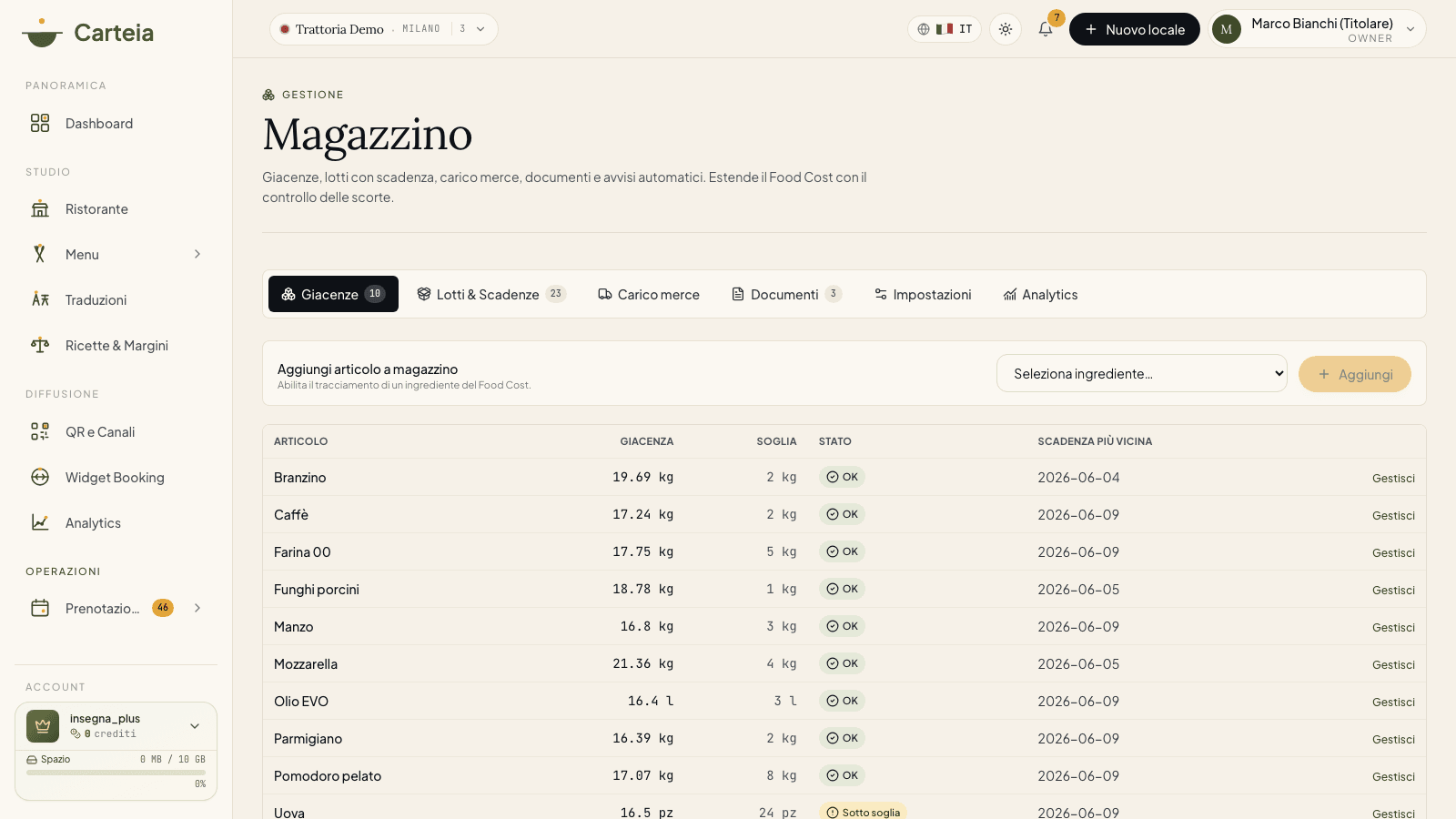
1. Stock — how much you have, right now
The first view is the list of items you have added to inventory. For each one you see the current stock, the reorder threshold, the status and the nearest expiry date.
The status is an instant traffic light:
- OK (green) — above the threshold.
- Below threshold (yellow) — the stock has dropped below the reorder point you set.
- Out of stock (red) — stock at zero or below.
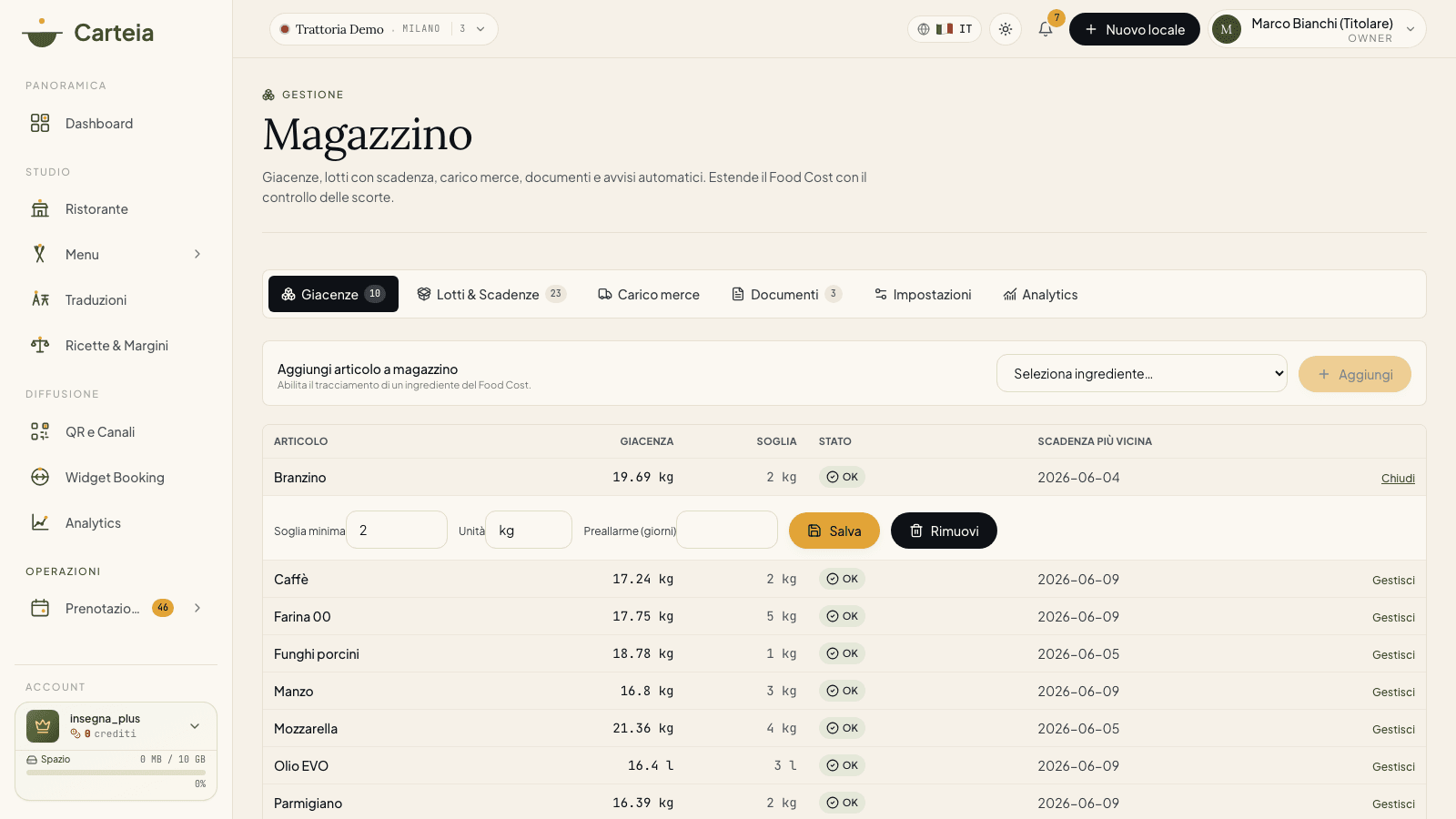
To add an item to inventory, you pick it from the list of your Food Cost ingredients and click Add. Then, with Manage, you set:
- Reorder threshold — below this value the low-stock alert is triggered.
- Stock unit — the unit you count stock in (if different from the purchase unit).
- Custom expiry pre-alert — the number of days' notice for the alert on that single item, if you want a value different from the general one.
The same panel lets you remove an item from inventory: it stops being tracked but stays in Food Cost.
2. Intake — when the goods arrive
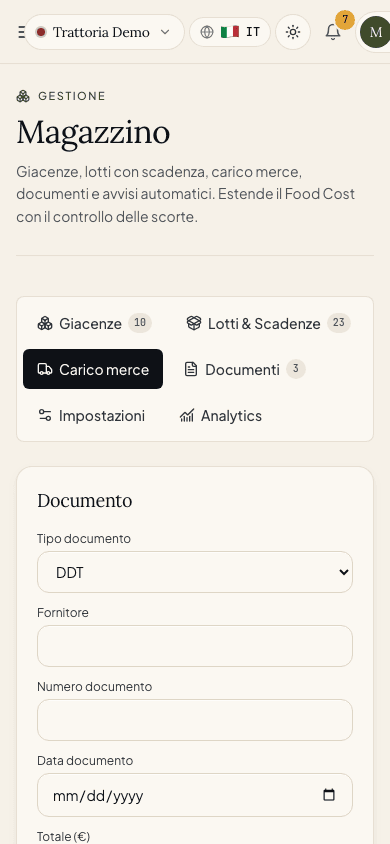
The Intake view is where you record a delivery. In a single operation:
Choose the document type (delivery note, invoice or other) and, if you like, attach the file of the delivery note with the supplier details and the total.
Add a row for each lot received: item, quantity, unit, unit cost, expiry date and lot code.
You confirm: Carteia creates the lots, records the document and logs the intake movements.
From that moment the lots appear in the Expiry view and the items' stock rises. The attached document stays archived in the Documents view.
3. Lots & Expiry — your goods ordered by urgency
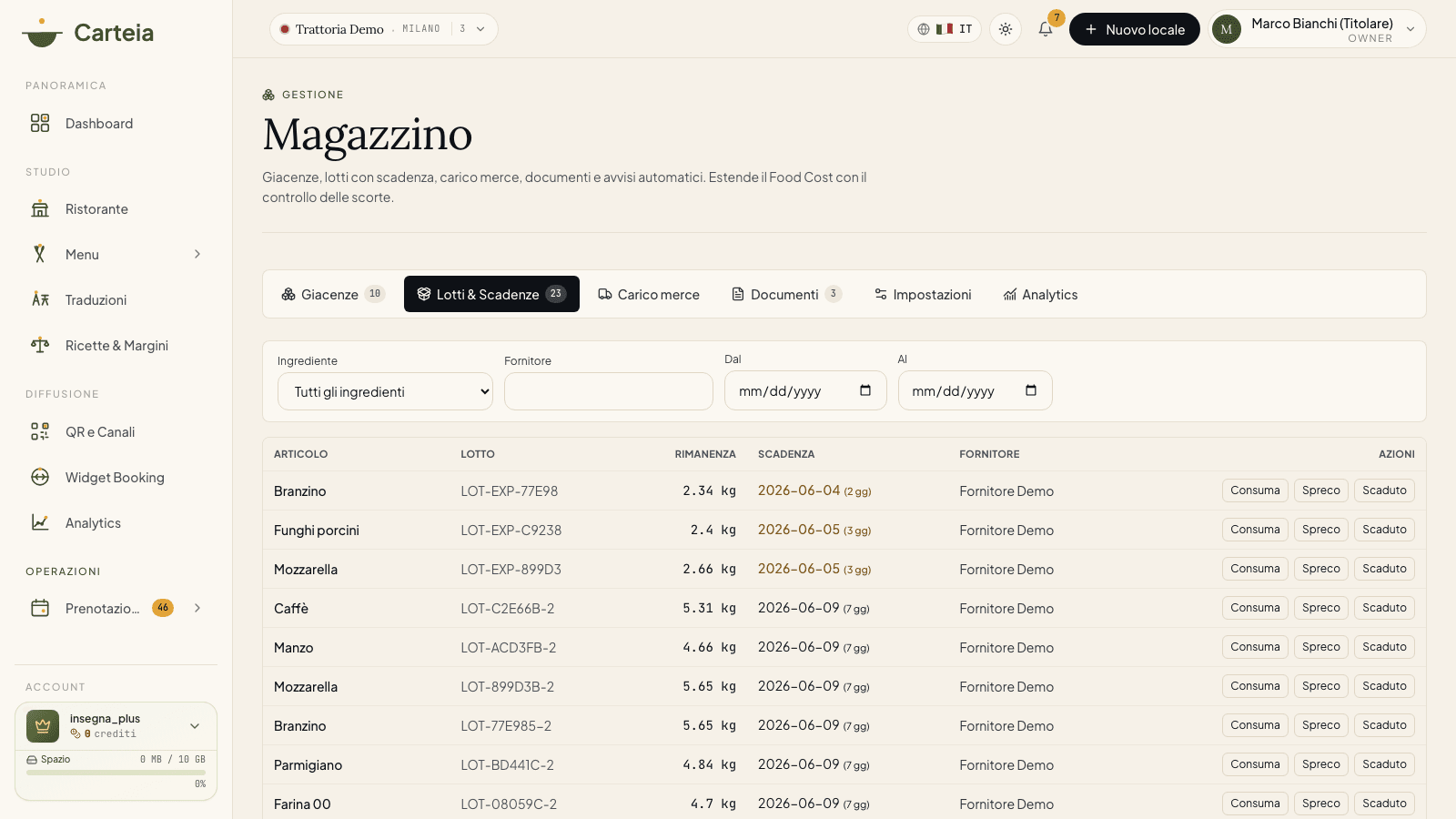
Here you see all the active lots (those with remaining quantity), sortable and filterable by item, supplier and expiry range. The expiry column highlights in yellow the lots expiring soon and in red those already expired, with the days remaining.
On each lot you record a movement with one click:
- Consume — quantity used in the kitchen or at the counter (an out movement).
- Waste — quantity thrown away (breakage, error, shrinkage).
- Expired — quantity disposed of because it is past the date.
In every case you enter the quantity and, if you like, a reason. The lot's remaining quantity decreases right away; when it reaches zero, the lot leaves the list.
4. Documents — delivery notes and invoices in one place
Every document attached to an intake ends up in the Documents view: type, number, date, supplier and total. It is your archive of delivery notes and purchase invoices, useful for inspections and traceability. The files are private: only those with access to the venue's Inventory can see them.
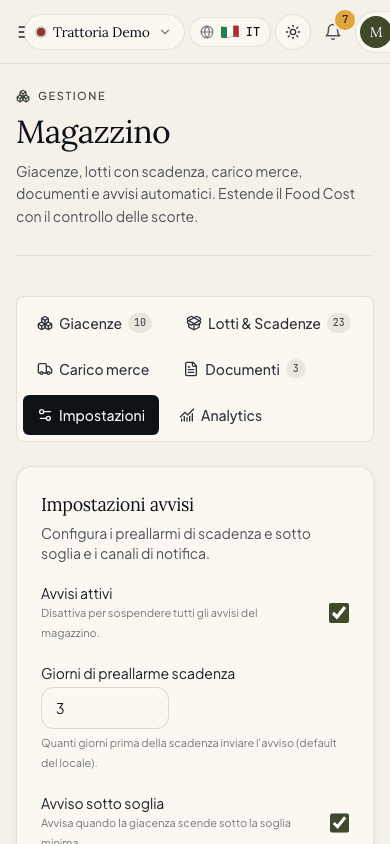
5. Settings — how and when we alert you
In the Settings view you decide how the alerts behave:
- Turn the alerts module on/off.
- Expiry pre-alert days — how many days in advance to flag a lot about to expire (3 by default).
- Low-stock alert — turn on the flag when an item drops below the threshold.
- Channels — in the dashboard, by email, or both.
- Additional recipients — up to ten emails beyond the owner's (e.g. the purchasing manager).
6. Analytics — where you lose and where you spend
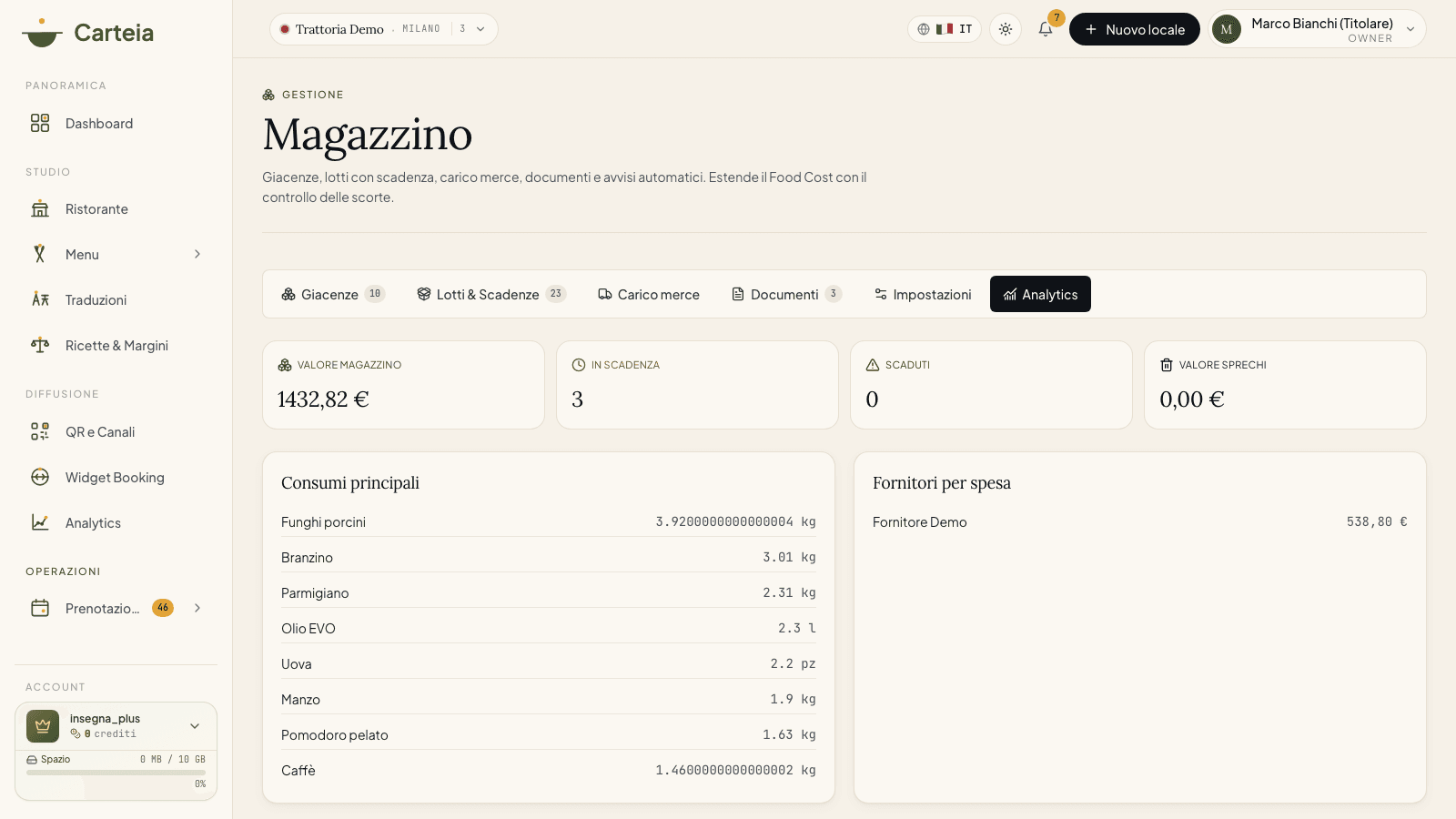
The last view sums up the health of your inventory with four numbers and two rankings:
- Stock value — how much, in euros, the goods you have are worth (the sum of remaining quantities × lot cost).
- Expiring — how many lots fall within the pre-alert window.
- Expired — lots past the date, still with remaining quantity.
- Waste value — how much waste and expired items have cost you.
Below, the most-consumed items (last 90 days) and the suppliers by spend, to understand where to concentrate orders and negotiations.
Automatic alerts
An automatic check runs every day and generates three types of alert:
- Expiring soon — a lot enters the pre-alert window.
- Expired product — a lot is past the date but still has remaining quantity: it prompts you to record its disposal.
- Below threshold — a tracked item has dropped below the reorder point.
You receive each alert only once (no spam: events already notified are not repeated) on the channels you chose. The email goes to the owner and any additional recipients.
Export — your data when you need it
From the bottom bar you export any view to CSV, Excel or PDF, with a date filter:
| Dataset | What it contains |
|---|---|
| Movements | All intakes, consumption, waste and expired items |
| Stock | Tracked items, stock level and threshold |
| Lots & expiry | Lots with remaining quantity, expiry and supplier |
| Documents | Delivery notes and invoices with number, date and total |
| Waste | Waste and expired items only, for the loss calculation |
Good to know
- The stock level updates only from movements: there is no "quantity" field to correct by hand. For an adjustment, make a movement.
- Inventory values your stock and waste only if you enter the cost of the lots. Without a cost, you see the quantities but not the euros.
- Items and lots stay tied to the single venue: in a multi-location account, each venue has its own separate inventory.
Next steps
- Food Cost: recipes and margins — the ingredient records Inventory starts from
- Team members and roles — who can access Inventory and with which role
- Plans and credits — what the Ristorante plan includes
Frequently Asked Questions
- Do I have to re-enter the ingredients I already have in Food Cost?
- No. Inventory uses the same ingredients as Food Cost: you choose which ones to track and set the reorder threshold. No duplicate records.
- How does the stock level update?
- On its own, from the movements. When you receive goods a lot is created with its remaining quantity; when you record consumption, waste or an expired item, the remaining quantity decreases and the stock level is recalculated. There's no field to update by hand.
- Does Inventory use credits?
- No. All operations — intake, movements, alerts and even the CSV, Excel and PDF exports — are included in the plan.
- Who on my team can use it?
- It requires the Venue Manager or Direttore role. Staff and Editor do not see Inventory. The owner always has access.
- When do the expiry and low-stock alerts arrive?
- An automatic check runs every day and alerts you in the dashboard and by email according to your settings. The expiry pre-alert window is adjustable (3 days by default) and can be customized per single item.
Version history
v1.0.02026-06-02— First publication of the Inventory module: Stock, Lots & Expiry, Intake, Documents, Settings, Analytics, exports and automatic alerts.