



Business verification
Verification protects your guests: it guarantees that every venue online really exists and is run by who claims it. Carteia checks your details automatically and assigns a score that puts you in a green, yellow or red lane. To speed things up you can prove you run the venue with a code by email or phone, or by uploading a document. All from Settings.
What it's for
Verification is the trust pact between Carteia and anyone looking for a place to eat. It guarantees that every venue shown online really exists and is run by who says they run it. That's why it applies to every plan, Assaggio included: it protects your guests and it protects your reputation.
The good part is that in most cases you don't have to do anything: Carteia checks your details on its own, as soon as you create or update the venue.
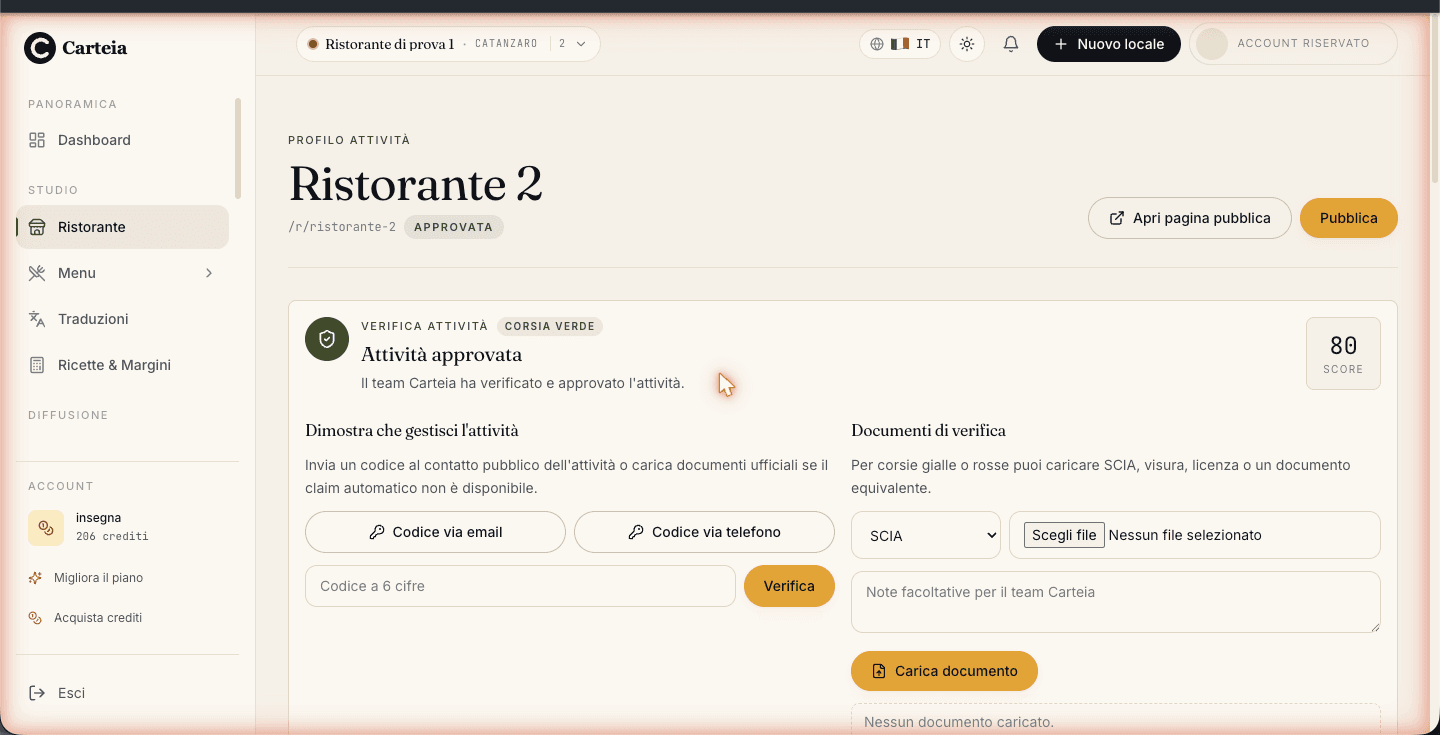
The score and the three lanes
Carteia gathers the public signals about your venue (VAT number, Google profile, address, phone, email...) and adds them into a score from 0 to 100. Based on the score you land in one of three lanes:
- 🟢 Green lane (score 80 or above)
- Everything adds up. The business is verified automatically: you publish right away and the page can appear on Google.
- 🟡 Yellow lane (score between 45 and 79)
- The signals are enough for a provisional publication: the page is online but stays hidden from Google until an operator completes the check. This is where it pays to prove you run the venue, to move up to green.
- 🔴 Red lane (score below 45, or a blocking check)
- Details are missing or something doesn't add up. A review is needed: complete the venue details or upload a document, and the team steps in.
How to speed it up: prove the venue is yours
If you're in the yellow or red lane, you don't have to just wait: you can prove right away that you run the business and unlock approval. Open Dashboard → Settings, the Verification & Documents box. You have three options.
1. Code by email
Make sure you've entered the business's public email in the Venue tab.
Press
Code by email. Carteia sends a 6-digit code to that address.Enter the code in the
6-digit codefield and pressVerify.
2. Code by phone
Same logic, but the code arrives at the business's public phone. Press Code by phone, receive the code and enter it.
3. Upload a document
If the code isn't enough or isn't available, you upload an official document. Carteia accepts:
| Document | When to use it |
|---|---|
| SCIA | The venue's start-of-business notice |
| Company record | Chamber-of-commerce record, useful to clarify the corporate structure |
| Licence | Trading licence or authorisation |
| ID document | The owner's or legal representative's ID |
| Other | Any equivalent proof |
Upload a PDF, JPG, PNG or WebP file up to 10 MB, add a note if you like and press Upload document. From then on the Carteia team reviews it and updates the status.
What Carteia checks
The score comes from a set of checks, each of which can raise or lower the total. The main ones are:
- VAT — existence and validity of the VAT number.
- Company name — consistency with the declared name.
- Google profile — match with the venue's Google Maps page.
- Business code — that the activity really is hospitality.
- Address — that the address exists and can be located.
- Phone and Email — presence and reliability of public contacts.
- Duplicates and Content — no duplicates or suspicious copy.
- Claim — the proof you gave of running the business.
Multiple venues under the same VAT
If you run a chain with a single VAT number, verification works at your account level: the venues you add inherit the same path without starting from scratch. For venues with different VAT numbers under the same owner, use the code or a document for each one, or open a support ticket once.
Verification done: what now?
Once verification is passed (green lane, or yellow for the provisional publication), to actually go live you have two legal steps left: the DPA accepted and the Terms of Service signed and approved. You'll find them in the same Dashboard → Settings. From there the publish button unlocks.
Next steps
Frequently Asked Questions
- Where do I find verification?
- In Dashboard → Settings, in the 'Verification & Documents' box. There you see the score, the lane and the buttons to prove you run the venue.
- Can I publish the menu before verification is complete?
- It depends on the lane. In the green lane you publish right away. In the yellow lane you can publish provisionally, but the page won't show on Google until an operator completes the check. In the red lane you first need to fix the details or upload a document.
- How do I prove the venue is mine?
- You have three options: receive a code at the business's public email, or at its public phone, and enter it; or upload an official document (SCIA, company record, licence or ID). The code arrives instantly; documents are reviewed by the team.
- How long is the verification code valid?
- The code is valid for 30 minutes and you get up to 5 attempts to enter it. If it expires or you mistype too many times, you simply request a new one.
- My VAT belongs to a holding and doesn't match the venue name. What do I do?
- Use the code by email or phone to prove you run the venue, or upload a company record explaining the corporate structure. Alternatively, open a support ticket.
Version history
v2.0.02026-05-29— Full rewrite on the real system: score + green/yellow/red lanes (thresholds 80 and 45), the three proof methods (email code, phone code, documents), the real statuses, and the move of verification into Settings. Removed the invented checks table and the traffic-light states from v1.v1.0.02026-05-20— First publication.