


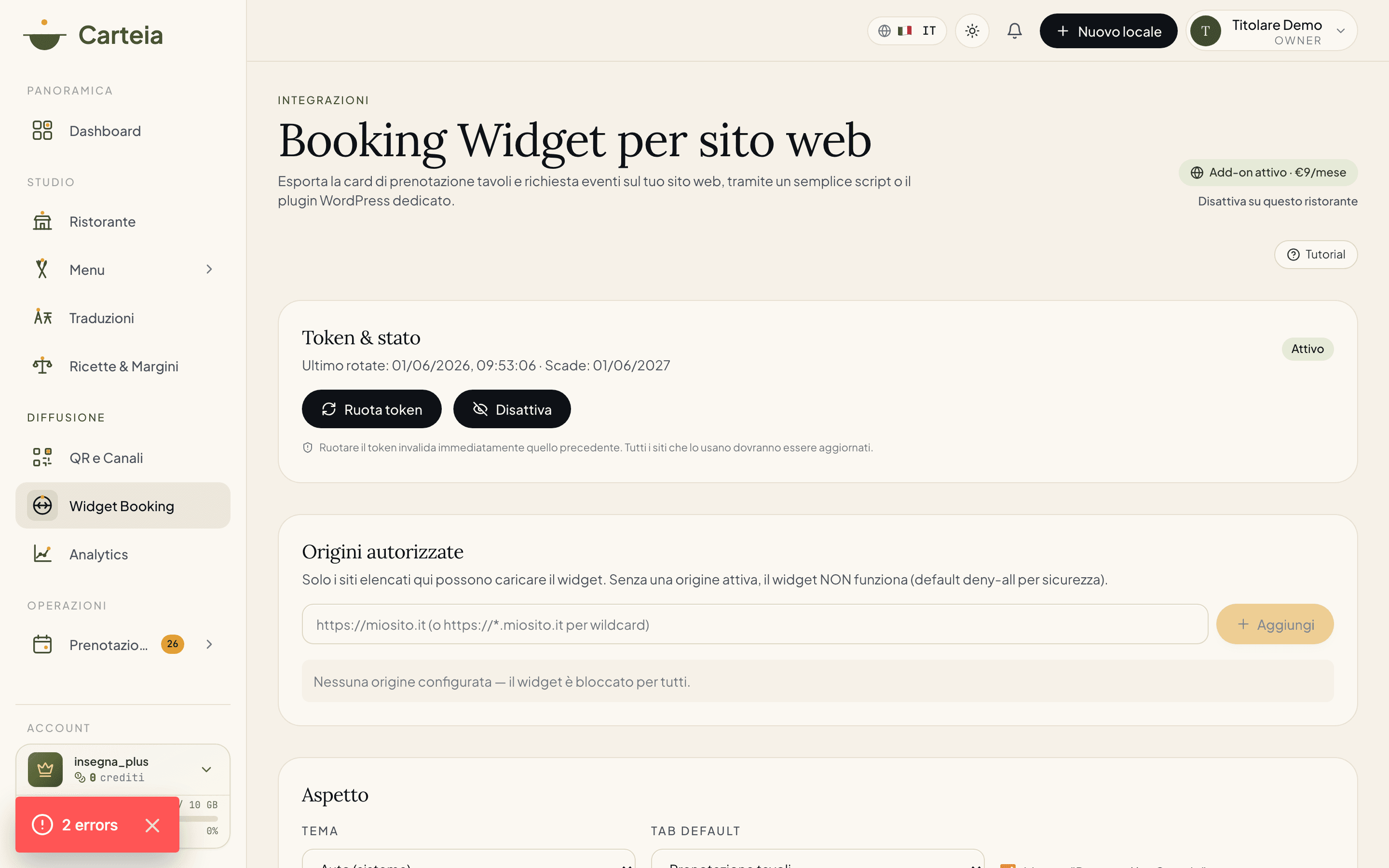

Booking widget for your website: take reservations from your own site
Already have a website? With the Booking widget you put the table-reservation card (and event request) inside your own site, in your colors. The guest books without being sent elsewhere, and the reservation arrives in your dashboard with all the others. It activates as an add-on at €9/month from the Ristorante plan. The integration depends on your platform: on WordPress you install the plugin and use a shortcode; on site builders (Wix, Squarespace, Shopify) you paste a block of code; on a custom site you hand it to your developer. Choose theme, default tab and allowed domains for security.
If you already have a website, this guide shows you how to take reservations straight from there, without sending the guest elsewhere. It's written for the restaurateur: no technical terms, just the steps and the benefits.
What it is, in two words
It's the same reservation card the guest sees on the public menu, but set inside your own site. The guest chooses day, time and covers without leaving your domain; the reservation arrives in your diary together with all the others.
Why it pays off if you already have a website
- More trust, more bookings. The guest stays on your site, with your name and your colors: they're not "shipped" to another page, and that increases completed bookings.
- One single diary. Requests from the site land in the same list as your other reservations. No double-checking, no overlaps.
- Fewer phone calls. Site visitors book on their own, even outside opening hours. You find everything already written.
- Always up to date. It shows only the slots truly available based on rooms and capacity: no bookings you can't honor.
- Events too. Beyond tables, you can collect requests for parties and ceremonies from the same card.
The two tabs: tables and events
The widget has two tabs: Table reservation and Event request. You decide which to show first and whether to publish both or just one.
How to activate it
Go to Billing and activate the Booking widget add-on (€9/month). Activation is immediate.
Open the Website booking page from the dashboard. Here you find your code, the settings and the live preview.
Add the allowed domains: the addresses of your site where the widget may appear (for example
yourrestaurant.com).Choose the theme (light, dark or automatic), the default tab (tables or events) and whether to show the Carteia signature.
Copy the code and put it on your site, following the method that suits your platform (below).
Choose the right method for your platform
How you insert the widget depends on how your site is built. Here are the three cases.
You have a WordPress site
It's the simplest case. Install the Carteia Booking plugin (download it from the widget page or search for it among WordPress plugins), then write a shortcode on the page or post where you want the card:
[carteia-booking token="YOUR_TOKEN" type="booking"]
Change type to events if you want the events tab. The plugin also has a settings page where you paste the token once.
You use a site builder (Wix, Squarespace, Shopify, GoDaddy…)
These services don't use WordPress, but almost all of them let you add a code block (usually called Embed, Custom code or HTML). You drag that block to where you want the card and paste the widget code. It works this way on Wix, Squarespace, Shopify, GoDaddy, Weebly and similar.
You have a custom site (maintained by a developer)
If the site was custom-built, hand this short snippet to whoever manages it: it's pasted once into the desired page.
<div data-carteia-booking
     data-token="YOUR_TOKEN"
     data-type="booking"
     data-host="https://carteia.app"
     data-height="700"></div>
<script async src="https://carteia.app/embed/carteia-booking.js"></script>
Nothing else is needed: the widget loads on its own and adapts to the space.
Customization
From the widget page you adjust the look without touching the code:
- Theme: light, dark or automatic (follows the guest's site).
- Default tab: start from tables or events.
- Carteia signature: you can show or hide it.
Every change is shown at once in the live preview, exactly as your guests will see it.
Security: only on your site
The widget is protected on two levels:
- Allowed domains: the widget opens only on the addresses you've entered. On other sites it doesn't work.
- Regenerable token: each site has its own key. If you change site or fear misuse, you regenerate it with one click and the old one immediately becomes invalid.
There's also a built-in anti-spam protection, so you don't get fake requests.
Keep an eye on usage
On the widget page you see how many times it was loaded and how many reservations and event requests came from the site. A simple way to understand how much the "website" channel brings you.
Frequently Asked Questions
- From which plan is it available and how much does it cost?
- It's an add-on at €9/month, available from the Ristorante plan and up. You activate it with one click from Billing. It requires the Ristorante plan because it relies on Advanced Booking (real-time availability).
- Do I need to know how to code to use it?
- No. On WordPress you install a plugin and paste a shortcode. On site builders you paste a small block of code into an 'Embed' or 'HTML' section. Only a fully custom site requires handing the code to whoever maintains it.
- Does it work with Wix, Squarespace or Shopify?
- Yes. All of these let you insert a code block (HTML embed). You paste the widget snippet there and it works, in your theme.
- Are the reservations from the website separate from the others?
- No, that's the beauty of it: they arrive in the same reservations list in the dashboard, together with those from the public menu and the ones added by hand. One single diary.
- Is it safe? Can someone copy my widget onto another site?
- The widget only works on the domains you authorize. Each site has a token you can regenerate whenever you want, and there's built-in anti-spam protection. If you change site or suspect misuse, you rotate the token and the old one stops working.
- Can I show only table reservations, without events?
- Yes. You choose which tab to show first (tables or events) and you can publish only the type you want.
Version history
v1.0.02026-05-30— First release: how to activate and integrate the Booking widget on your own website, differentiated by WordPress, site builders and custom sites, with customization, allowed domains and statistics.